How to Block Time Slots in Your Schedule
Last updated: March 24, 2026
Instructions
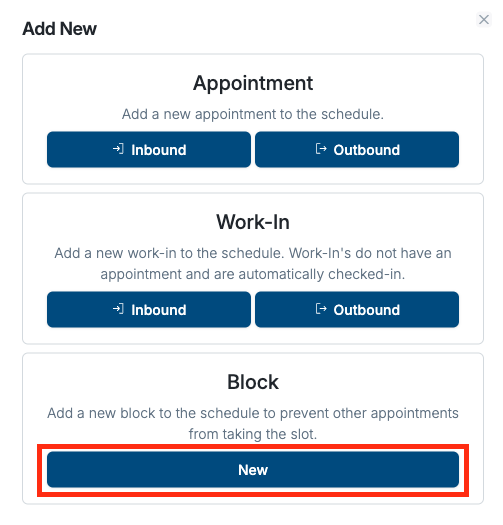
Click the "New" button on the schedule view at the top right of the page
Click the "Block" button on the pop-up
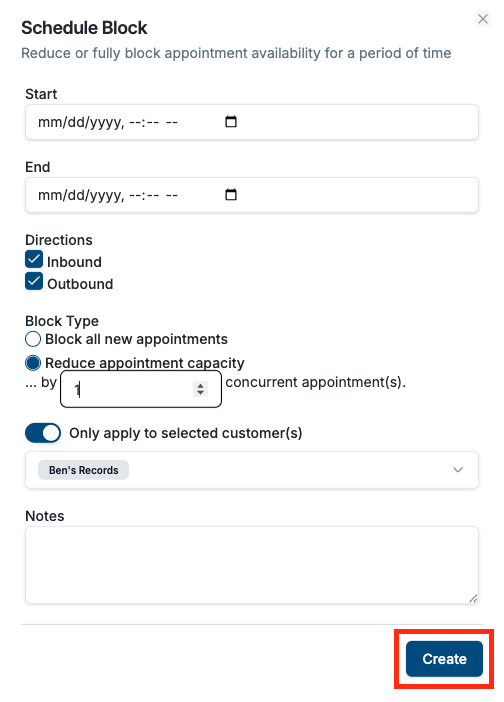
Set up your blocked/reduced capacity time slots by configuring the start and end date/time, selecting directions (inbound or outbound), and choosing your block type. You can also reduce capacity or block appointments for specific customers by toggling the customer switch and putting in your customer(s). Hit Create to save the block.
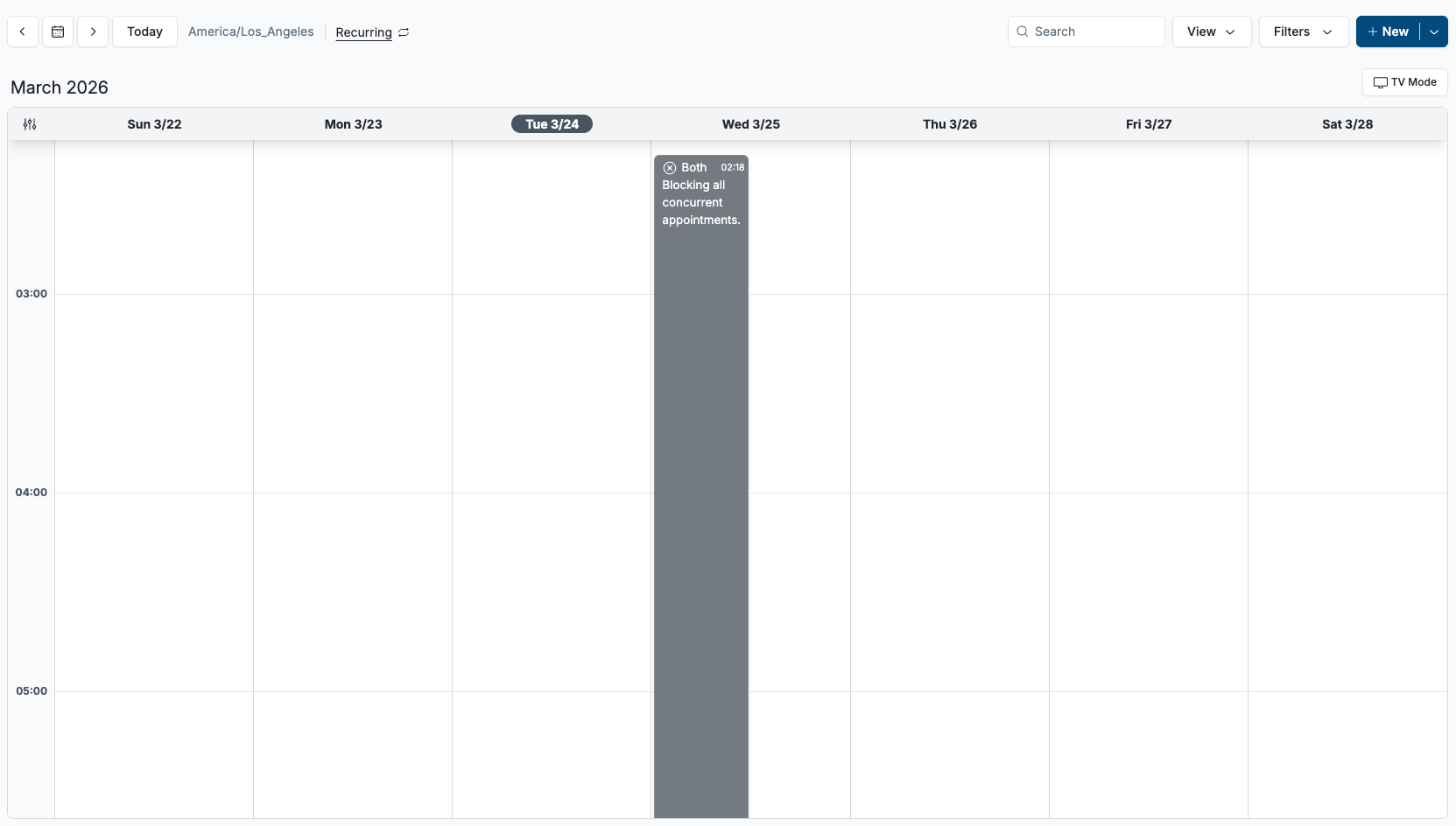
Once created, the blocked time slot will appear on the schedule view for the configured day
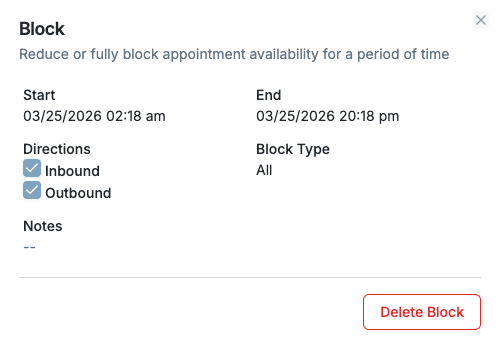
To remove the block, click on the block and hit Delete Block at the bottom right of the popup
Frequently Asked Questions
Can I block time slots for just one day?
Yes. You can block specific time slots for a single day by setting the same start and end date when creating your block. This is perfect for one-time events or temporary scheduling needs.
What types of blocks can I create?
You can choose to block all new appointments for a time slot or reduce appointment capacity. You can also specify whether the block applies to inbound, outbound, or all directions.
Who can create blocks in the schedule?
Anyone with "Editor" access to a facility can create blocks. For documentation on how to add a new user, read Adding & Removing New Users.
Will blocks delete already booked appointments?
No. Putting a block over an already scheduled appointment will have no effect on that appointment. It will only prevent new appointments from being scheduled. However, internal users can override a block and schedule appointments over it.