Adding Tags to Shipments and Creating them
Last updated: June 3, 2025
Tags are a useful way to communicate to your team that a specific shipment or appointment needs their attention. Common tags are:
urgent
damaged
needs review
special equipment requirements
However, they are very flexible and customers use them in many creative ways.
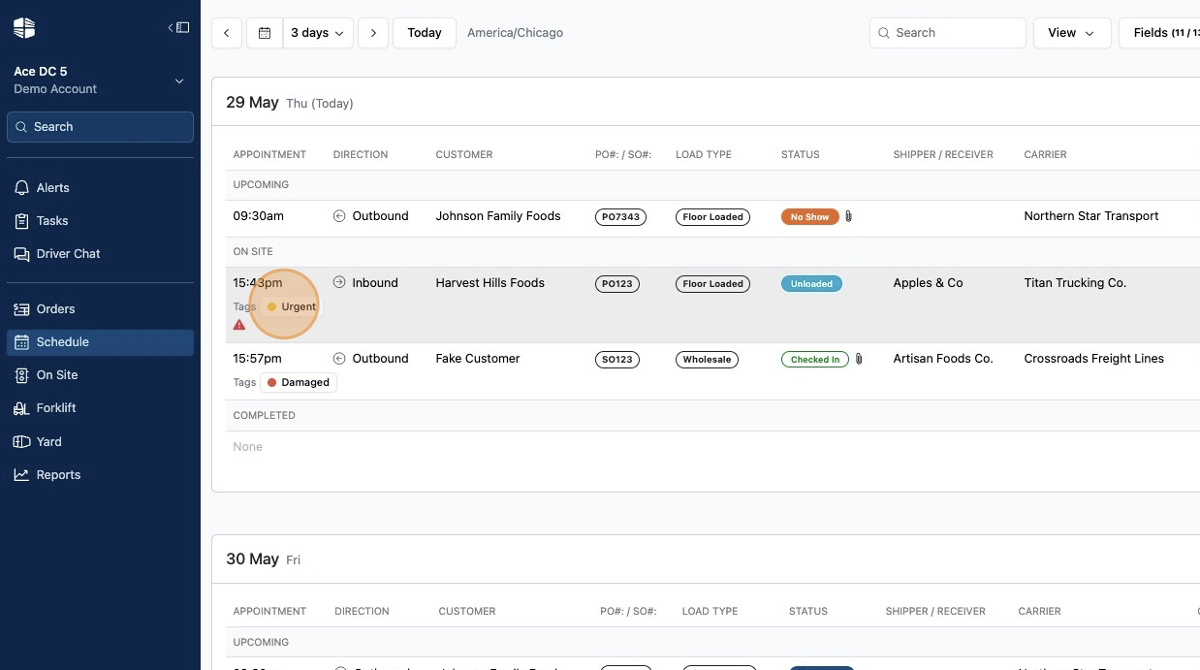
To add a tag, click the
Tagsdrop down on theAppointment Detailspage.
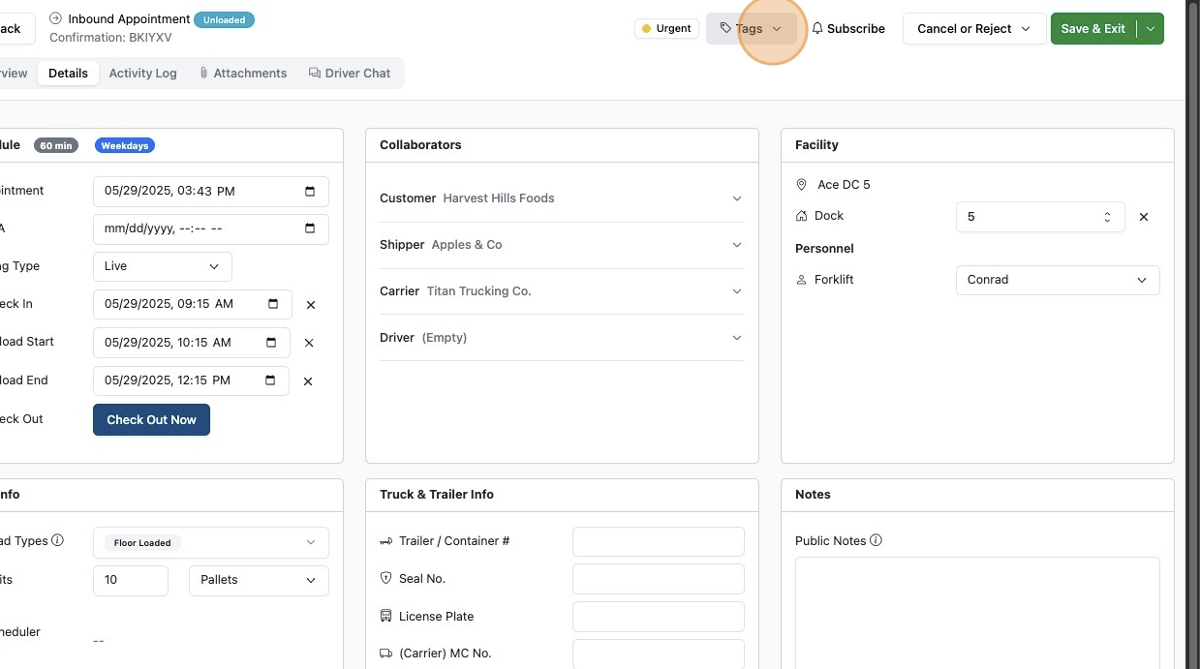
Select the tag(s) you want, then click Save.
You can select more than one tag for each shipment.
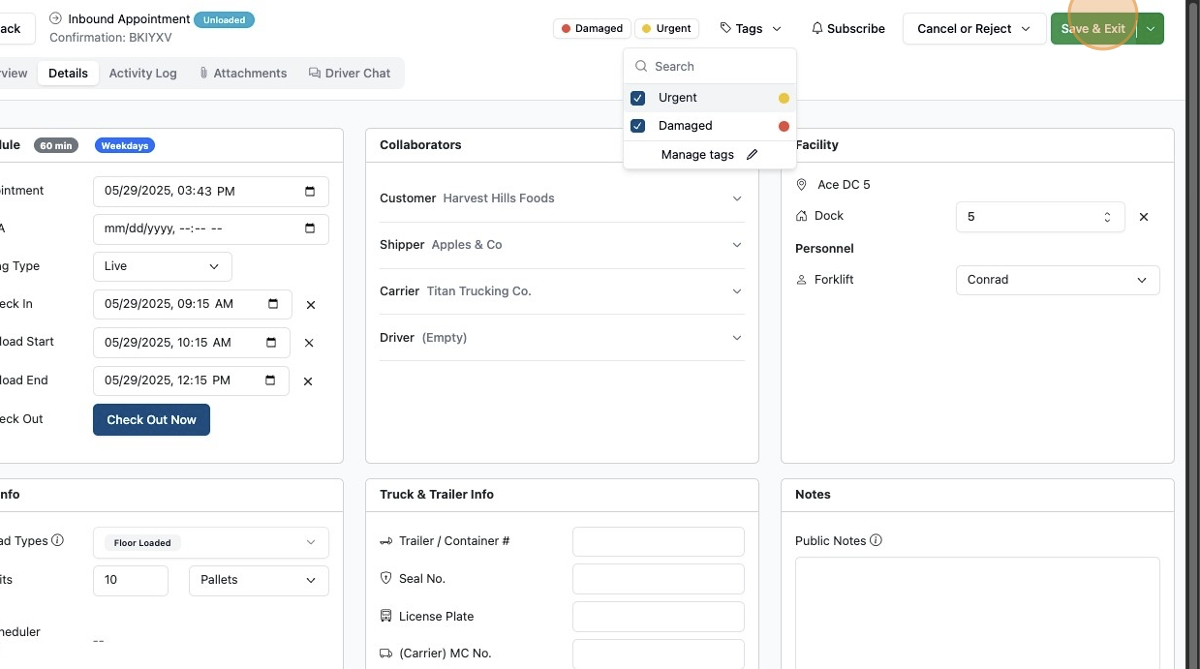
Tags can be created on the fly by clicking
Manage tagson the drop down.Only admin level users can create new tags. To learn more about users, read our article User Permissions.
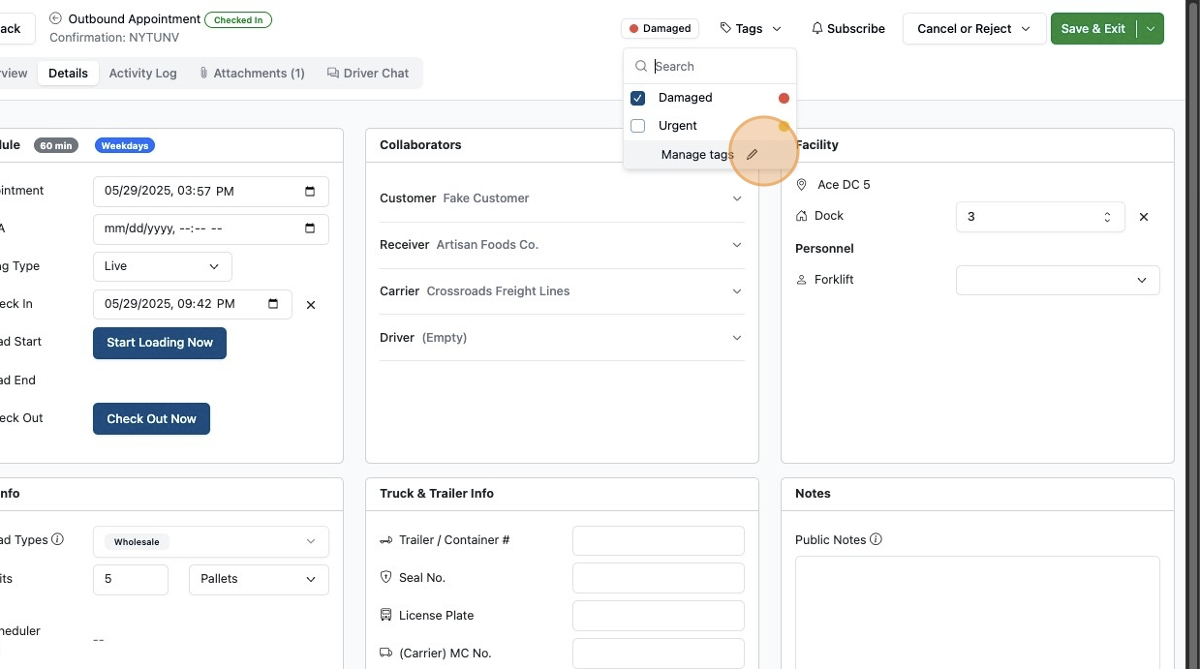
And going to the tags section of the settings page.
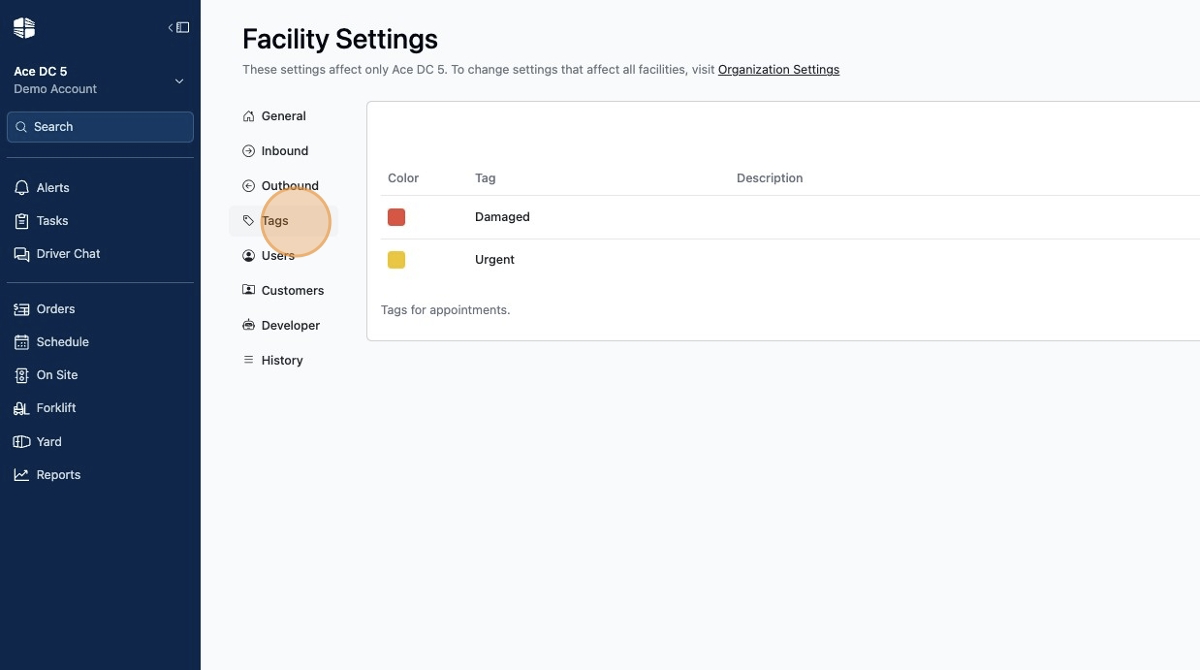
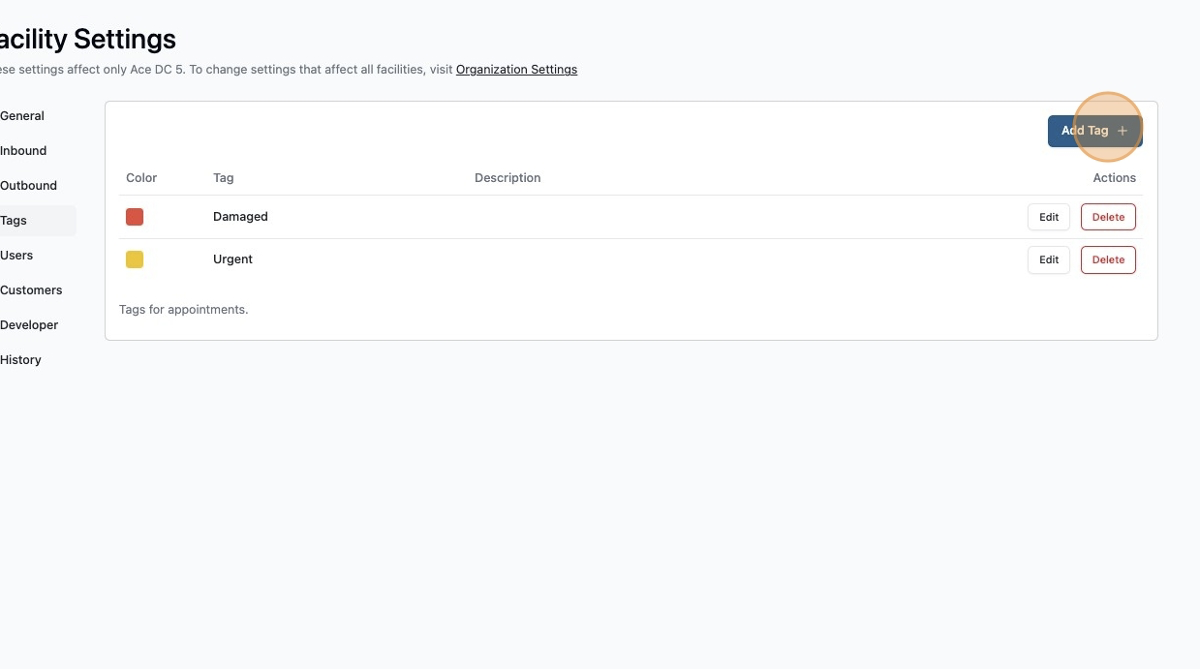
To create a new tag, simply click add tag.
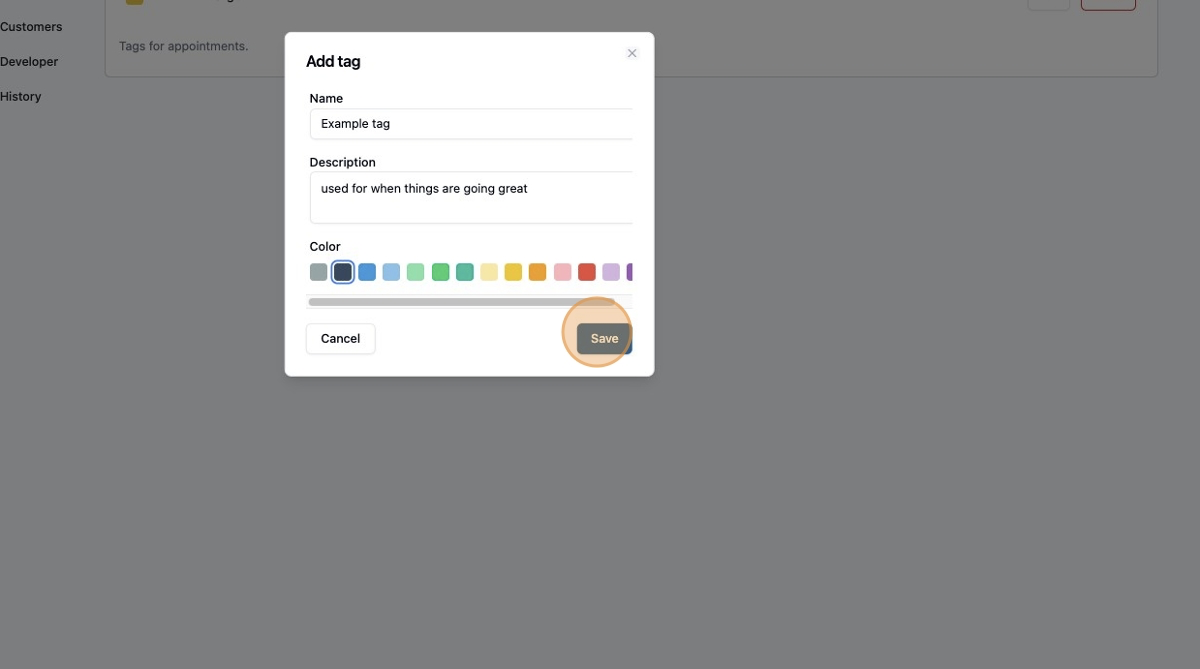
Then fill out the details and click Save.
Frequently Asked Questions
Can I report on tags?
Yes, tags are available in the analytics tab under raw data.
Where do tags show up?
Tag show up on workflow, list, and calendar views. They also are shown on the specific appointment.
Are tags automatic?
The only tags or flags that are automatic are statuses and detention alerts. Other tags need to be manually added by the user.