Viewing your Schedule
Last updated: June 5, 2025
The Schedule page in Conduit is your home for managing appointments at your facility. It offers several different views and filtering options so you can find the configuration that works best for you.
The Schedule offers multiple ways to view appointments:
Calendar and Dock views allow you to view your schedule as a calendar
Workflow and List view allow you to view your schedule as a formatted list
The Schedule can be filtered to show specific types of appointments. You can also add and remove fields that are shown, and turn on "open appointments" to see available appointment times in your schedule.
Schedule View Formats
Changing Views
Click "View" at the upper right of the Schedule page to change its format. There are several alternative views available, some list-based and other calendar-style views.
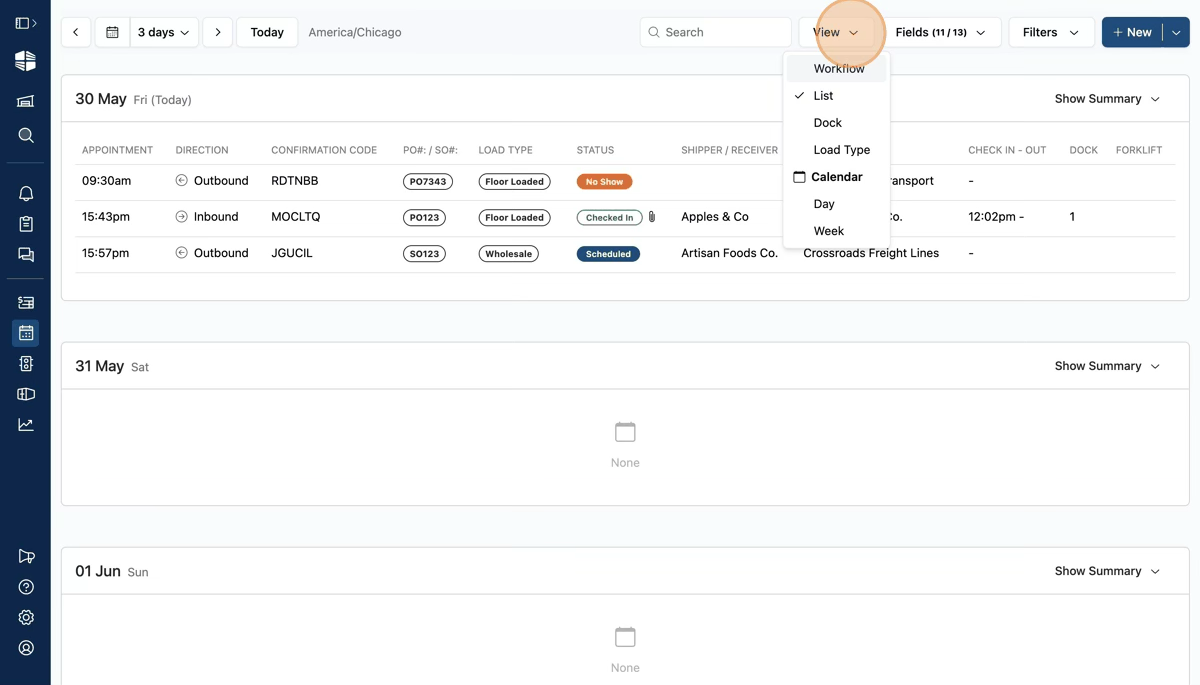
List-style views
List View: A list of appointments shown as a data table, grouped by scheduled day and ordered chronologically according to their scheduled start time.
Workflow View: Similar to the list view, but appointments are grouped into three categories based on their current status: Upcoming, On Site, and Completed. This view is helpful for understanding the work to be done at your facility in the present moment.
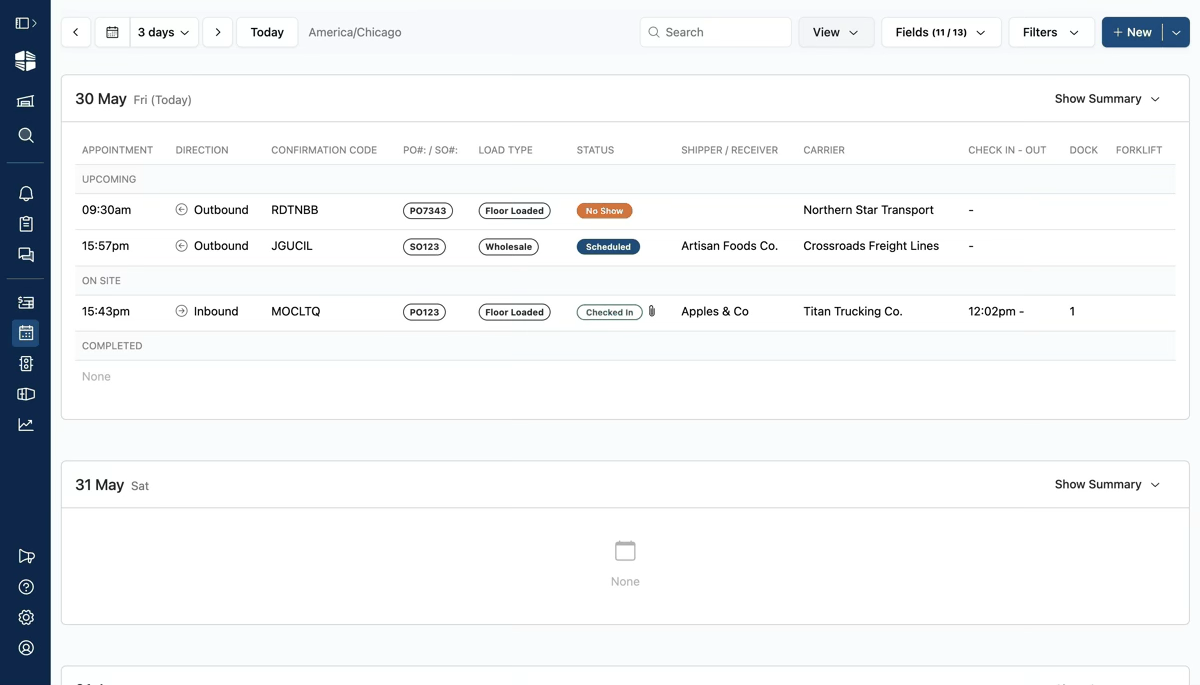
Calendar-style Views:
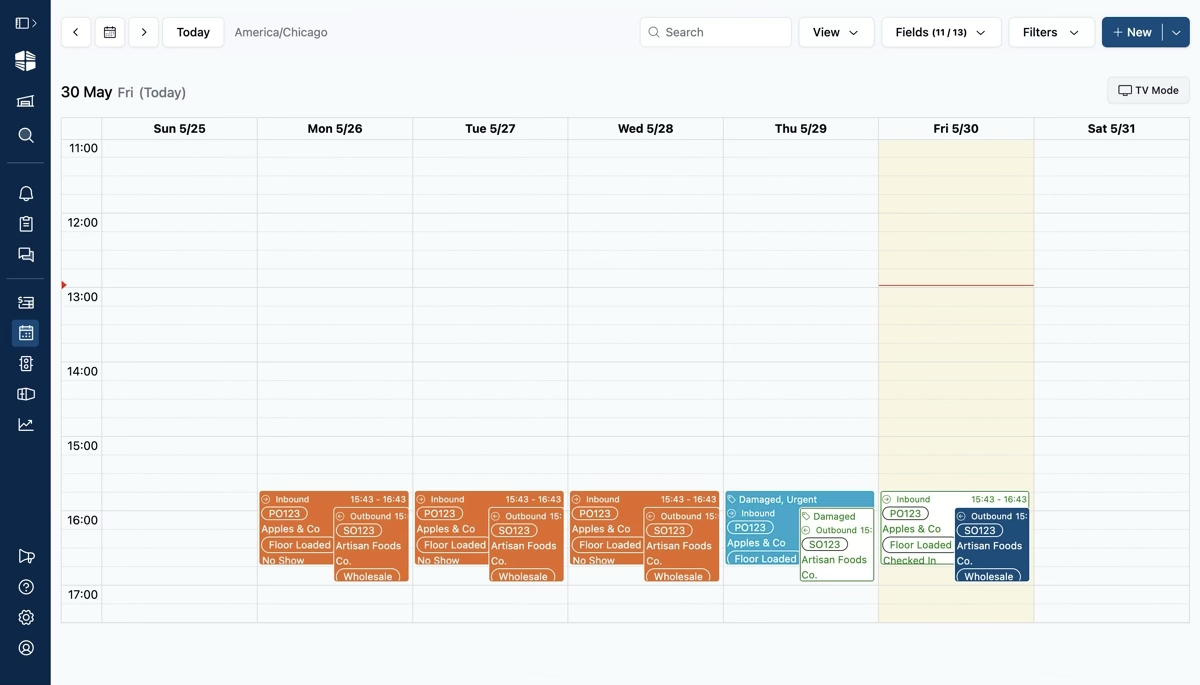
"Week" and "Day" Views: These views show your schedule in a calendar style similar to Google Calendar and other calendar apps and sites. The color of each event corresponds to its status, like the colored status "pills" that appear in the list-style views. "Week" view is shown in the image below.
"Dock" View: A calendar-style view that shows only the current day, where each column is dedicated to a specific dock at your facility.
"Load Type" View: A calendar-style view that shows only the current day, where each column is dedicated to a load type configured at your facility.
Navigating to Different Days
Navigate to https://getconduit.ai/facility-app. The Schedule page is accessed by clicking on the Calendar icon in the left navigation bar. The image below shows the "list view", where all appointments are shown chronologically according to their scheduled times, regardless of their current status.
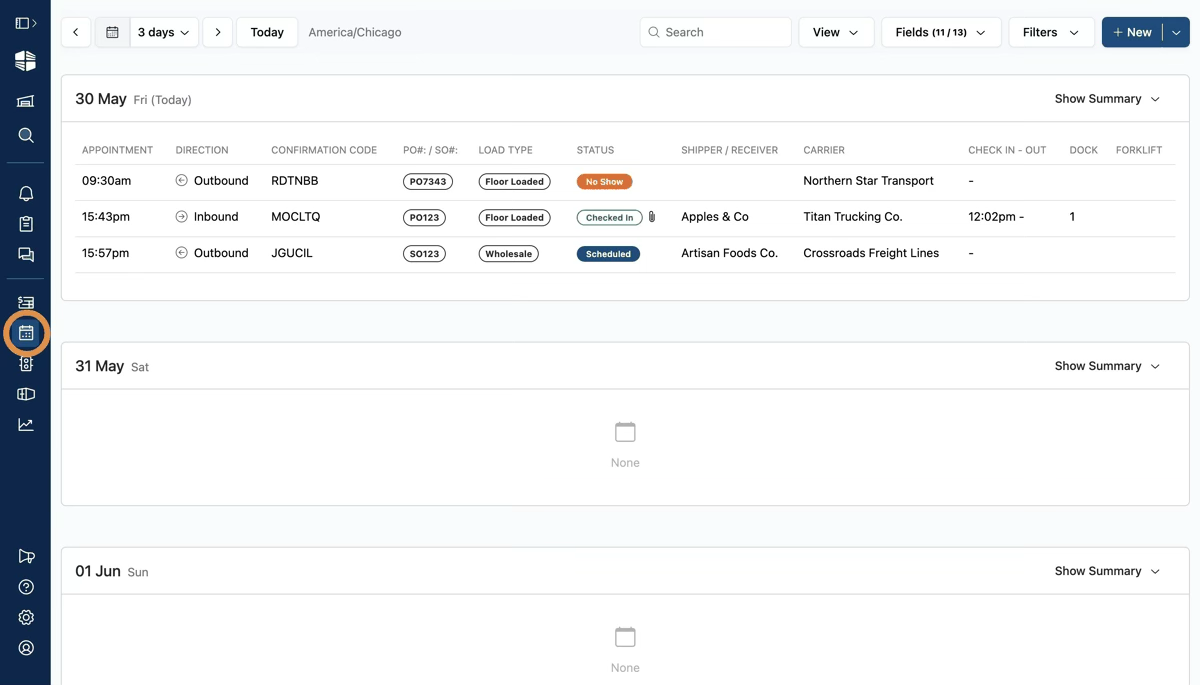
You can navigate to different days using the date controls at the top left of the page. Click the calendar icon to choose a specific date.
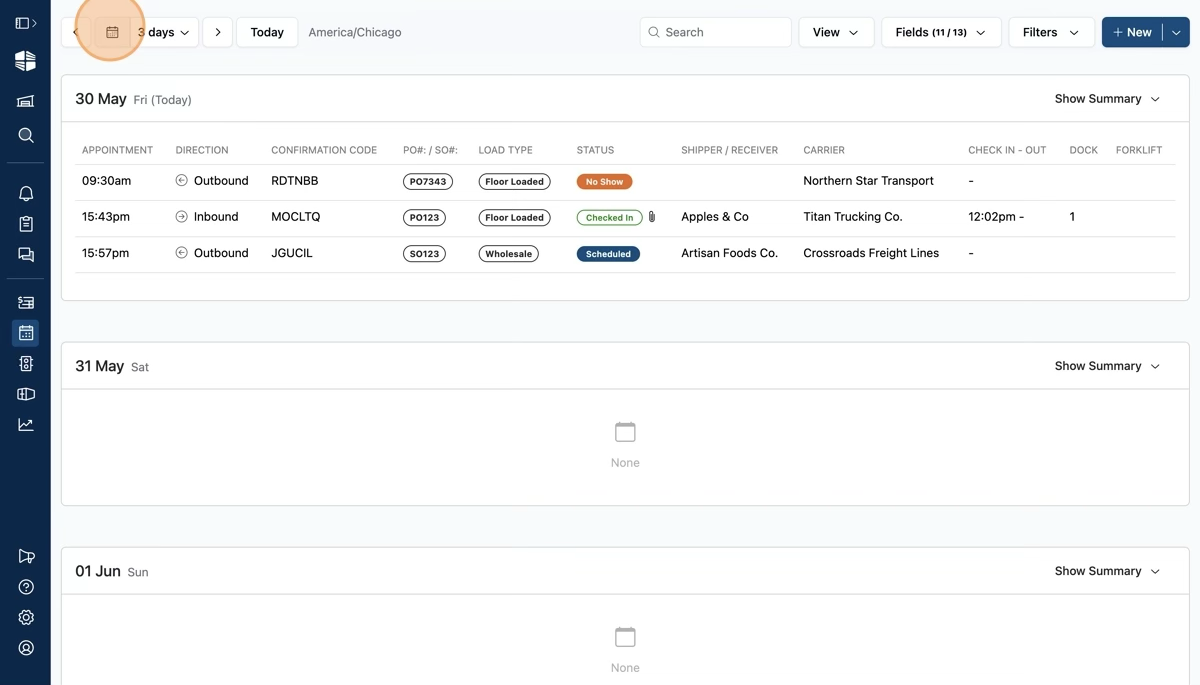
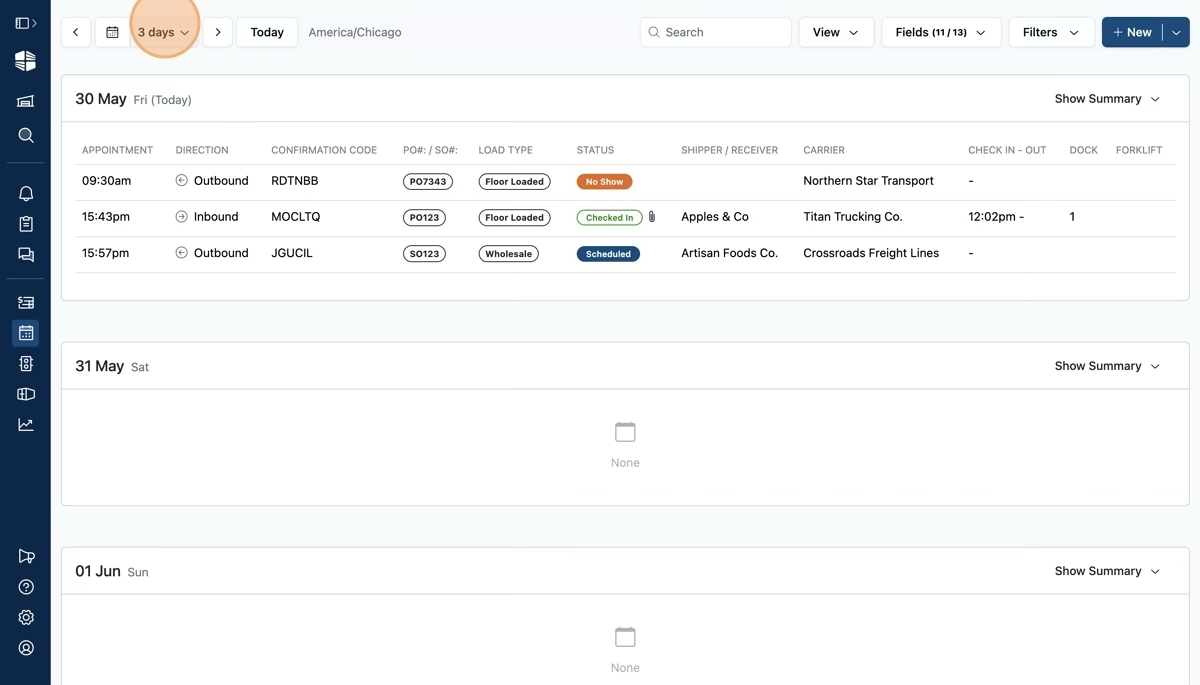
You can adjust how many days are shown at once by adjusting the "days" dropdown to the right of the calendar icon. On the "list" style schedule views, you can view appointments within a range of up to 7 days.
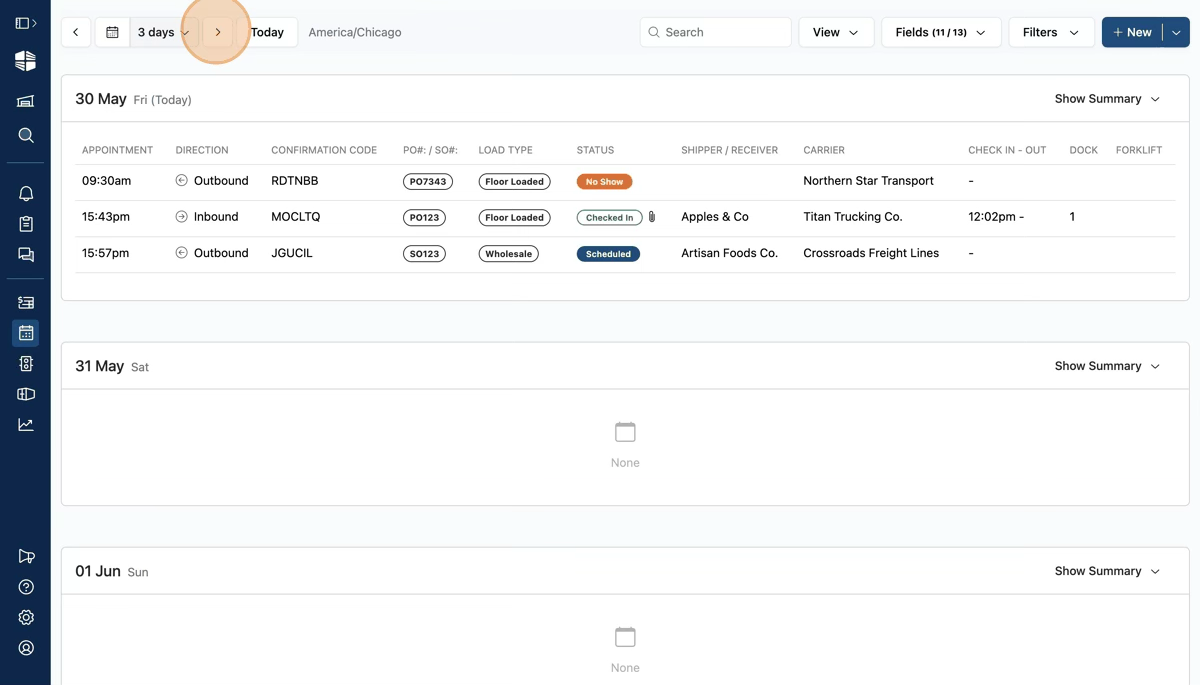
Navigate back and forth by one day at a time by clicking the arrows on either side of the calendar and date range dropdown.
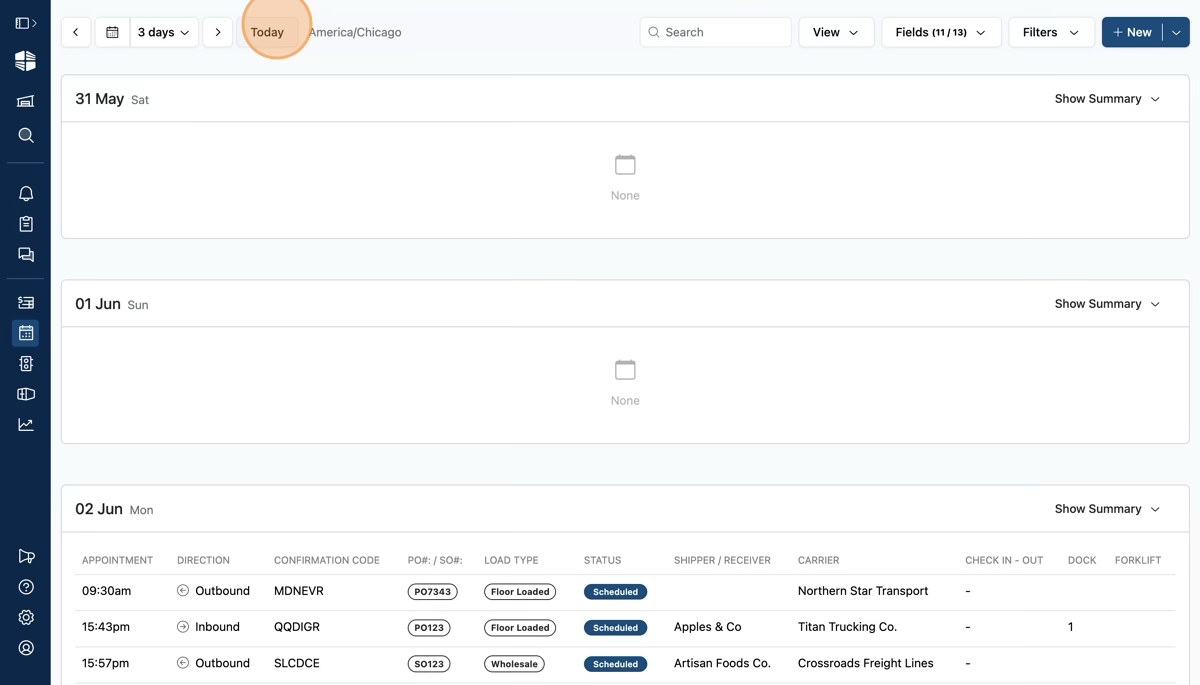
Click the "Today" button any time you want to return to the current date.
Adjusting Appointment Data Fields
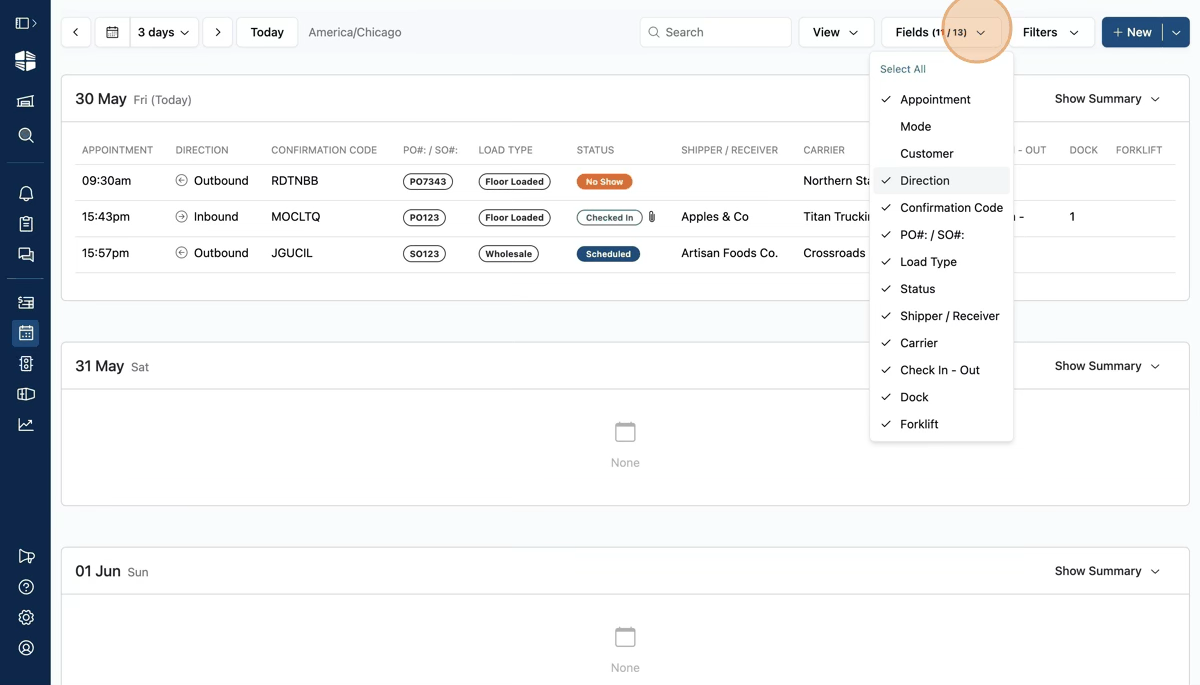
Choose what appointment data fields are shown in the schedule by clicking the "Fields" dropdown at the top right of the page and checking or unchecking the fields as needed.
Filtering Appointments
If you are on your schedule page and can't find appointments you expect to see, be sure to check your active filters to make sure they are not excluding the appointments!
Filter the appointments you see by clicking the "Filters" dropdown in the top right.
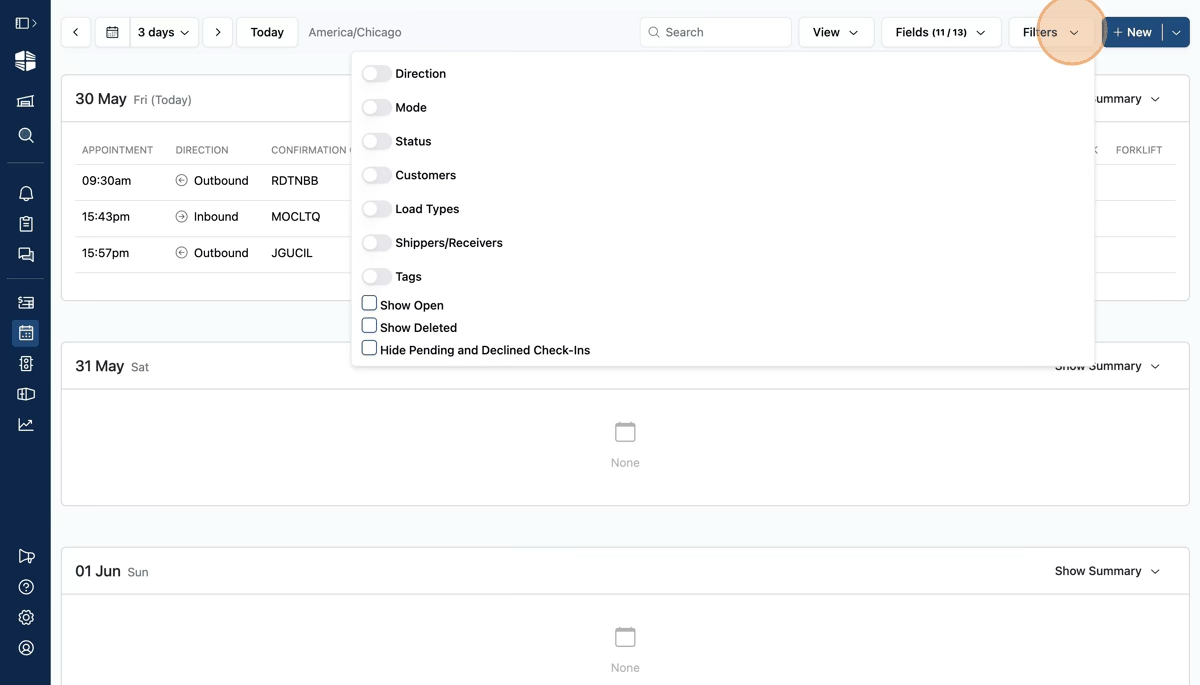
Clicking a toggle switch on each field will turn on the filter. Using the dropdown to the right, you can select the values to filter the schedule to.
In the image below, the schedule is now filtered to only show Outbound appointments.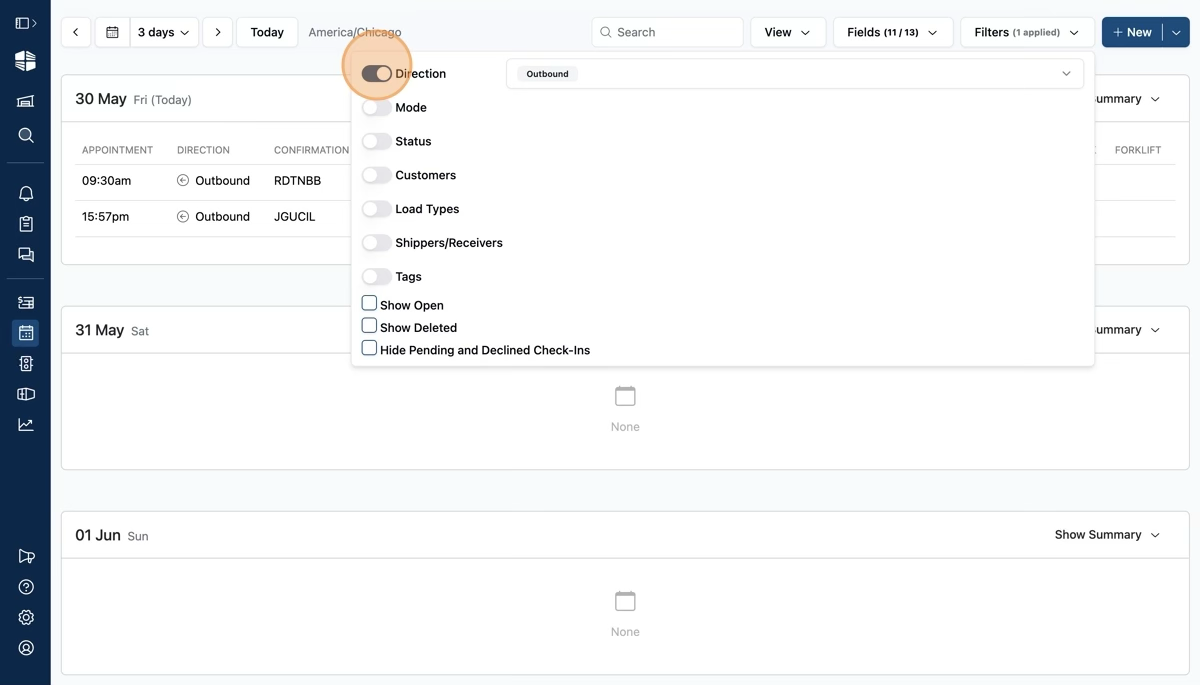
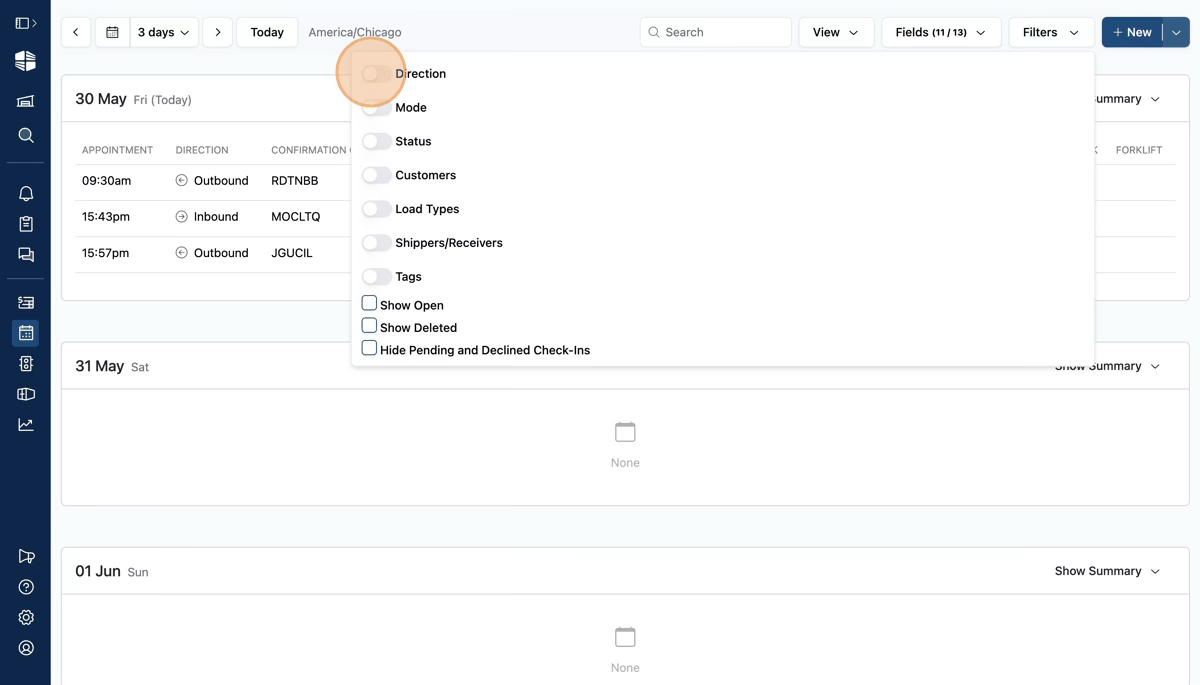
Click the toggle again to remove the filter condition; now the schedule shows both inbound and outbound appointments.
Day Summaries
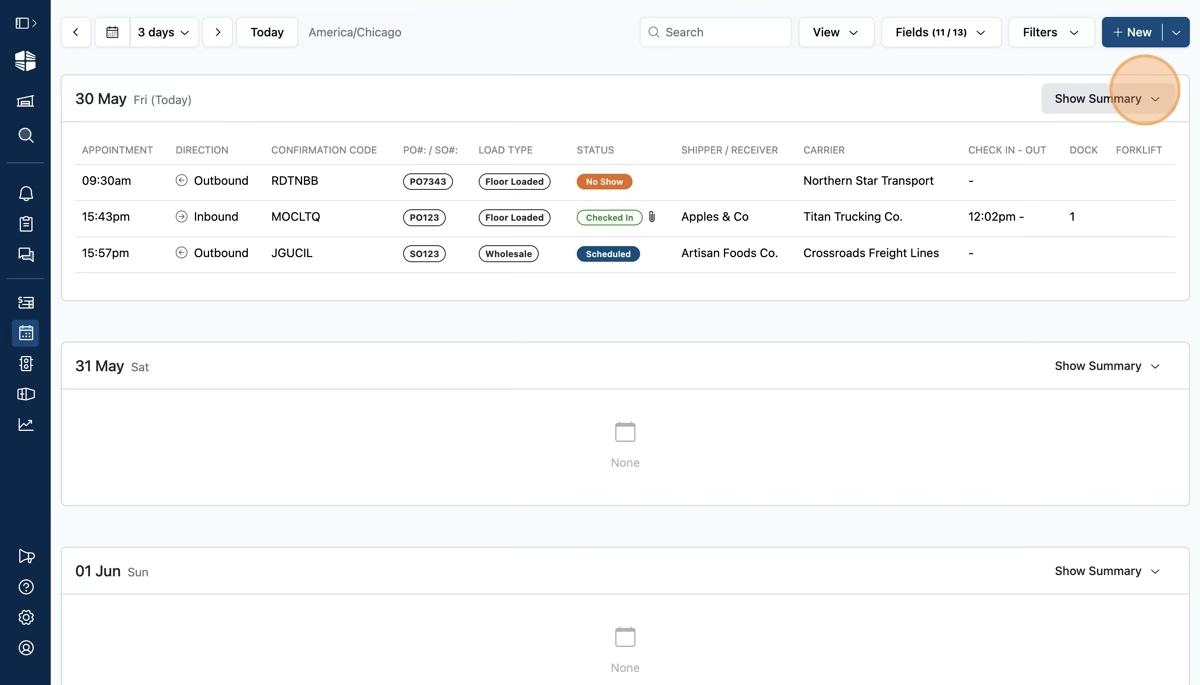
In list-style views like "List" or "Workflow", clicking "Show Summary" will open a table summarizing the total trucks and pallets scheduled for the day.
Viewing Appointment Details
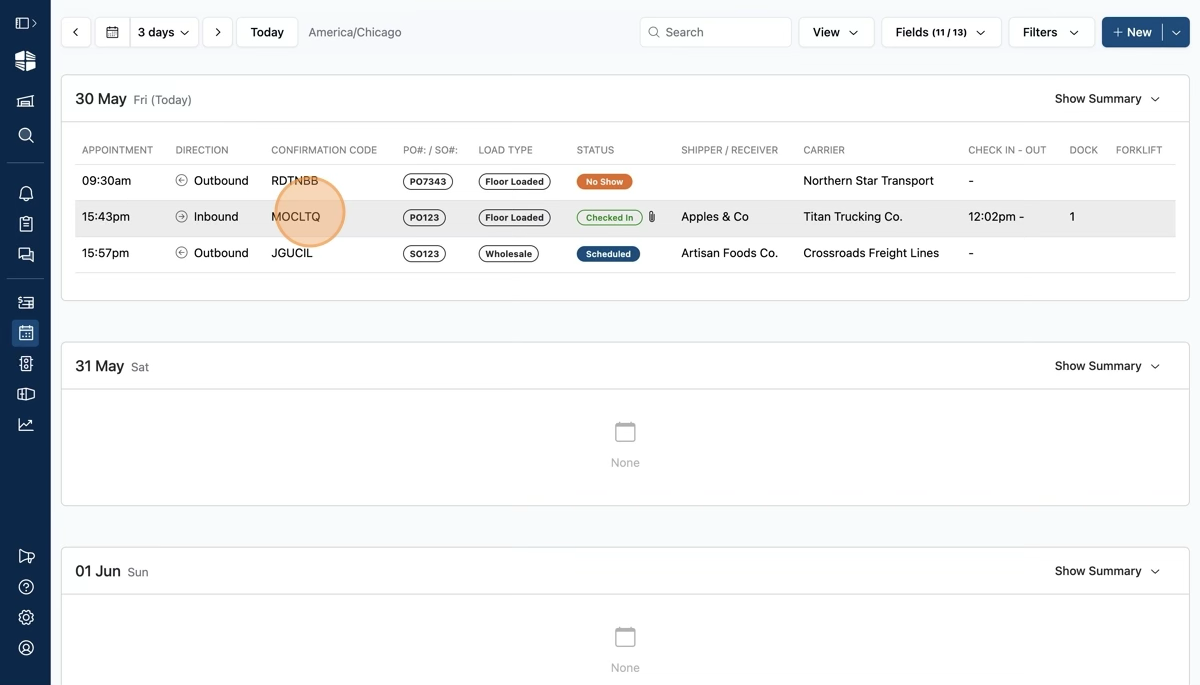
Clicking any row in the Schedule (or boxes in calendar-style views like "Day" or "Week") will open the details page for that appointment or other calendar event.
Frequently Asked Questions
I'm not seeing appointments I expect to see on the Schedule page.
If you are having trouble finding appointments that should be visible on Schedule, first check if you have any filters applied that could be excluding them from your view. If that does not solve the issue, please reach out to support@getconduit.ai.
Some data are only visible within the appointment details, but I want to see them from the Schedule page. How can I add them?
At this time we do not allow users to add more columns or data fields to the schedule view than are currently visible in the "fields" dropdown. We expect to offer more customizability in the future.
What do the calendar event colors mean in the Calendar views?
Event colors correspond to the status of the appointment, mirroring the pattern of the colored status "pills" visible in the appointment list views. (For example, dark blue = "scheduled", yellow = "requested", etc.). Learn more in our article Appointment Status Colors.