Appointment Actions
Last updated: July 28, 2026
On the details page of each appointment, you can find the actions page where you can work your appointment. These actions involve changing the status of your appointment, assigning docks to your drivers, assigning forklift operators, and using forms (if enabled). You can find a link to Appointment Action Settings HERE.
Instructions
Navigate to and click on the appointment you wish to action
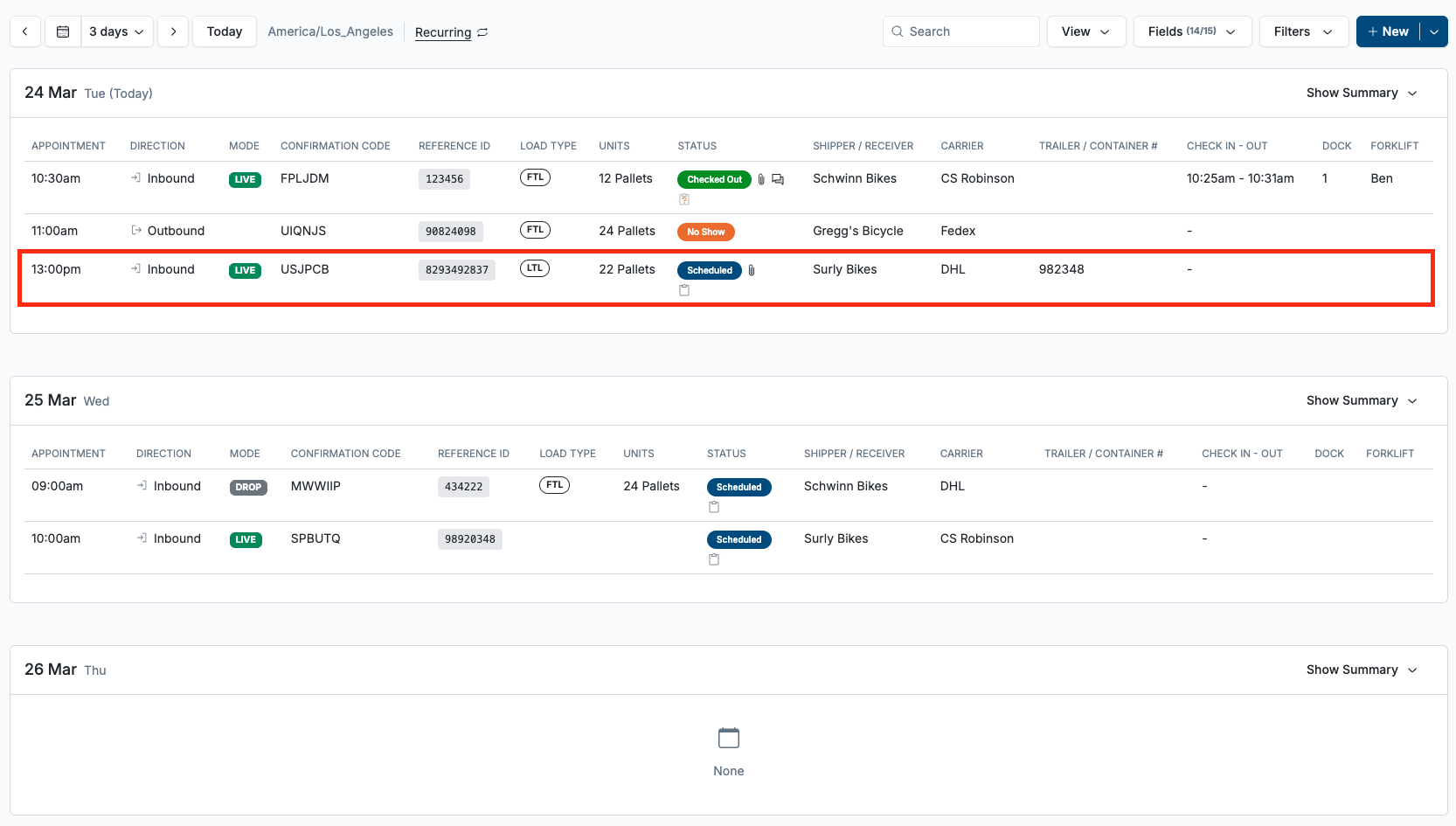
The Actions area will be fixed to the left side of the details page
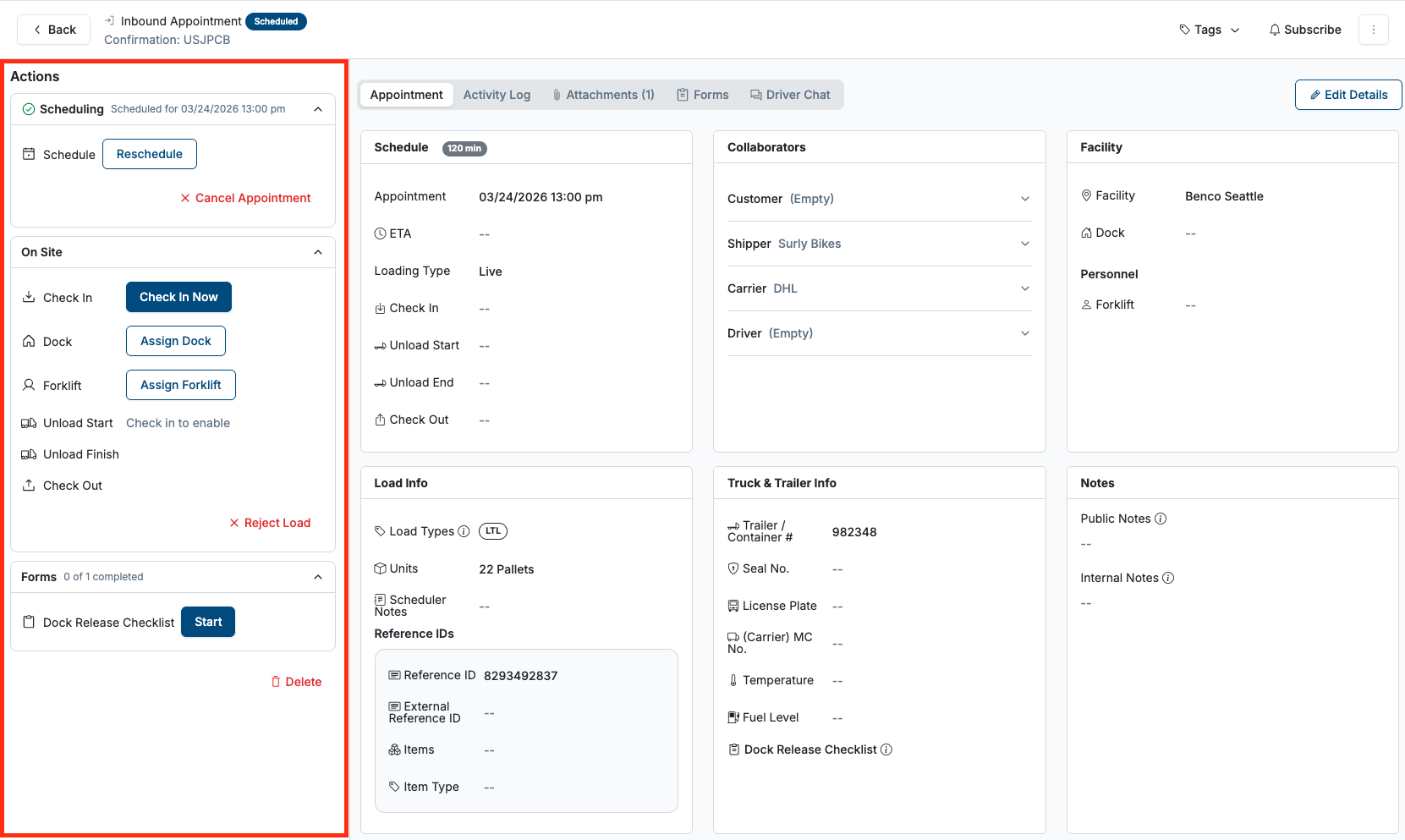
Actions
Reschedule: This will allow you to select a new time and date for the appointment. NOTE that this will notify your carriers, shippers, and customers via email of the new time. You can also cancel the appointment and add an optional reason
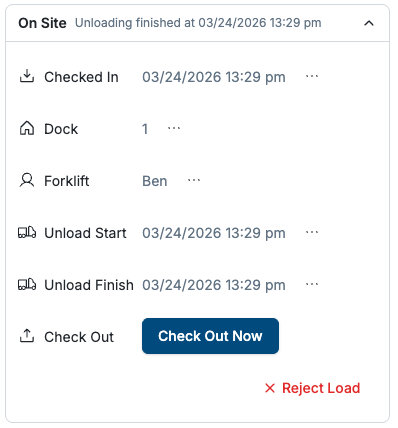
On Site: This area is where you work the appointment. You can assign a dock and a forklift driver. If a driver is checked in with a phone number, the driver will receive an automatic text with dock information. This is also where you can change the status of your appointment from Check-in, Loading/Unloading, Loaded/Unloaded, Checked Out (See: Appointment Statuses). Here you can also reject the load.
Forms: This will start your digitized forms (See: Forms)
Delete: Removes the appointment from your schedule
Frequently Asked Questions
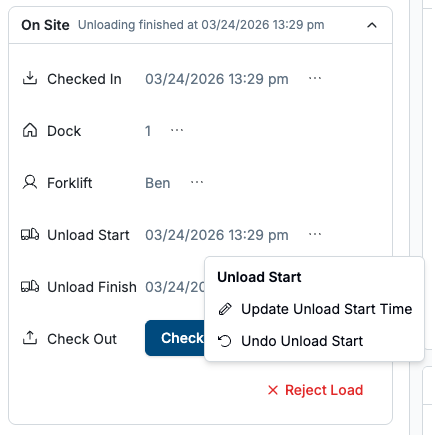
Can I edit or remove statuses?
Yes. Status time stamps can be edited or removed by clicking the "..." button, which will ask if you to update or remove the time. Removing the time will revert the status
Who can action appointments from within Conduit?
Anyone with "Editor" access to a facility. For documentation on how to add a new user, read Adding & Removing New Users.