Upload Attachments
Last updated: April 30, 2026
As a user or booker in Conduit, you are able to upload documents and photos to your appointment. These documents can be kept internal, or shared with the booker of the appointment. You are able to upload several categories of attachments.
Upload Categories
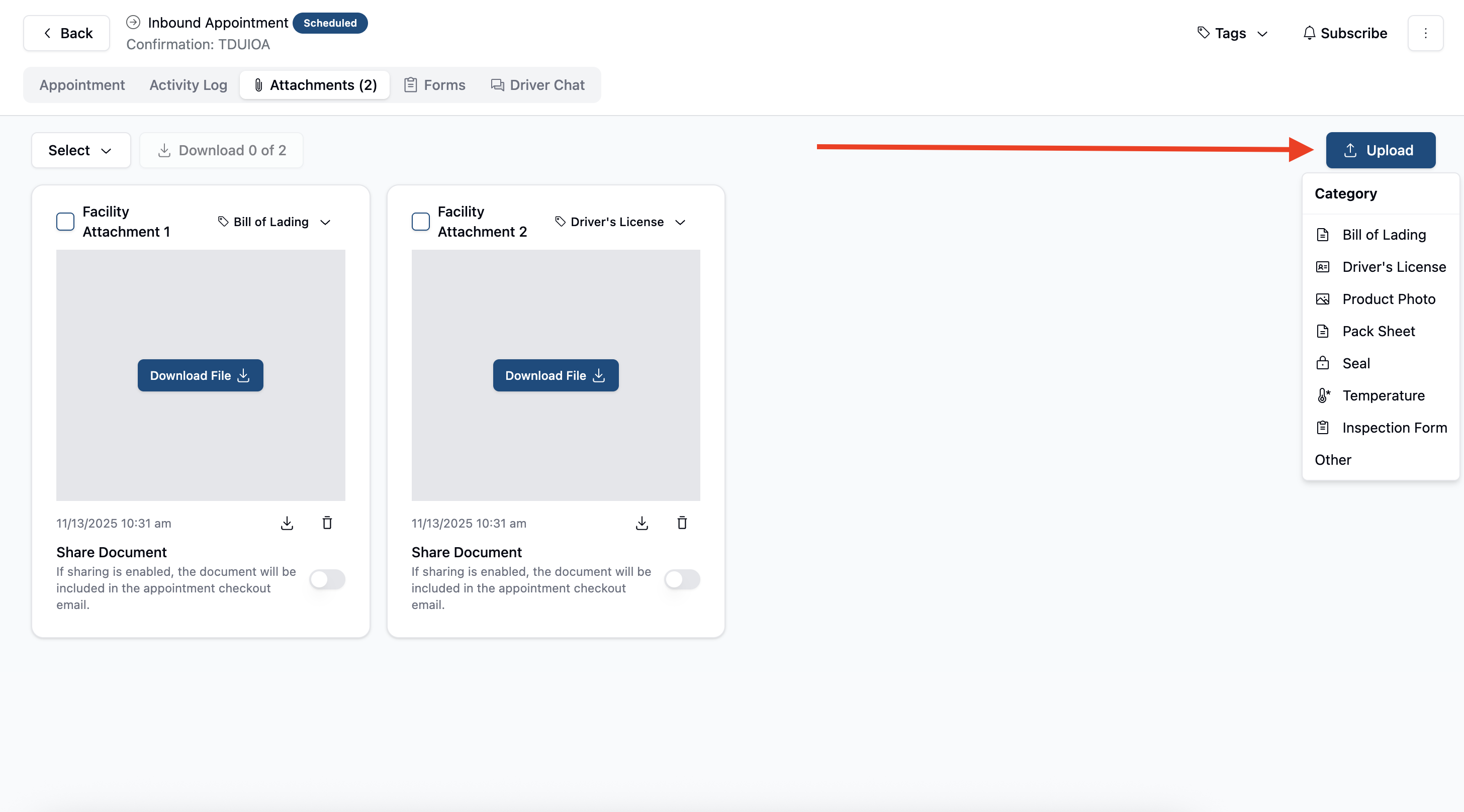
Bill of Lading
Driver's License
Product Photo
Pack Sheet
Seal
Temperature
Inspection Form
Other (free form)
Instructions
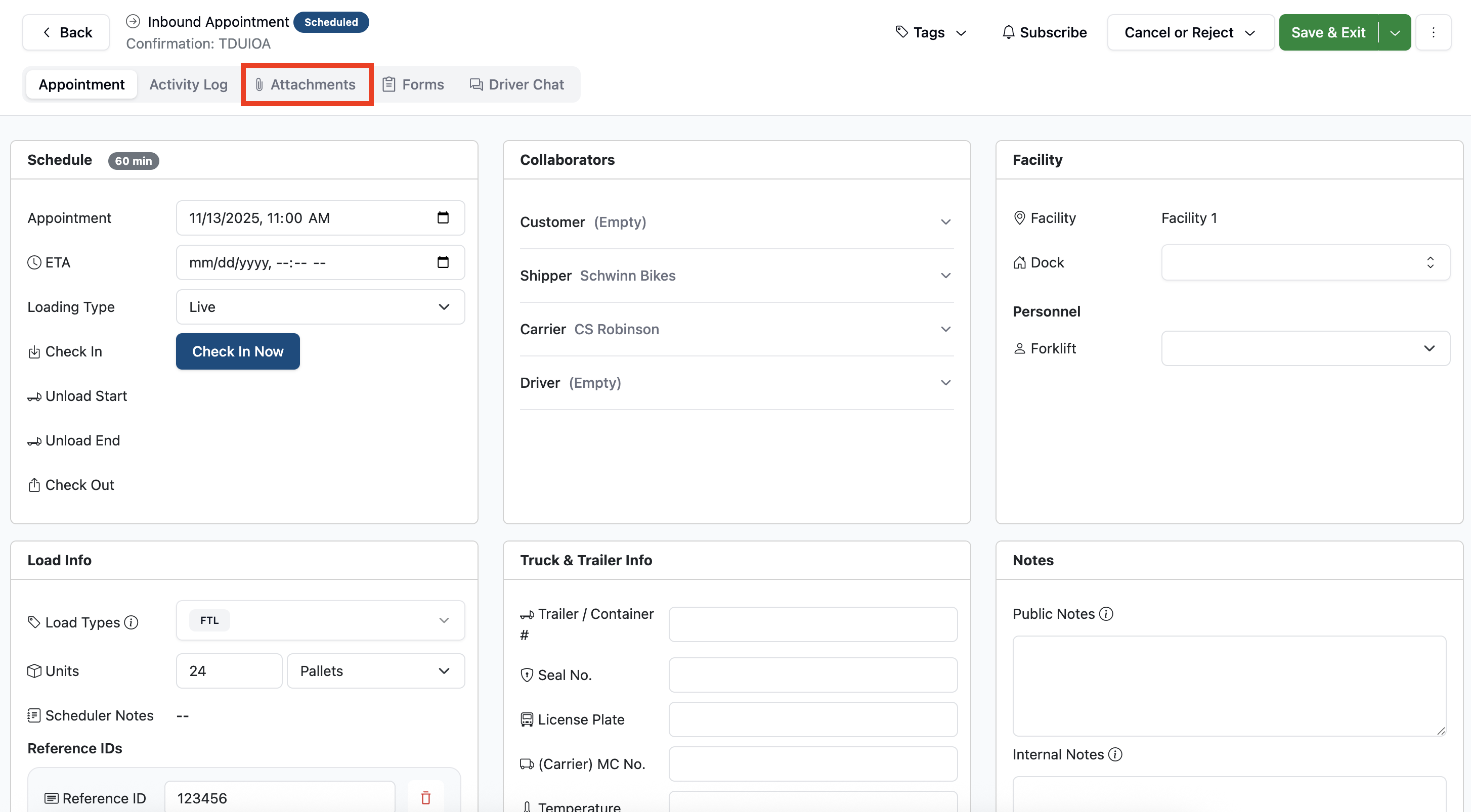
On the appointments detail page, click the Attachments tab at the top left of the screen.
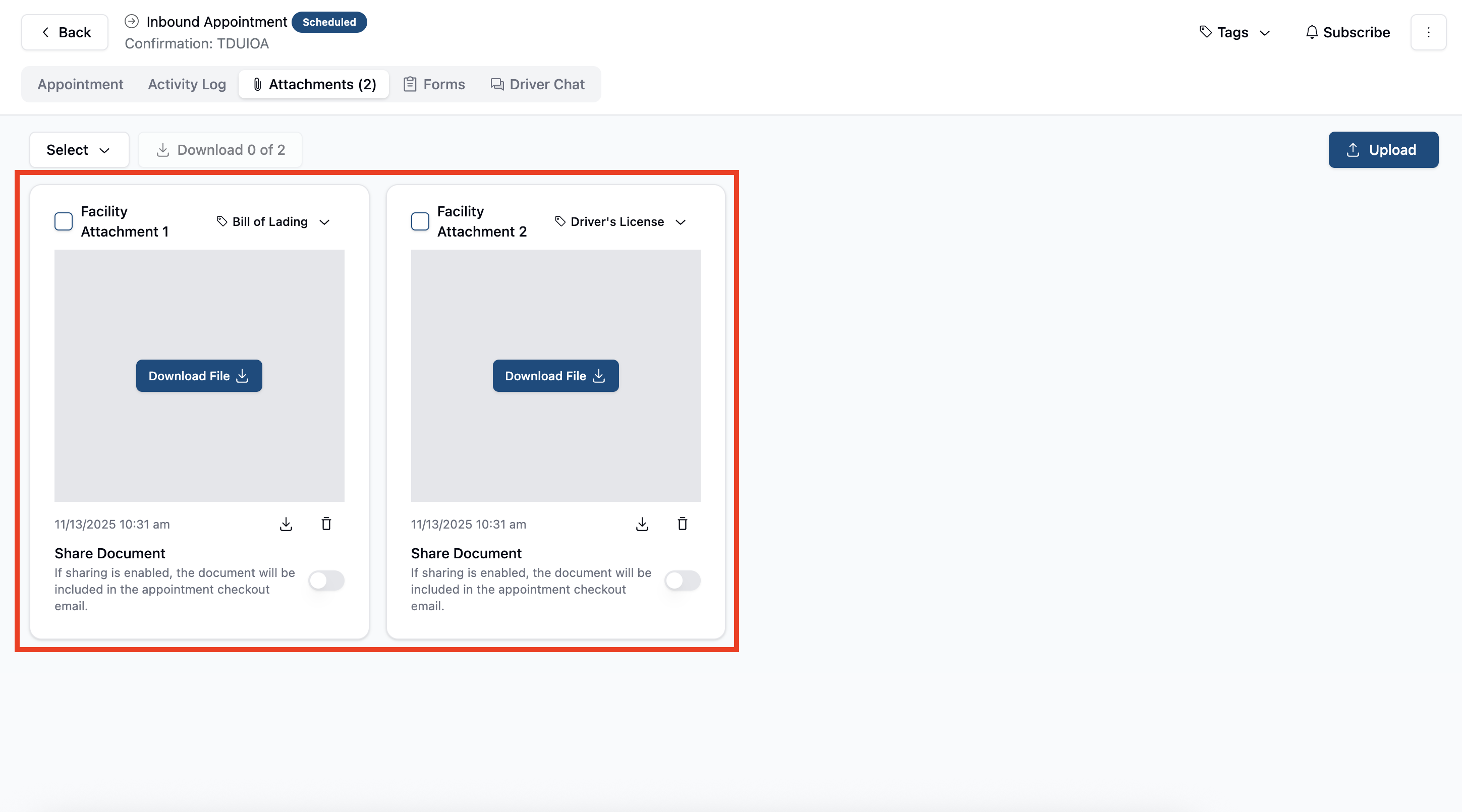
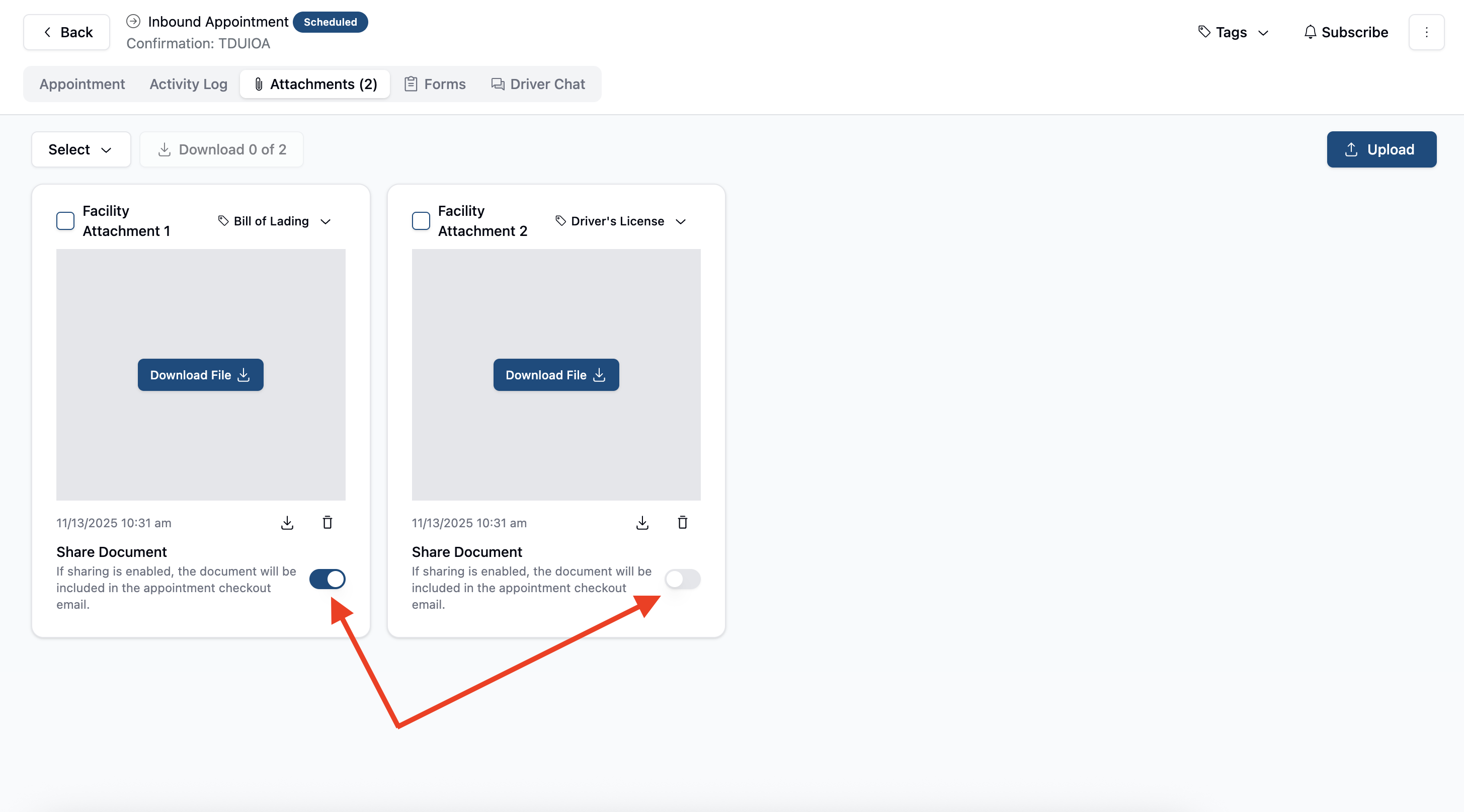
Once on the Attachments page, you will see all attachments that have been uploaded either by the facility, or by the booker. Below we can see that there have been two attachments already uploaded by the facility.
You can upload new attachments by clicking the upload button at the top right of the screen, followed by selecting the attachment category. Once you've selected a category, you'll be prompted to upload a doc or photo to the attachments page.
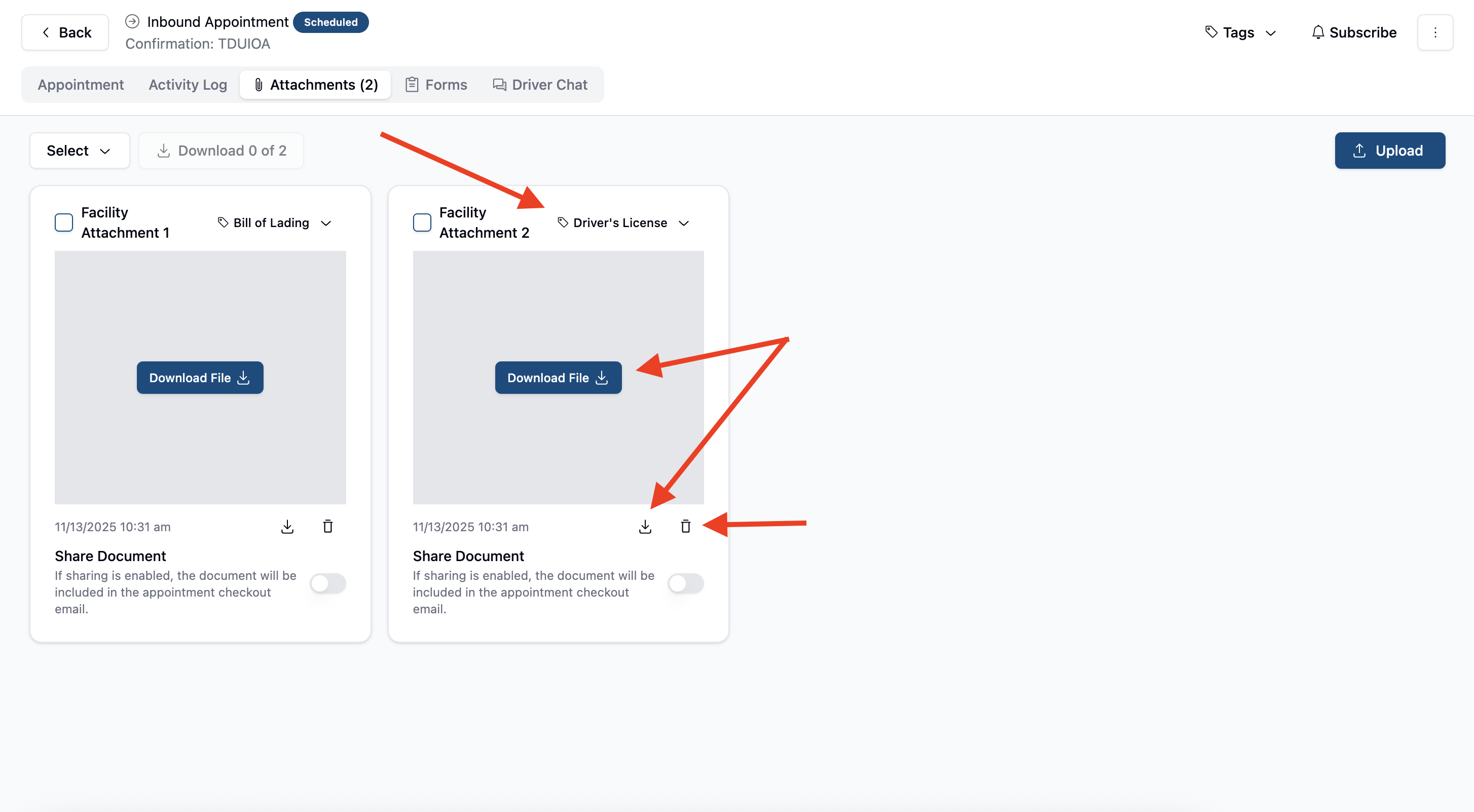
Once uploaded, you can download the file by clicking the Download File button on the center of the preview, change the category by clicking on the category type at the top right of the attachment, or delete it by clicking the trash bin icon at the bottom right.
Lastly, you can share (or unshare) your uploaded attachment by toggling the Share Document switch on the bottom right of the appointment. Changes here will happen instantly.
Frequently Asked Questions
What file types are accepted in attachment uploads?
Our system currently accepts pdfs, jpegs, and xlsx
Who can upload attachments?
Anyone with "Editor" or "Admin" access for the facility, and anyone who has booked the appointment or has access to edit the appoinent on the booker side.
If I schedule an Appointment manually, will it reduce appointments that can be scheduled by others?
Yes. When people schedule appointments using the public scheduling link, Conduit will only allow them to book appointments up to the capacity you selected in your Settings.
For more information on public scheduling, read Schedule an Appointment (Public Scheduling Link).
For more information on appointment capacity, read Setting Appointment Capacity.