Appointment Details/Modifying Appointments
Last updated: March 24, 2026
In Conduit, once an appointment is scheduled, you are able to go into that appointment to make changes and modifications.
Instructions
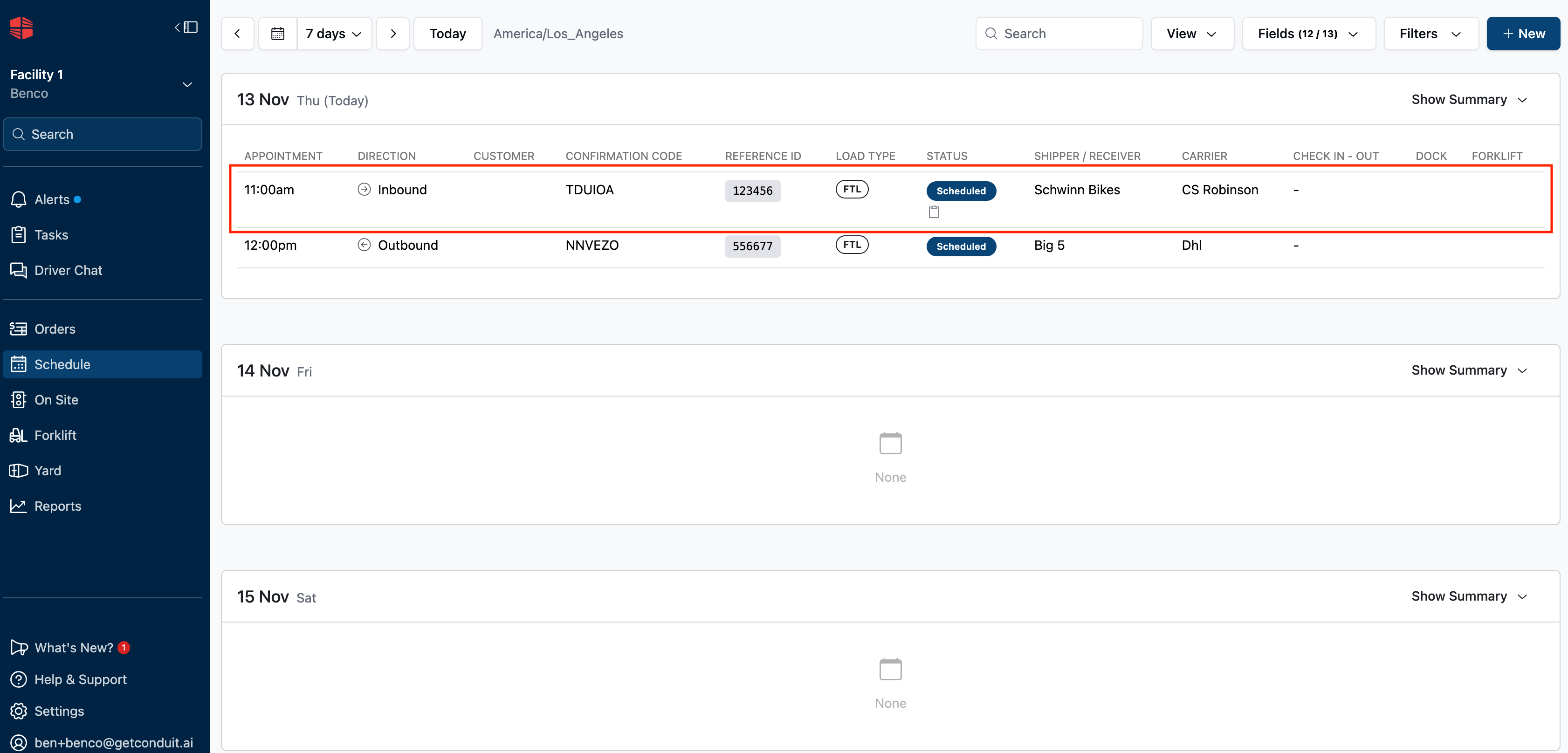
To find the appointment details page, first select the appointment you would like to view and modify on the Scheduling screen.
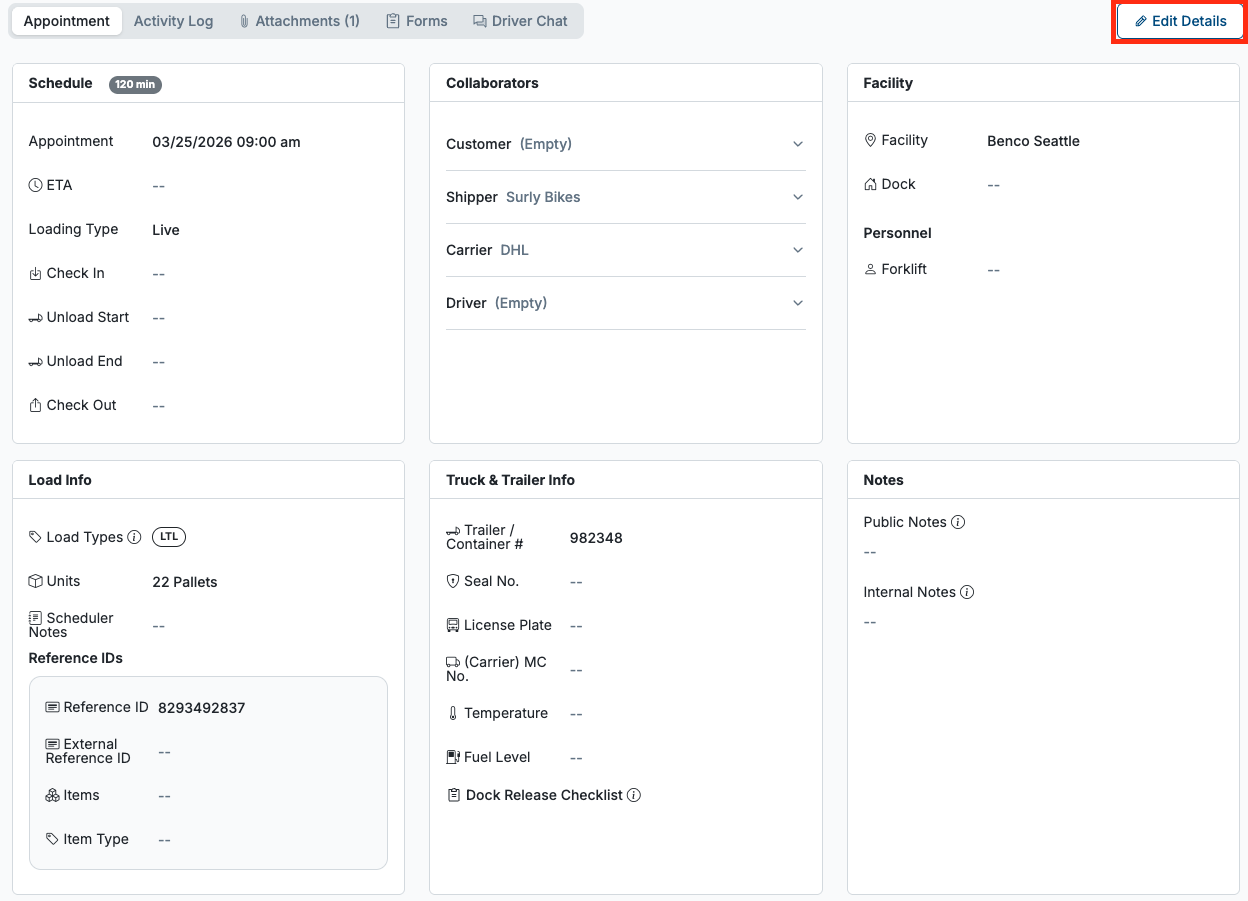
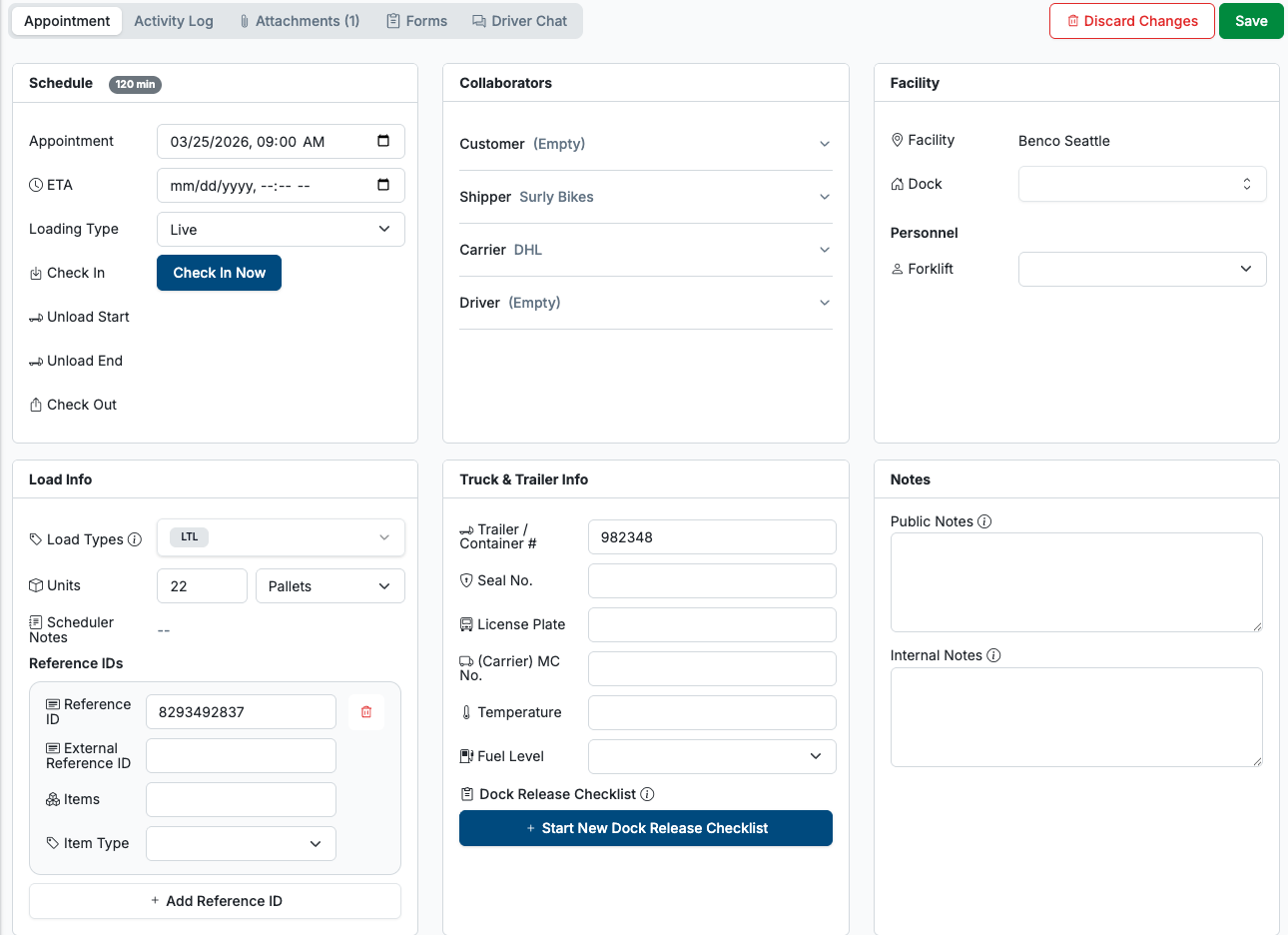
From this screen, you are able to edit any existing fields, ad well as continue or edit your workflow steps in the Schedule box. When you have made all necessary changes, you can save your work by hitting Save & Continue editing, which will save your changes, keeping you on this screen. Or you can hit Save & Exit which will save your work and bring you back to the scheduling page.
Frequently Asked Questions
Can I change the direction of an appointment?
No. Since inbounds and outbound have different configurations, you are not able to edit the direction of an already created appointment. If you need to change the direction, you need to either create or duplicate the appointment.
Who can create appointments from within Conduit?
Anyone with "Editor" access to a facility. For documentation on how to add a new user, read Adding & Removing New Users.
If I schedule an Appointment manually, will it reduce appointments that can be scheduled by others?
Yes. When people schedule appointments using the public scheduling link, Conduit will only allow them to book appointments up to the capacity you selected in your Settings.
For more information on public scheduling, read Schedule an Appointment (Public Scheduling Link).
For more information on appointment capacity, read Setting Appointment Capacity.