Creating Yard Spaces
Last updated: November 13, 2025
In Conduit, you can create yard spaces for your facility through two different paths, both through facility setting, and through the yard management tab.
Instructions for Facility Settings
Navigate to the Docks and Yard Spots tab under facility settings
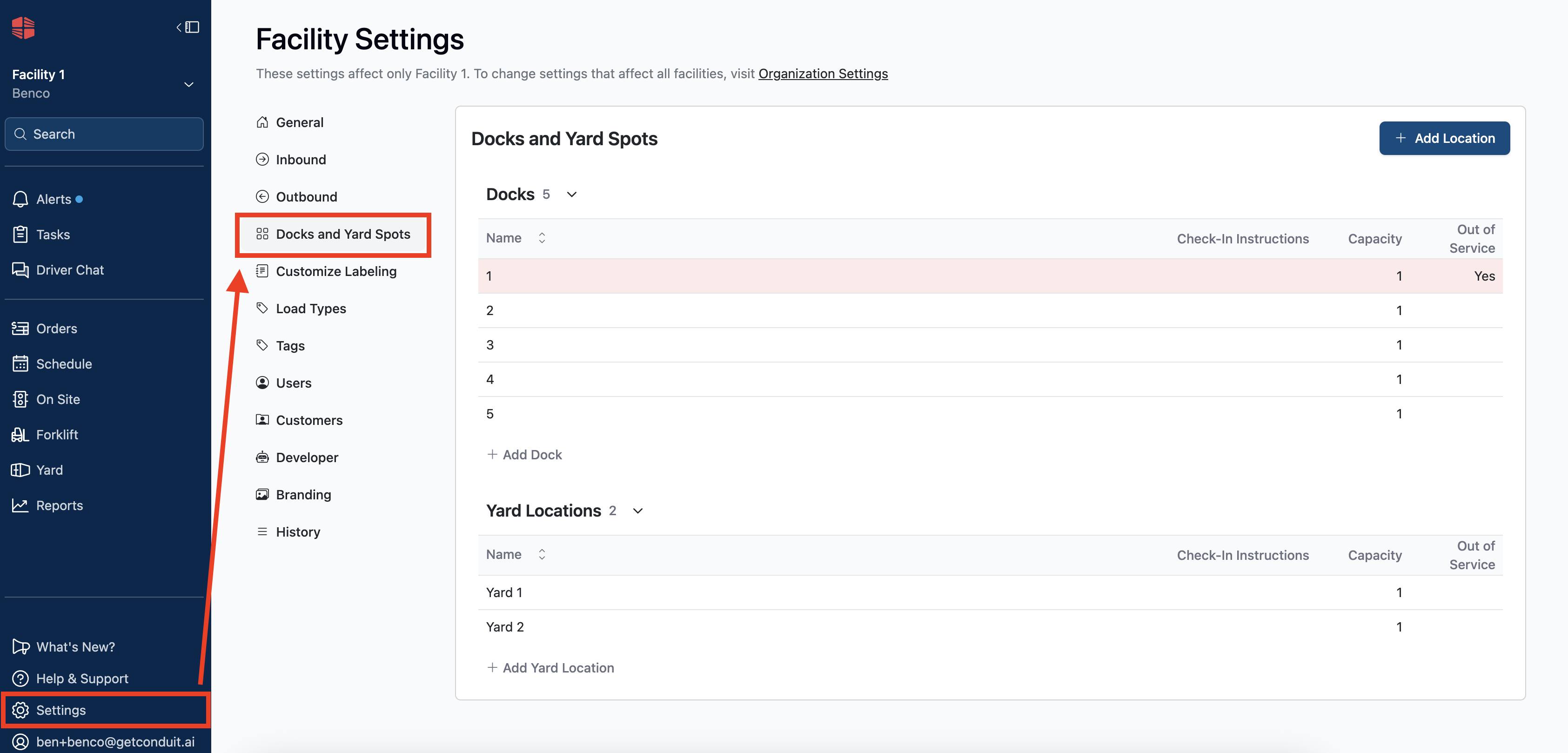
Click the + Add Location button at the top right of the screen, and set your category as Yard Location. From here you can set the name, trailer capacity, and yard spot specific SMS instructions to drivers checking in to that yard spot. You can also set it as Out of Service if you'd like to prevent trailer check-ins to that spot. Hit create to add your new yard spot to the system.
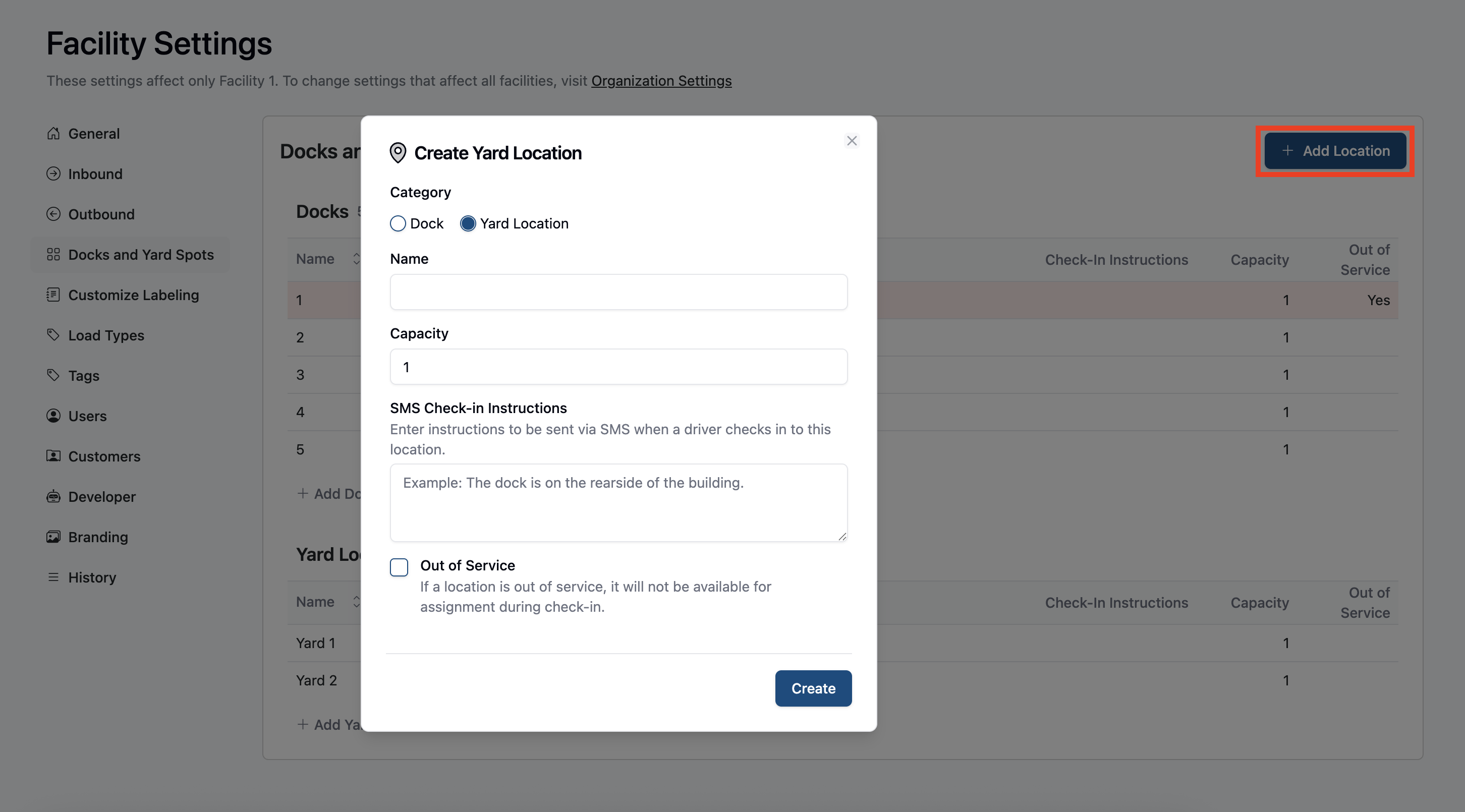
You can follow the same workflow by clicking + Add Yard Location at the bottom of the Dock and Yard Spots screen.
Instructions for Yard Tab
Navigate to the options bar as the left of the screen, and click the Yard tab. Then scroll to the bottom of the screen and click the + Add Location button.
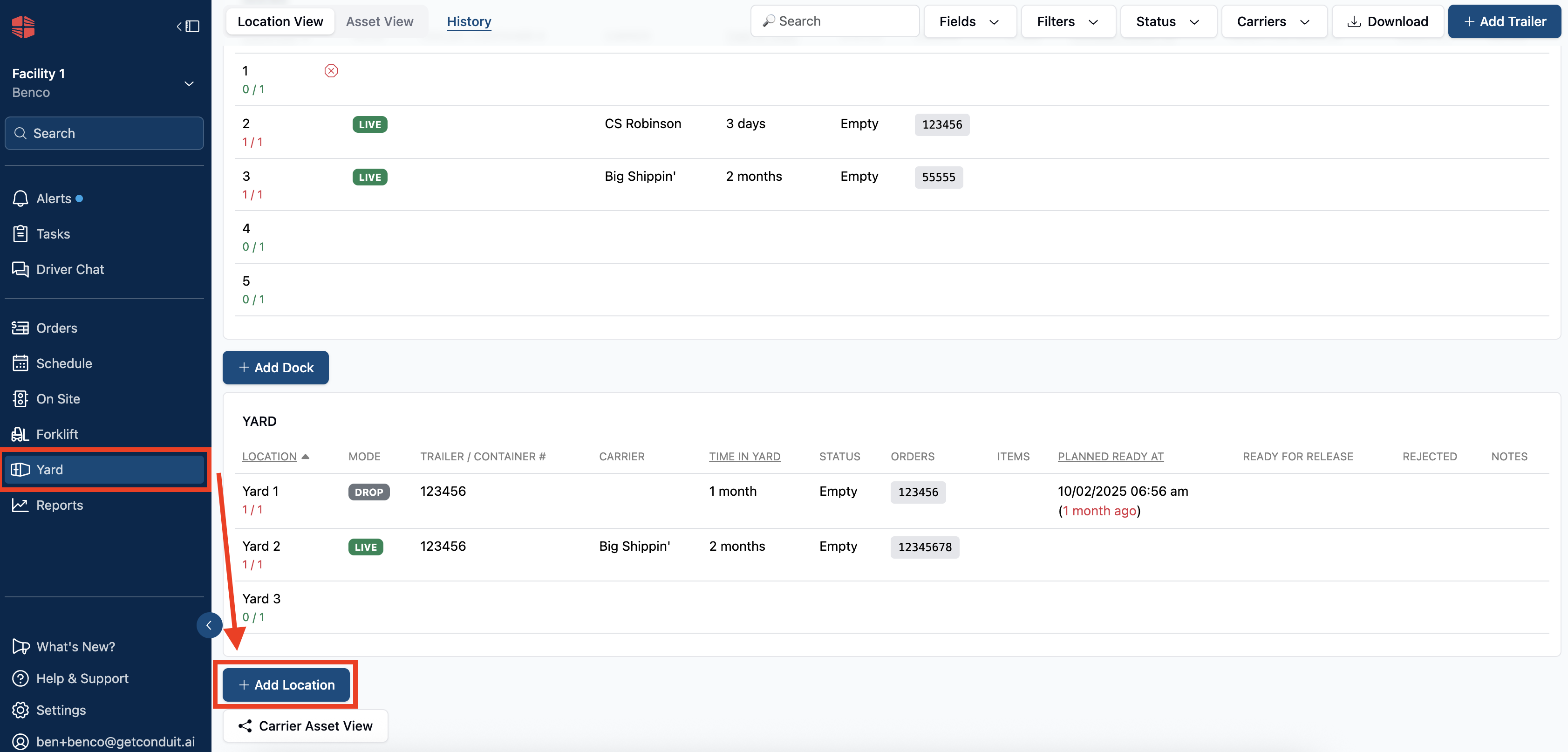
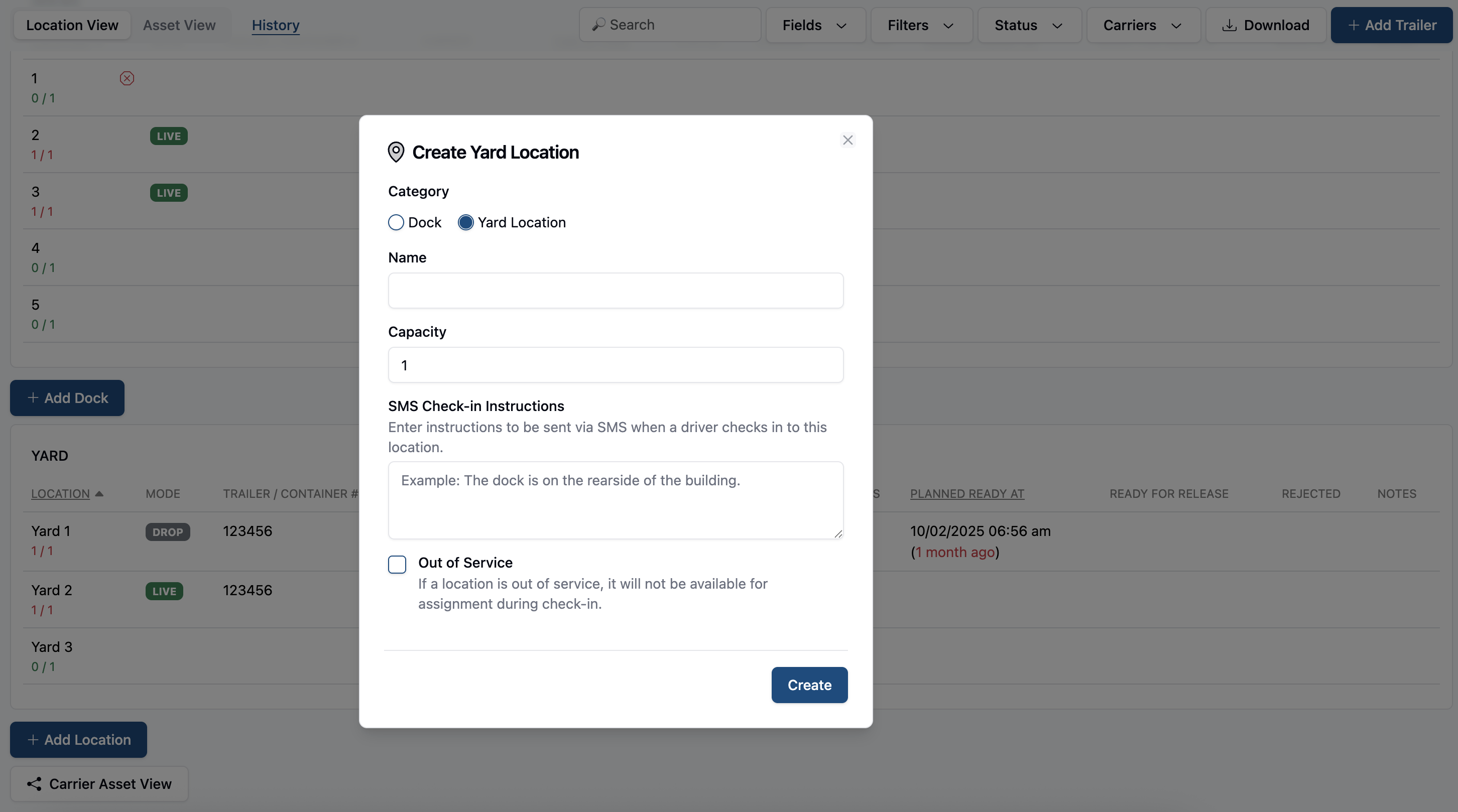
This will prompt you to fill out the same information as if you were to create it in the facility settings. Once you've hit create, your yard spot will be added to your facility!
Frequently Asked Questions
Can I make as many yard spots as I want?
Yes. There is no limit to the amount of yard (or dock) spots you can create.
Can I delete yard spots?
Yes. An admin user can delete yard spots from the Docks and Yard Spots tab of the facility settings page. If there is a trailer in the spot to be deleted, then you will be prompted t systemically move it before deletion can happen.
Can I edit yard spots?
Yes. You can edit by clicking into the spot, making changes, and hitting save. This is also where you can toggle "Out of Service".