Schedule an Appointment (Manual Creation)
Last updated: November 21, 2025
Instructions
From the Schedule page of Conduit, click "New".

Select the appointment type you'd like to create. You choose between:
Inbound or Outbound
Inbound: an appointment for goods entering your facility
Outbound: an appointment for goods leaving your facility
Appointment or Work-In
Appointment: an appointment scheduled for the future
A Work-In: an appointment to begin now. The driver will be immediately checked in as part of appointment creation.

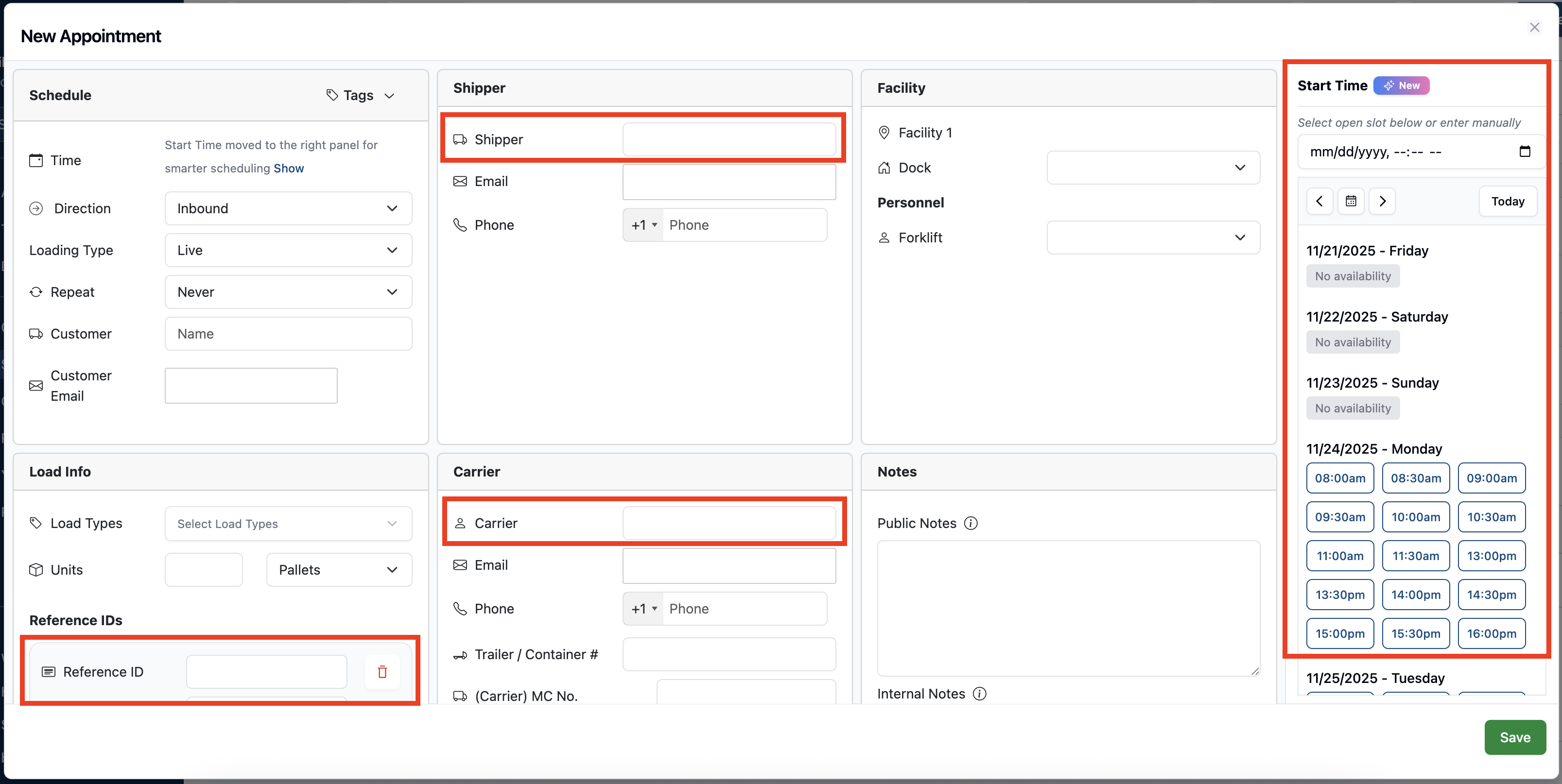
Enter the information for the appointment. You must enter the following fields:
Start Time (Time Slot or Manually)
Units
PO#
Shipper/Receiver
Carrier
All other fields are optional, and can be added if you have the information available.
Emails entered for Customer, Shipper/Receiver, and Carrier will receive updates about this appointment, including being notified of the appointment, confirmation when it arrives at/departs from your facility, and any file attachments you choose to make public. Read more about automated emails in this article: Automated Emails from Conduit
Refer to your manager or facility SOPs on what fields they expect you to include. Trying to skip a required field will result in an error.
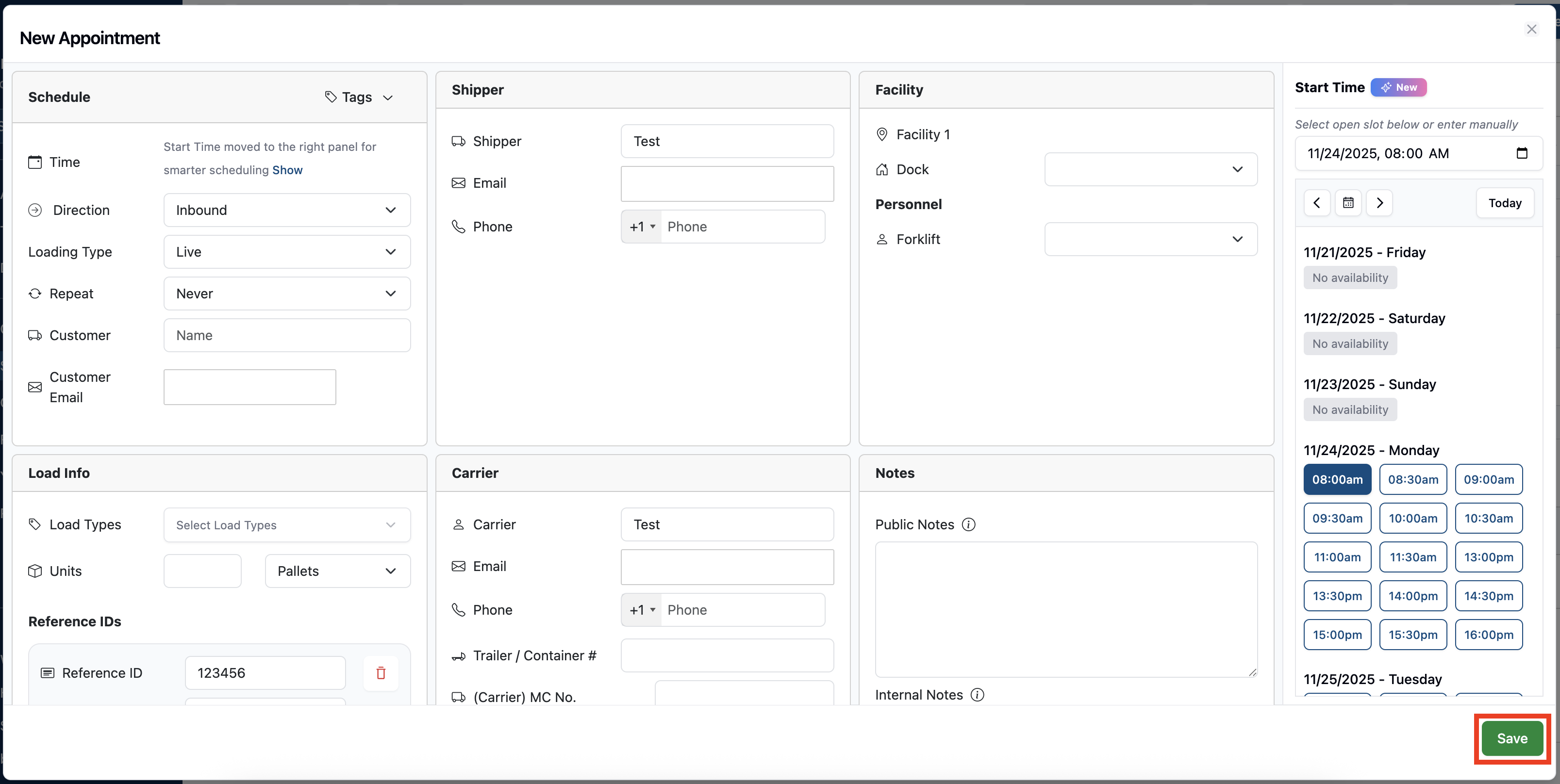
Click "Save"
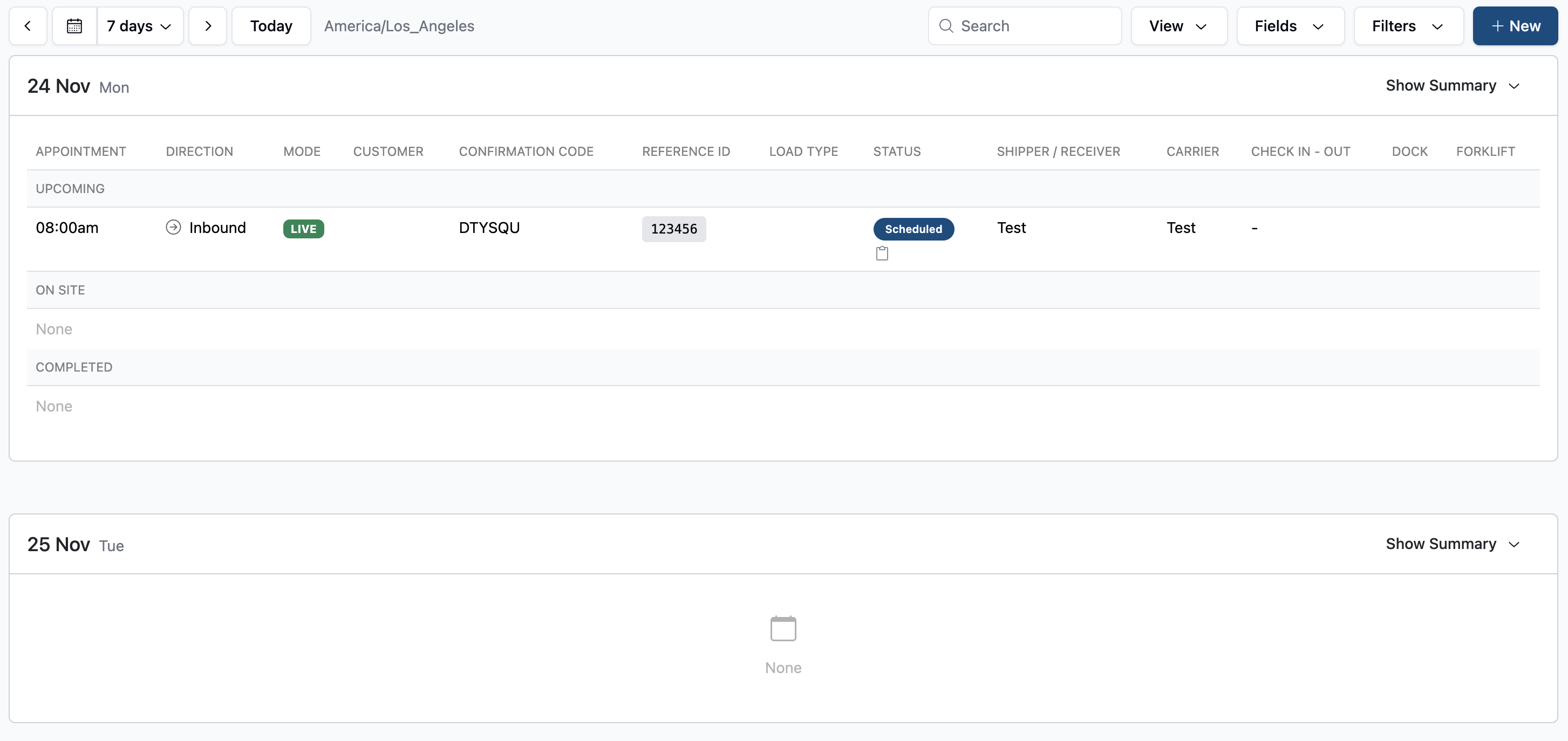
You're done! You have created the appointment and will now see it in your Schedule.
Frequently Asked Questions
Can I schedule as many appointments as I want?
Yes. When you schedule an appointment from inside of Conduit, you bypass capacity rules. This gives you complete control over your schedule. You can schedule as many appointments as you'd like, for any time slot.
To learn more about Capacity rules, read Setting Appointment Capacity.
Who can create appointments from within Conduit?
Anyone with "Editor" access to a facility. For documentation on how to add a new user, read Adding & Removing New Users.
If I schedule an Appointment manually, will it reduce appointments that can be scheduled by others?
Yes. When people schedule appointments using the public scheduling link, Conduit will only allow them to book appointments up to the capacity you selected in your Settings.
For more information on public scheduling, read Schedule an Appointment (Public Scheduling Link).
For more information on appointment capacity, read Setting Appointment Capacity.
Download a Printable Copy
⚠ Please note: We update our software with new features regularly. The most up-to-date documentation can always be found on our User Guide website.
If you choose to print documentation or share via PDF, please set reminders to update it regularly.