Schedule a Recurring Appointment
Last updated: December 9, 2025
Instructions
Recurring or repeating appointments can only be made by the facility through the manual appointment creation process. They cannot be created using the Public Scheduling Link. Here's how:
Within the New Appointment workflow, click the dropdown next to "Repeat" to select how frequently you want the appoint to occur.

The options are:
Weekdays: Monday - Friday every week
Weekly on the same day of the week
Monthly on the same calendar date
Monthly on the same day of the same week

Schedule the appointment following the normal process for a manual appointment.
We recommend putting placeholder values for the Reference ID (PO, SO, etc.) if you do not know them ahead of time. The carrier, customer, and shipper/receiver will receive email reminders as the appointment approaches. In those emails, there is a link to allow them to update this information.
Canceling a Recurring Appointment
Open a recurring appointment from the Schedule page. Select "Cancel or Reject".

In the dropdown list, select "Cancel Appointment".

Enter in details of the cancellation, including:
A reason for cancellation
Attachments related to the cancellation
Both the reason and the attachment will be shared with an emails associated with this recurring appointment.
If you want to cancel multiple appointments, select "Cancel this and following appointments.

Select "Cancel Appointment". You're done!

Managing Recurring Appointments
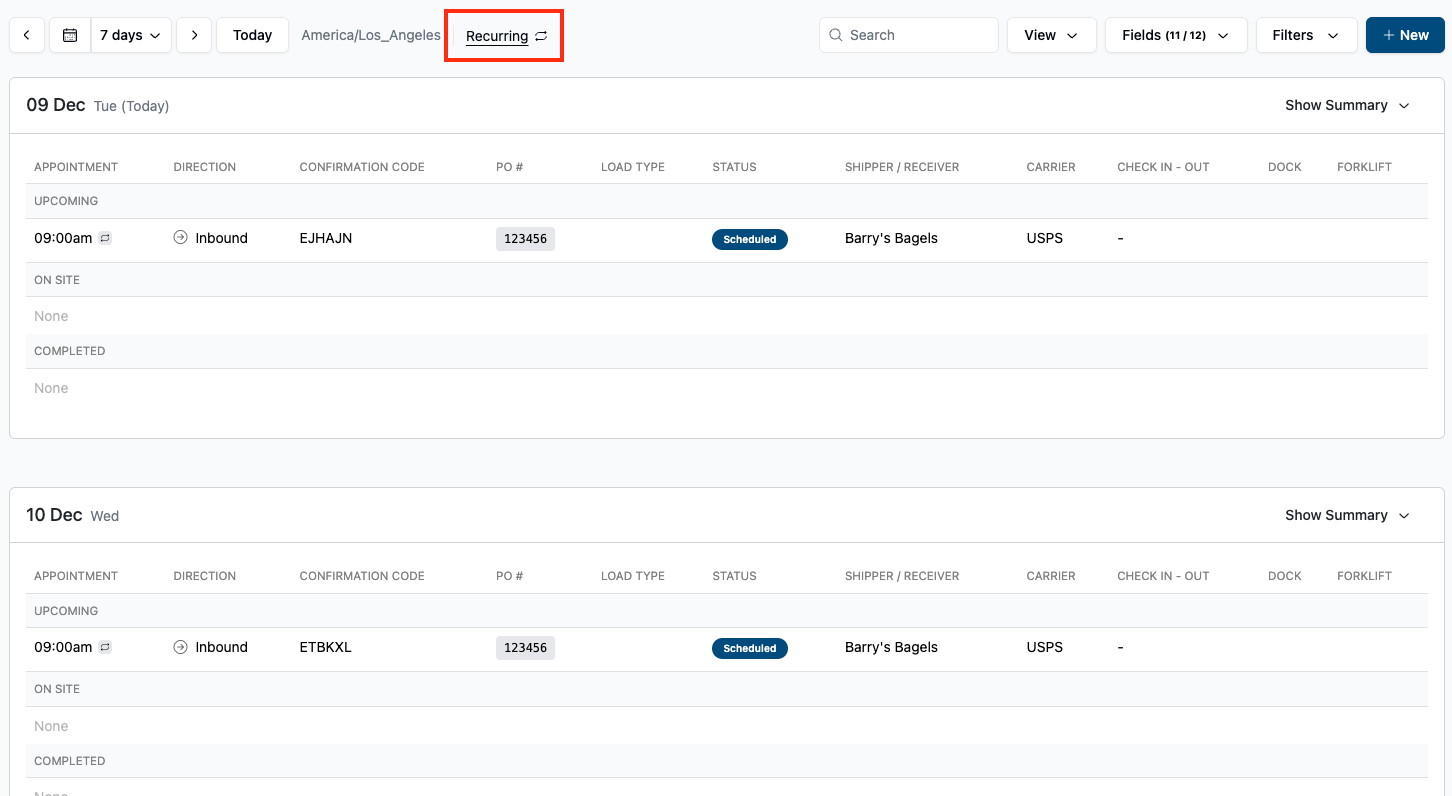
At the top of the Scheduling page, Click on the Recurring button
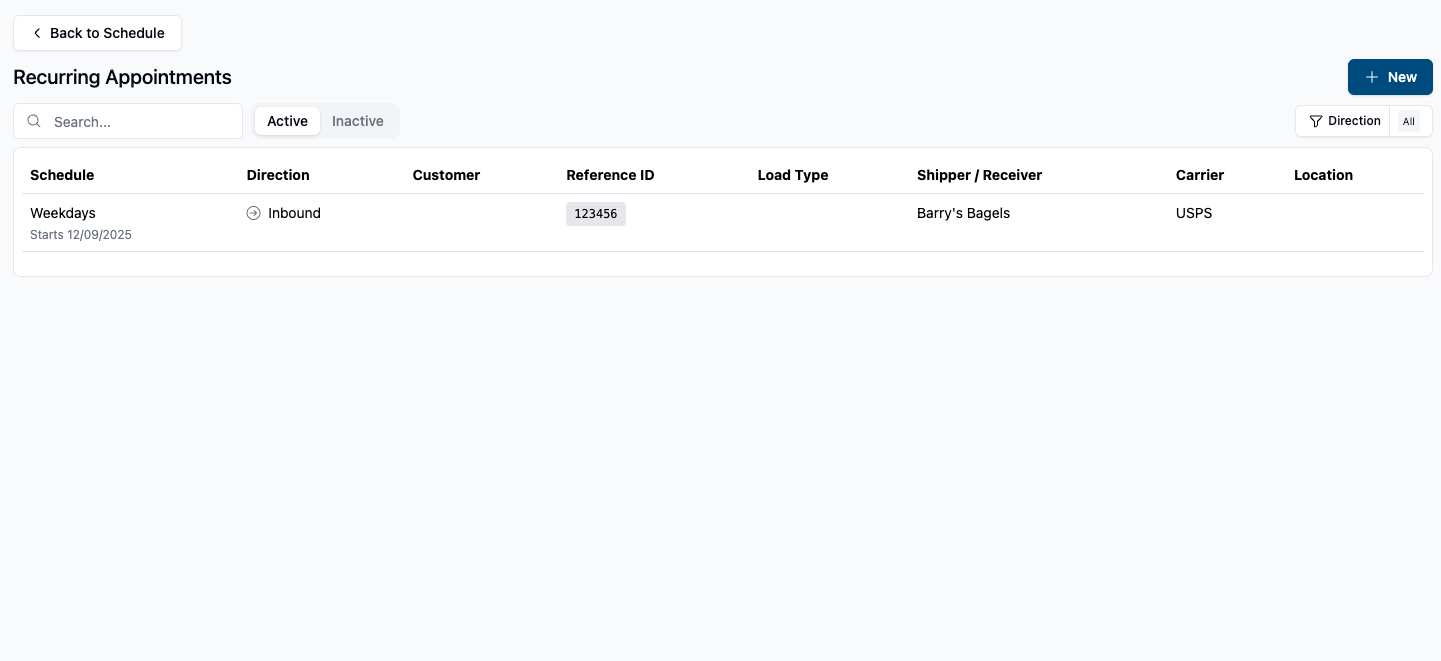
On this page, you can manage your currently active/inactive recurring appointments by clicking on the appointment itself, or create a ew one by clicking NEW at the top right of the screen
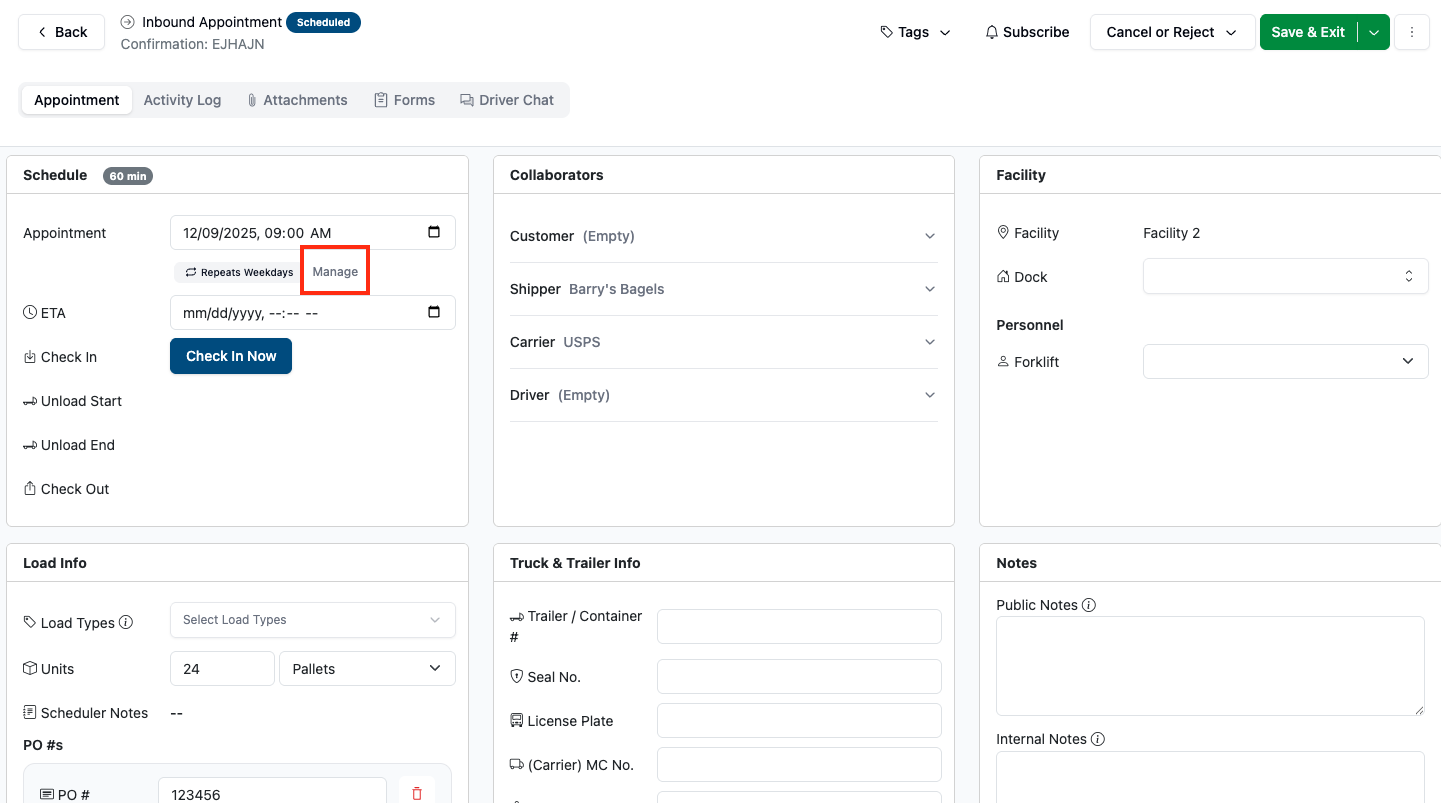
You can also manage and edit a recurring appointment by clicking the Manage button in the appointment itself
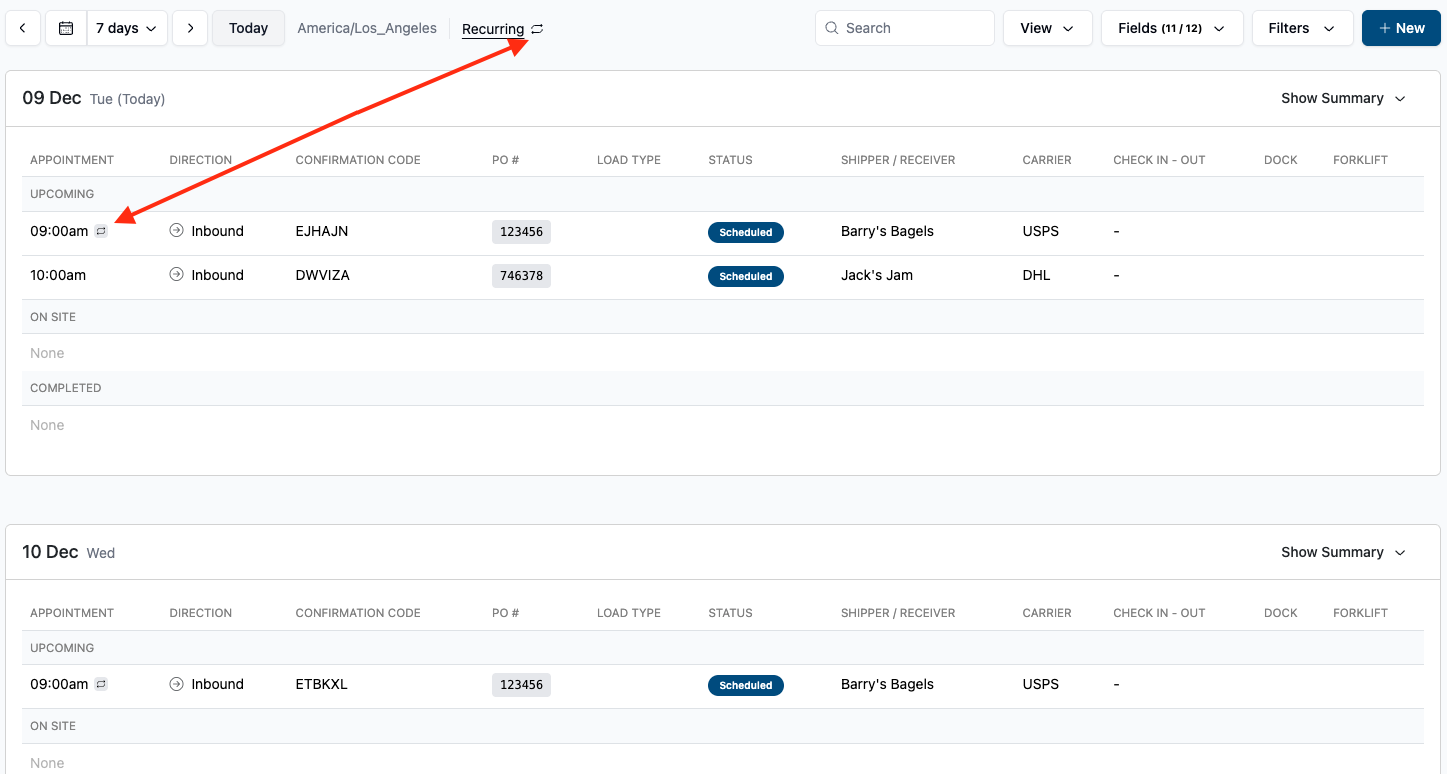
You can also see which appointments are recurring or not by using the Recurring symbol as a reference point next to the. Appointment Time
Frequently Asked Questions
How do I modify the time/day of the week for a recurring appointment?
You will need to cancel the existing appointment and schedule a new set of recurring appointments.
What emails will be sent to the shipper/receiver, customer, and carrier when I cancel a recurring appointment?
A cancellation email will be sent to all contacts associated with the appointment series. Please read the article Automated Emails from Conduit for more detail on what is in those emails.
Can people outside the facility create or cancel recurring appointments?
No. Only the facility can create recurring appointments.
If a carrier has a recurring appointment, how do they update ETA or reschedule?
The appointment will not show up in the "Lookup Appointments" window, because they did not schedule the appointment. However, they will receive reminder emails about the appointment as it approaches. In the email, there is a link to reschedule, provide additional files, or update the ETA.
Download a Printable Copy
⚠ Please note: We update our software with new features regularly. The most up-to-date documentation can always be found on our User Guide website.
If you choose to print documentation or share via PDF, please set reminders to update it regularly.