Schedule an Appointment (Public Scheduling Link)
Last updated: October 1, 2025
Instructions
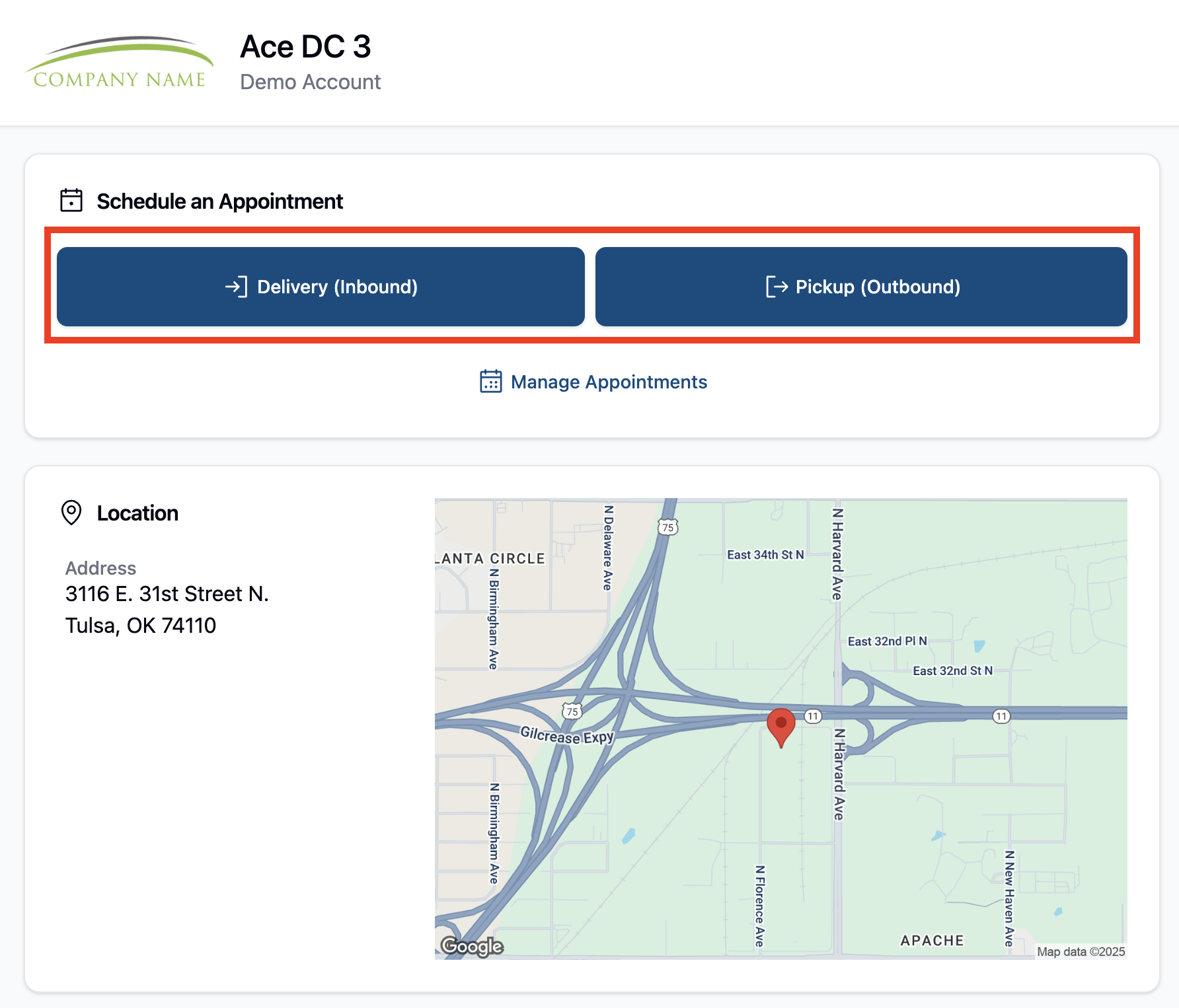
From the Public Scheduling page link, select the type of appointment you'd like to make:
Delivery (Inbound): an inbound appointment
Pickup (Outbound): an outbound appointment
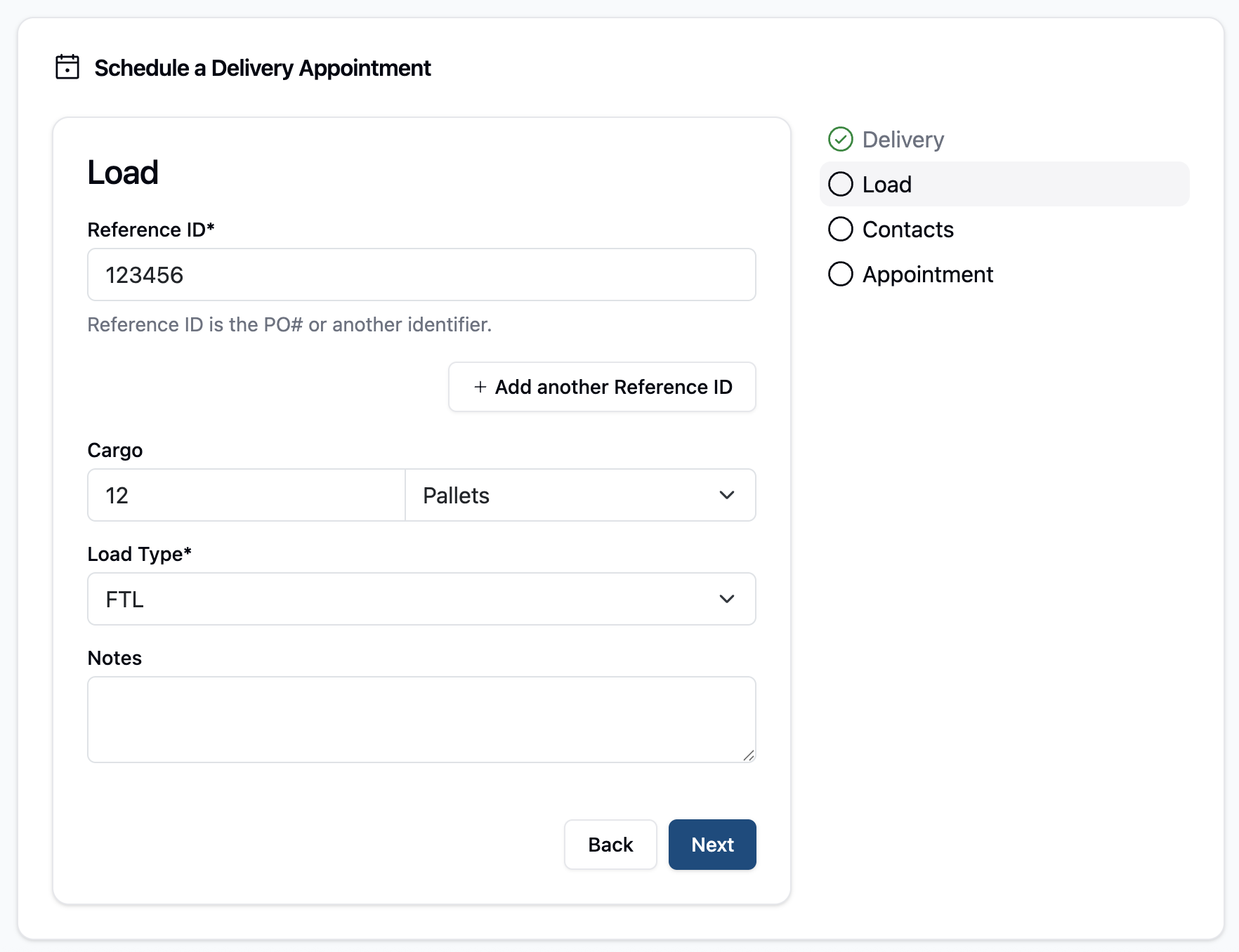
Next, enter load information. This field is configurable, depending on what information you want to capture. The minimum information is:
Reference ID/PO
Units (Cargo)
Additional common fields include:
Load Type
Trailer Number
Seal Number
At the top of the page you can put custom instructions for PO numbers or other details, as needed.
Click "Next" to move forward.
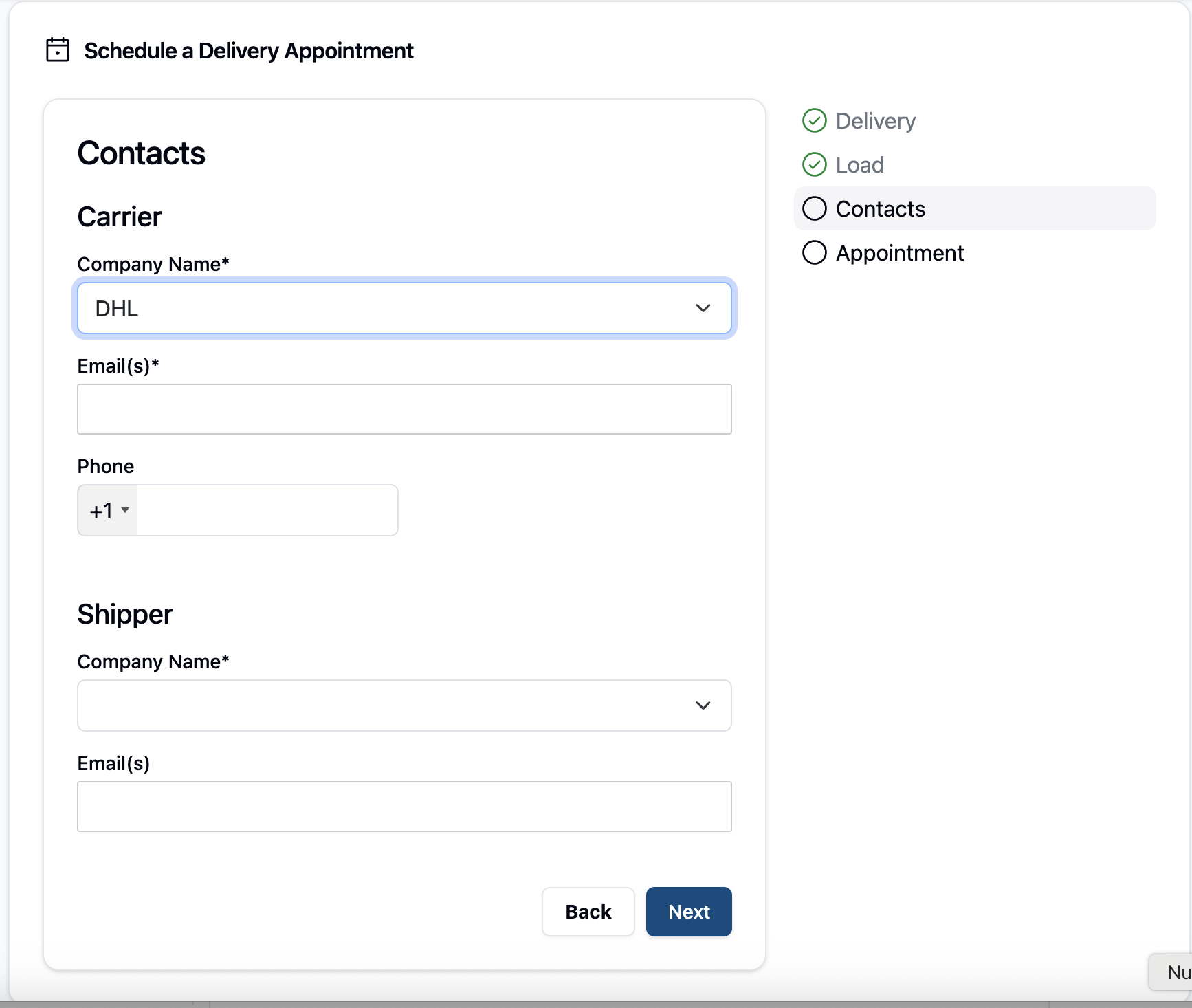
Enter information about the Carrier, Shipper/Receiver, and Customer.
These fields are customizable. All appointments require a Carrier, but Shipper/Receiver and Customer can be added or removed, depending on what information you want to capture. We can create drop down lists to prevent mistyping.
Click "Next" to continue.
If the facility is configured to require a BOL at the time of appointment creation, then upload a BOL. Additional common uploads include:
(list of options we support).
All files uploaded during appointment scheduling will be visible to the warehouse once the appointment is scheduled. To learn more about attachments, read Appointment Attachments.
You're done! You have created the appointment and will now see it in your Schedule.
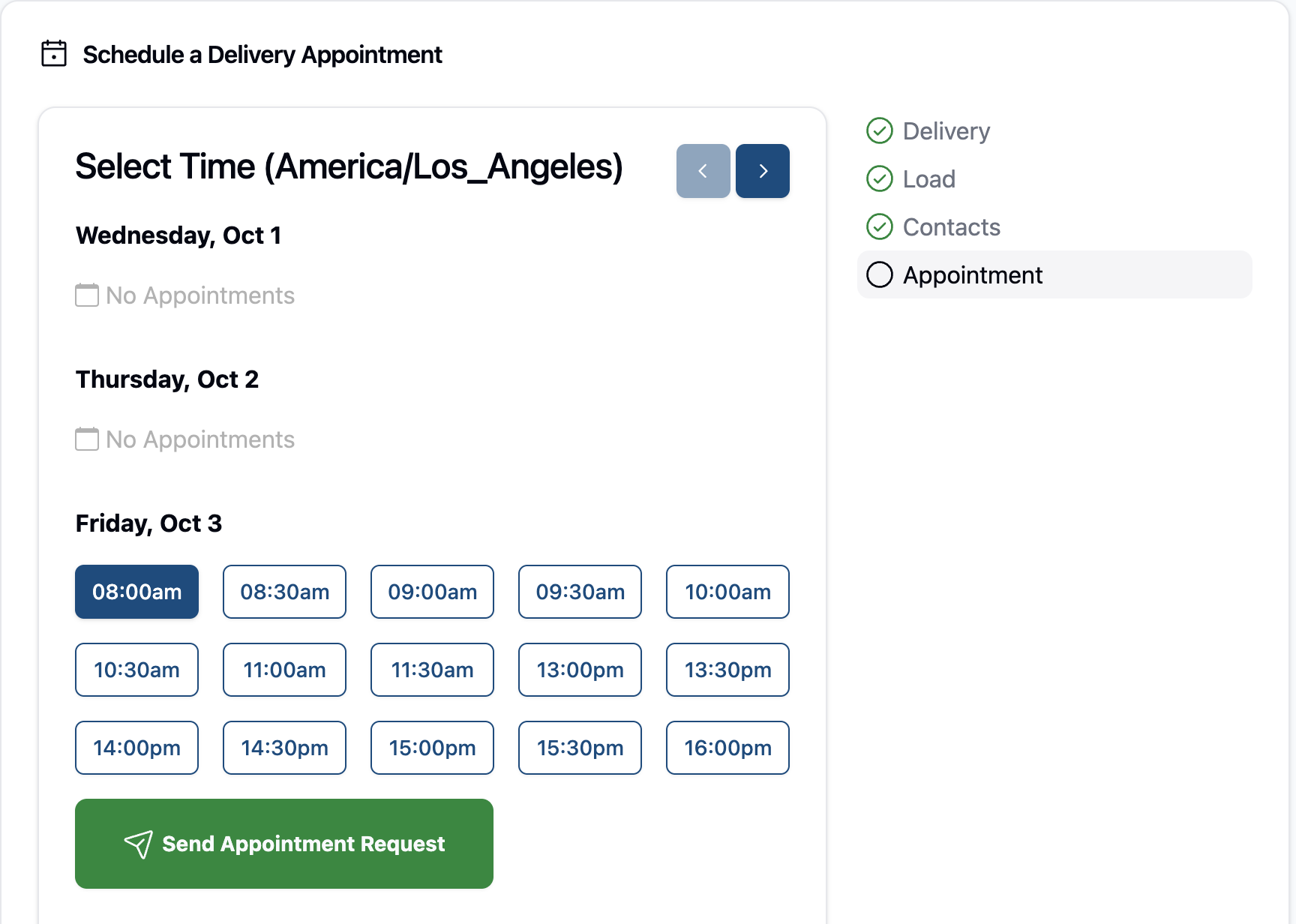
You will now be asked to select an appointment time and date.
This page will only show available appointments. If all appointments for a given time are already full, that time will not appear (as seen here under Tuesday, April 22).
On the right side bar, details of the facility give information about scheduling, including scheduling cutoffs, contact details for the facility, and open receiving or shipping hours.Click "Submit Request" to submit your appointment.


You're done! The appointment has been submitted. The status will show "Requested" or "Confirmed", depending on whether the facility chooses to auto-confirm or manually confirm appointments.
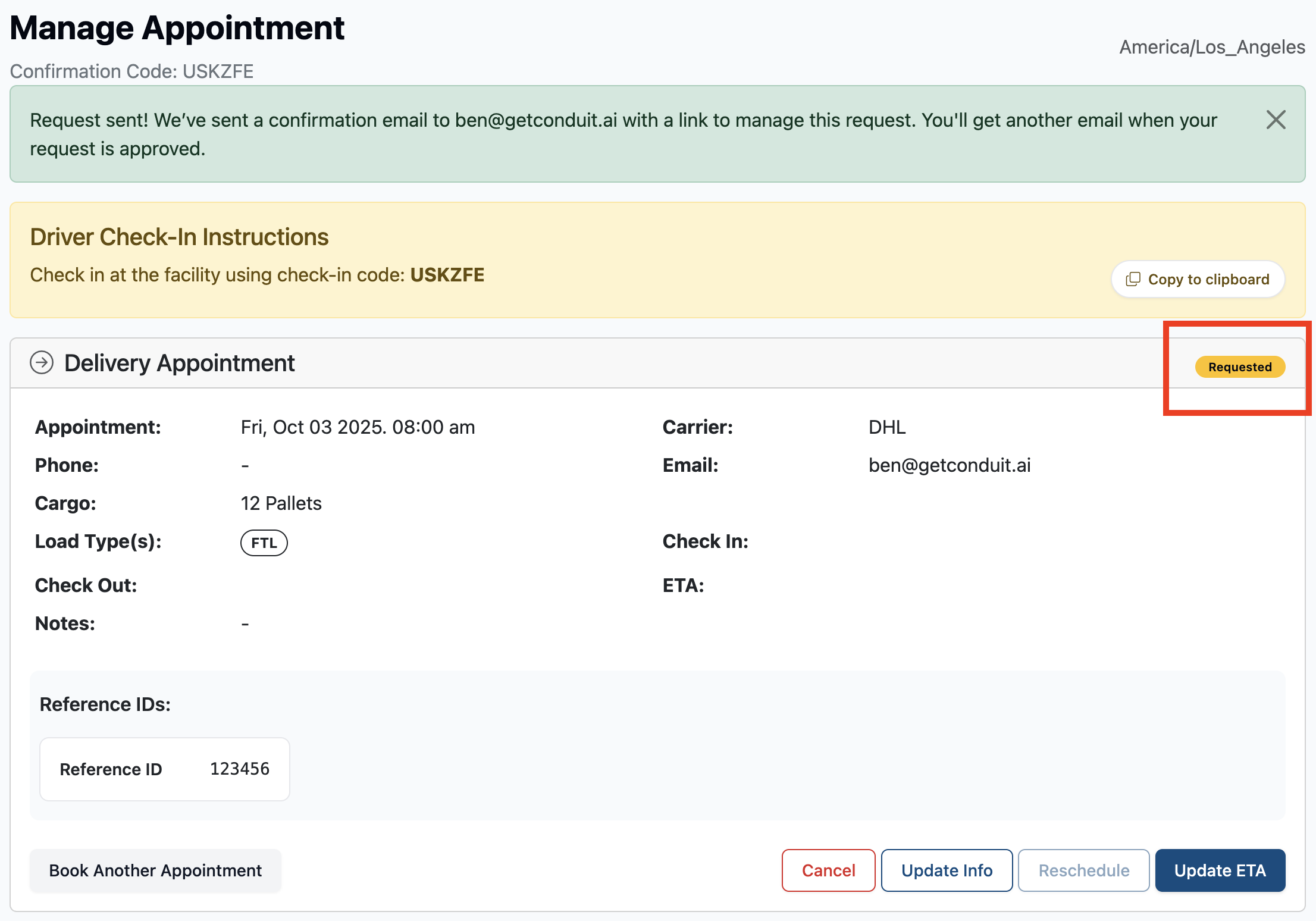
If you need to cancel the appointment, update any information that has changed, reschedule, or update the ETA, you can do so from this page.
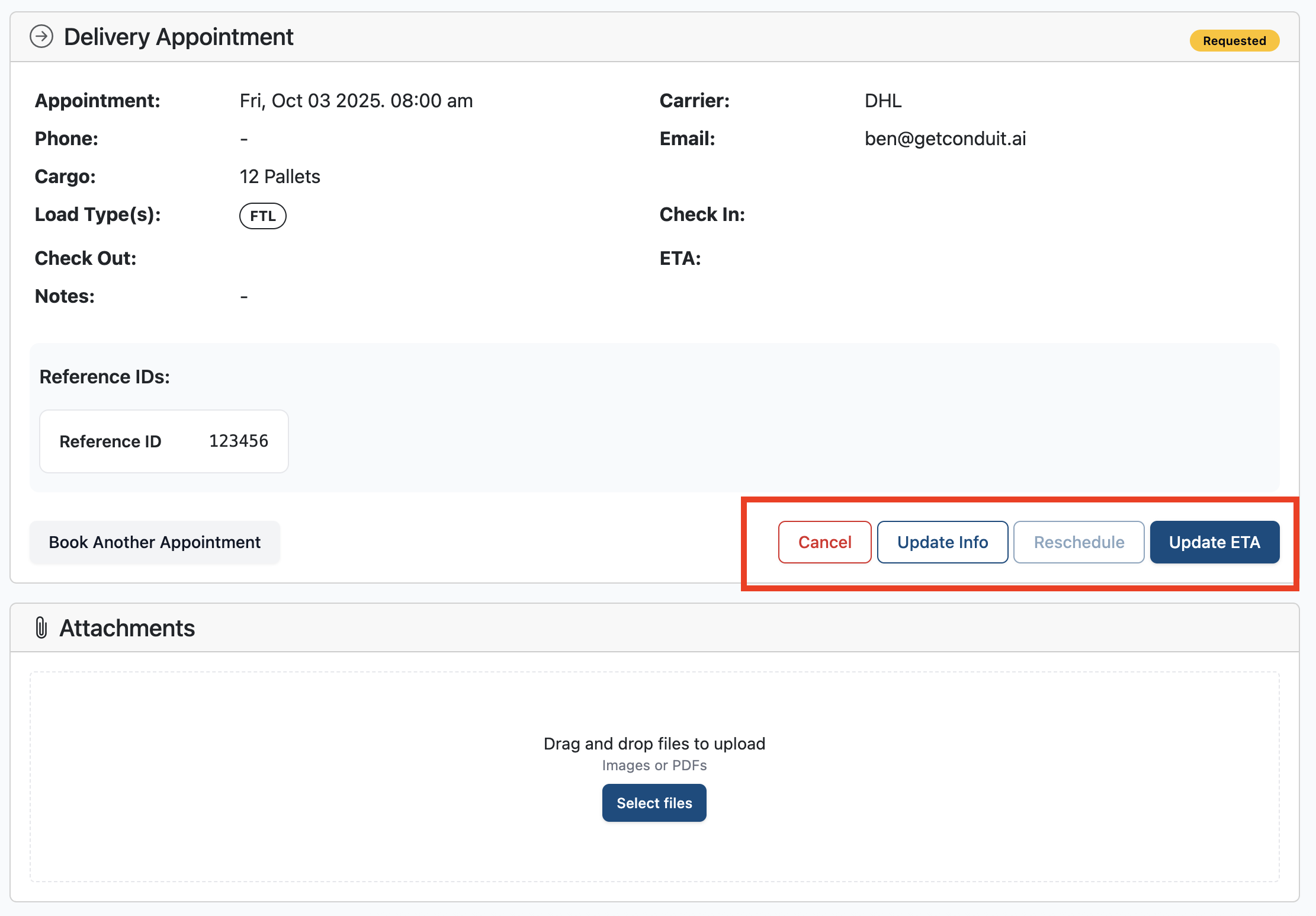
Book Another Appointment will return you to the beginning of this workflow, so that you can submit another appointment to the same facility.

All attachments submitted during the schedule process will appear here. If you have more attachments to add, you can upload those at any time. If the facility adds attachment during the appointment, and flags those as publicly visible, you will see those appear here as well.

Frequently Asked Questions
Can anyone schedule an appointment through this link?
Yes. You can send this link to anyone, and they can schedule appointments for your facility.
Will my broker/carriers/scheduling team need to have log ins to schedule?
No. Anyone with the link can schedule appointments. They will not need to create a log in to do so.
How do I see appointments I've created after I submit an appointment request?
Read our Lookup Appointments article for more information on how to look at appointments you've scheduled.
I need to send training materials to my broker/carriers/scheduling team. Do you provide those?
Yes. Read our Training Materials for Brokers, Carriers, and Scheduling Teams article for those documents.
How do I configure what fields are required in the scheduling process?
Conduit can configure what fields show up during scheduling. Please read our Configuring your Scheduling Page article for more information.
How does Update ETA work?
When you update the ETA of a driver, it will send a notification and reason code to the warehouse so that they can plan around the delay. For more detail, please see Updated ETA on our Schedule page.
What emails are associated with an appointment?
We will send confirmation emails, appointment reminders, and appointment completion notifications. For more detail on what emails we send, please read Automated Emails from Conduit.
How do I find my Public Scheduling Link?
Your public scheduling links are in the settings of your account. Please read our article Public Scheduling Links for instructions.
Training Materials for Brokers, Carriers, and Scheduling Teams
Please use our Training Materials for Brokers, Carriers, and Scheduling Teams article for email templates, PDF instructions, and tutorial videos.