Contactless Driver Check In (QR Code)
Last updated: May 28, 2025
Instructions
How To Check In For Your Appointment Online
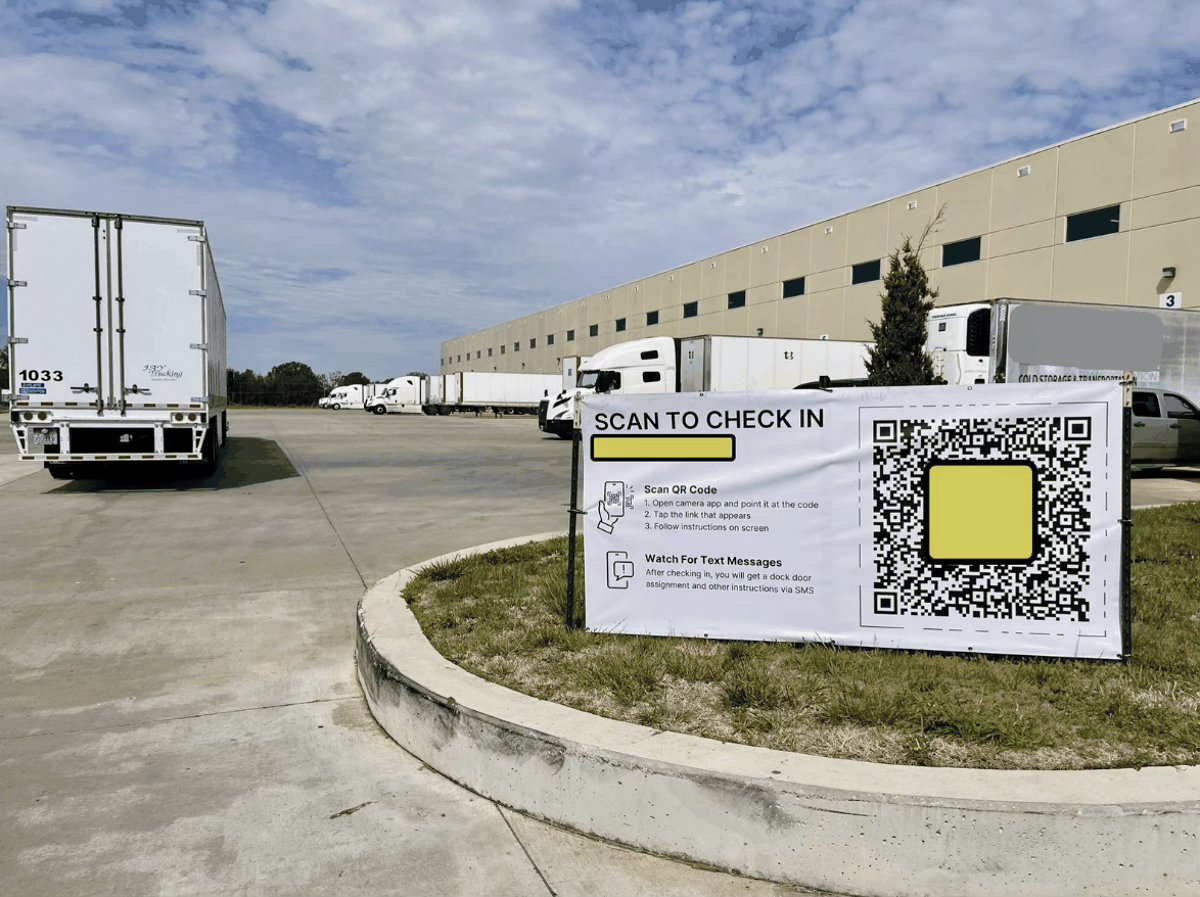
When a driver arrives to your facility, they will see QR code signage posted at the facility. In the FAQ below, you can learn more about signage options.
When they take a photo of the QR code, it will take them to your check in webpage.
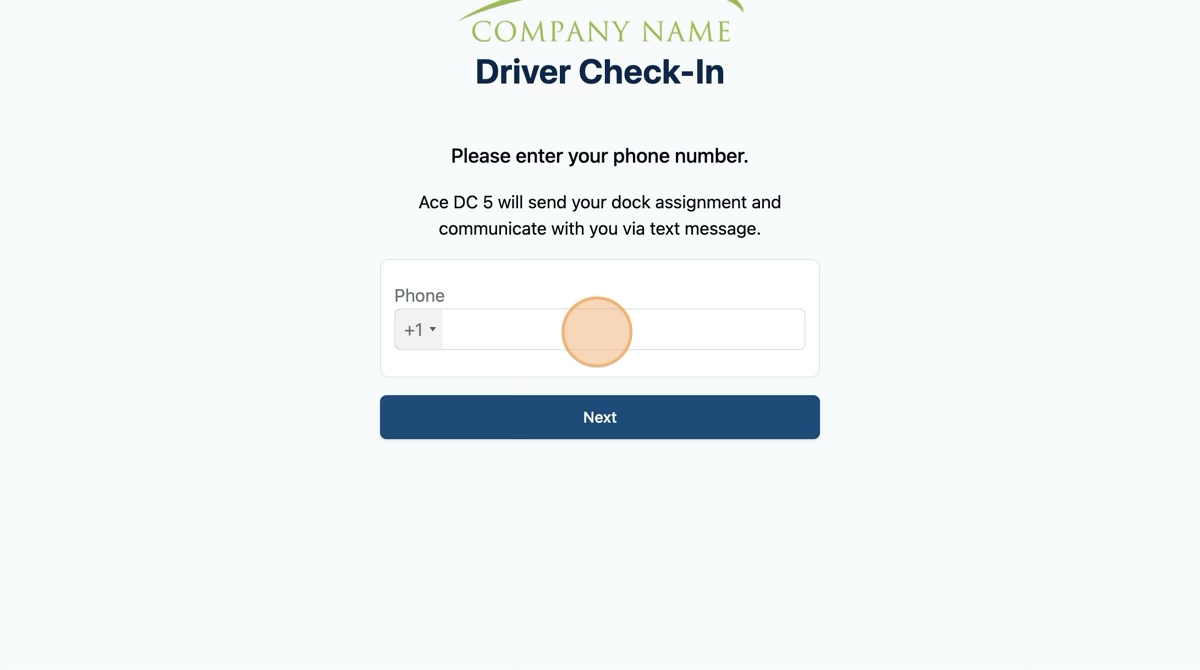
Once they open the check in page, it will ask them to fill in information to check in for their appointment, starting with their phone number.
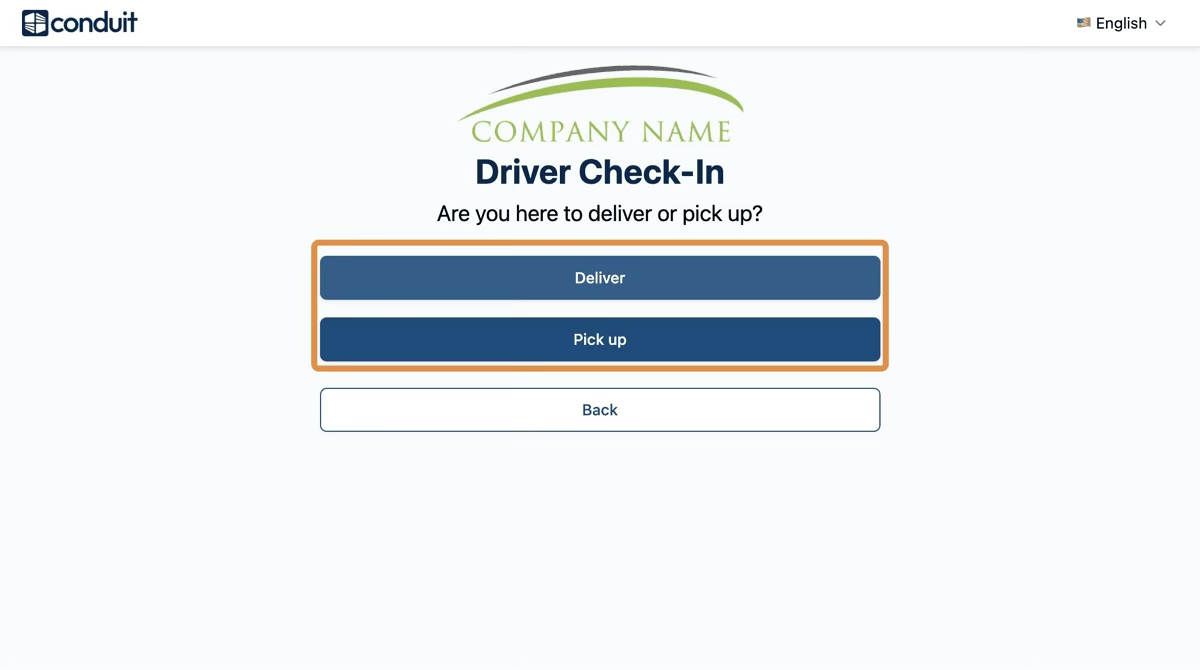
Next they'll be asked to select whether they are delivering or picking up.
Then they'll select whether or not they have an appointment.
If they do not have an appointment, they will be asked to enter information for the warehouse to create an appointment. See step ###.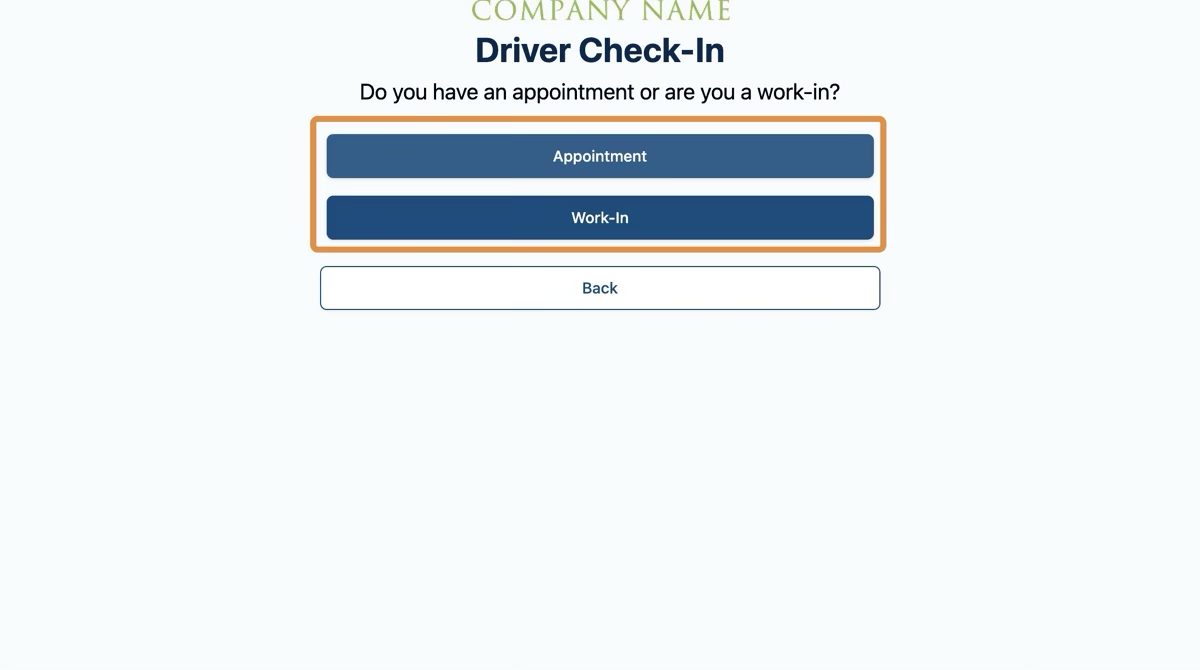
If they selected "Appointment" on the step prior, they will be asked to provide a BOL or enter their order info.
If they select BOL, they will be asked upload a photo of their BOL. Our system will scan that document and automatically associate them with an appointment.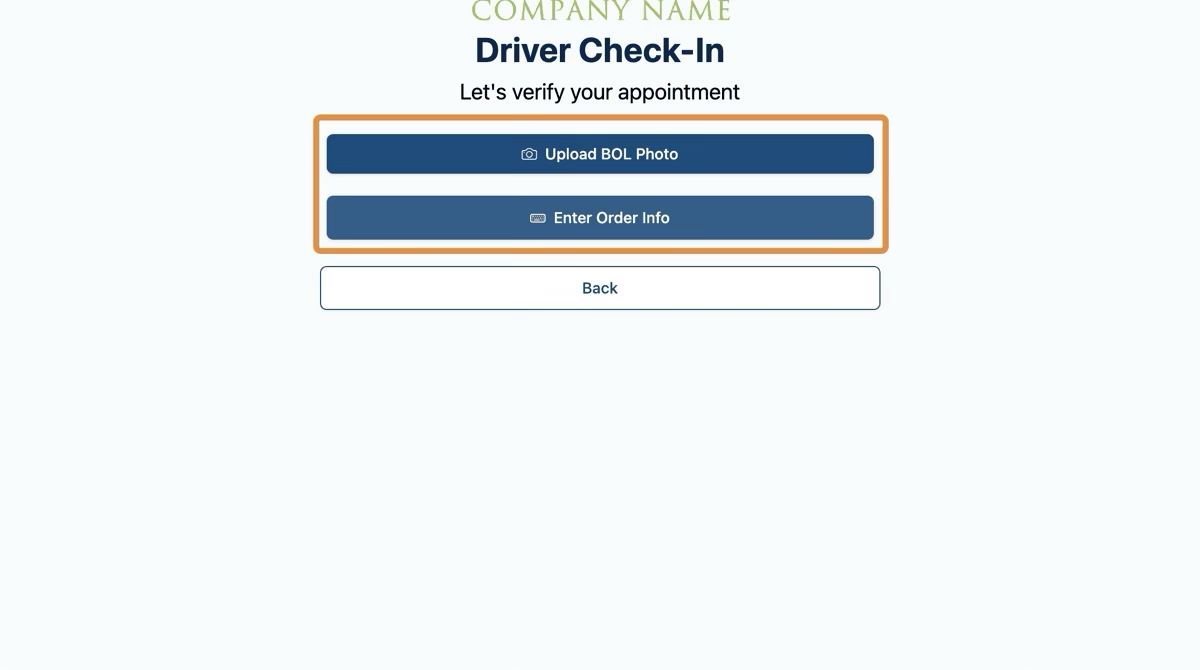
They will be asked to enter some basic information about their load to associate them with an appointment and for your records.
The driver can enter either a PO number or a confirmation code. The confirmation code is provided by Conduit when a carrier schedules an appointment.To learn more about Confirmation Codes, please read the Scheduling article.
The information fields that appear here are configurable - to learn more about what fields are available, please read the FAQ at the end of this page.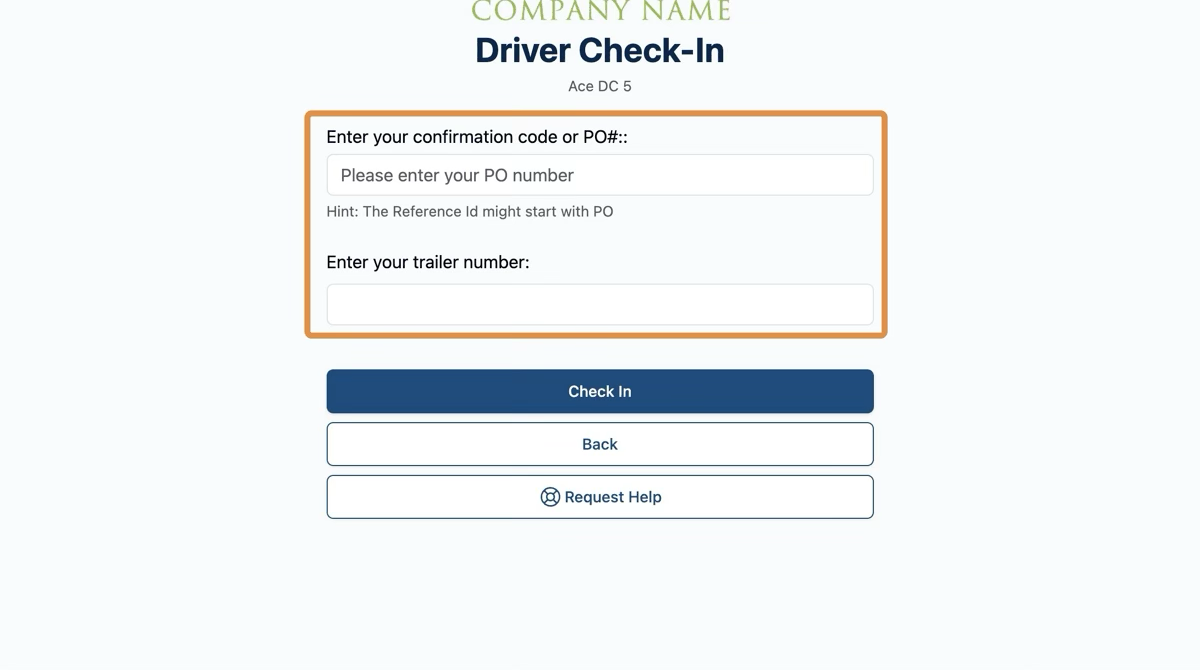
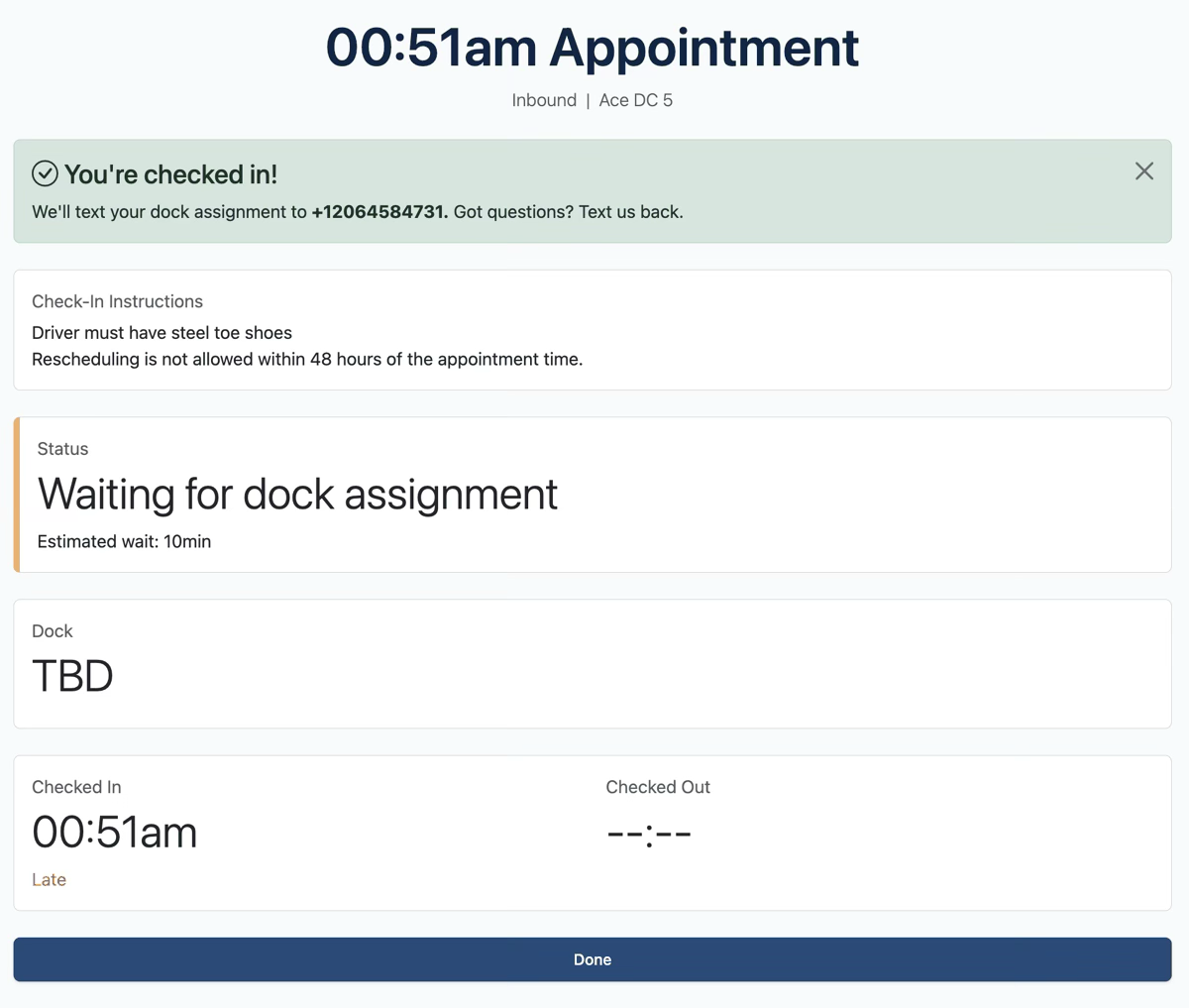
The driver is now checked in! They will see a webpage with information about the appointment.
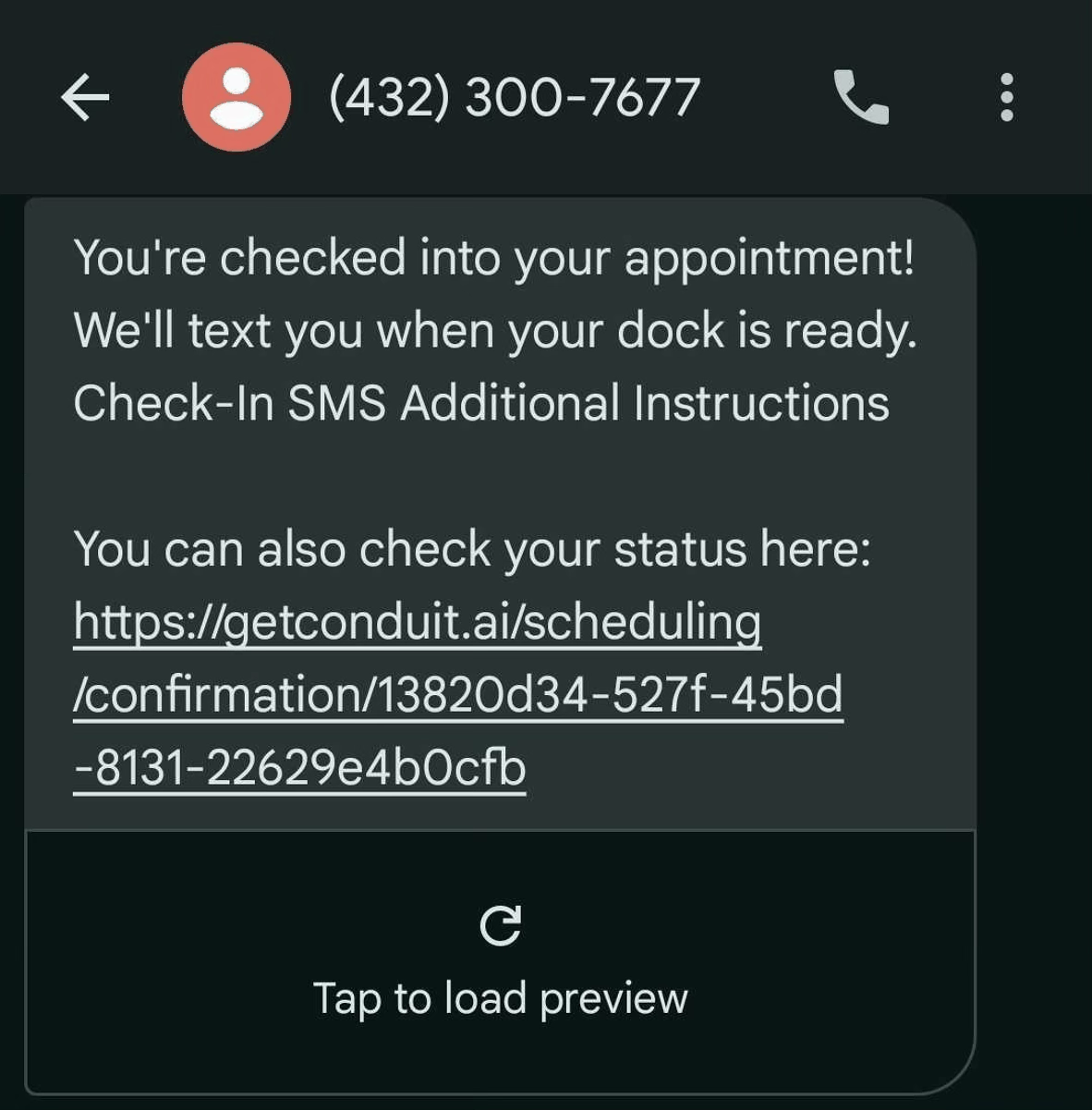
The driver will also receive a text message to begin a chat with the warehouse staff. If they reply to this text, the warehouse will receive those texts in the appointment on Conduit. For more information about how a warehouse can view texts, please read the article on Driver Messaging.
If the Driver does not have an appointment showing in our system
If the driver enters a PO number or Confirmation code that is not on today's schedule, they will see a red message appear allowing them to contact the warehouse. This will start a text message chat with the warehouse team.
Click "Chat with facility staff to finish checking in".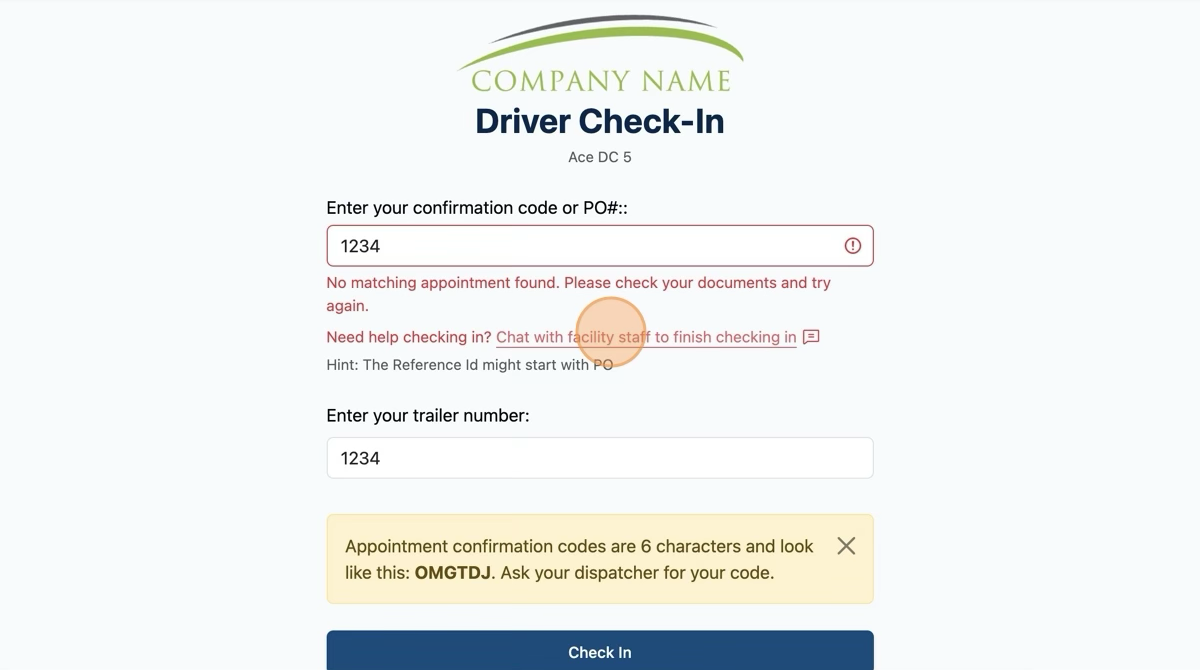
They will be asked to confirm the information they have about the load they are trying to pick up or deliver, and add any additional information they have.
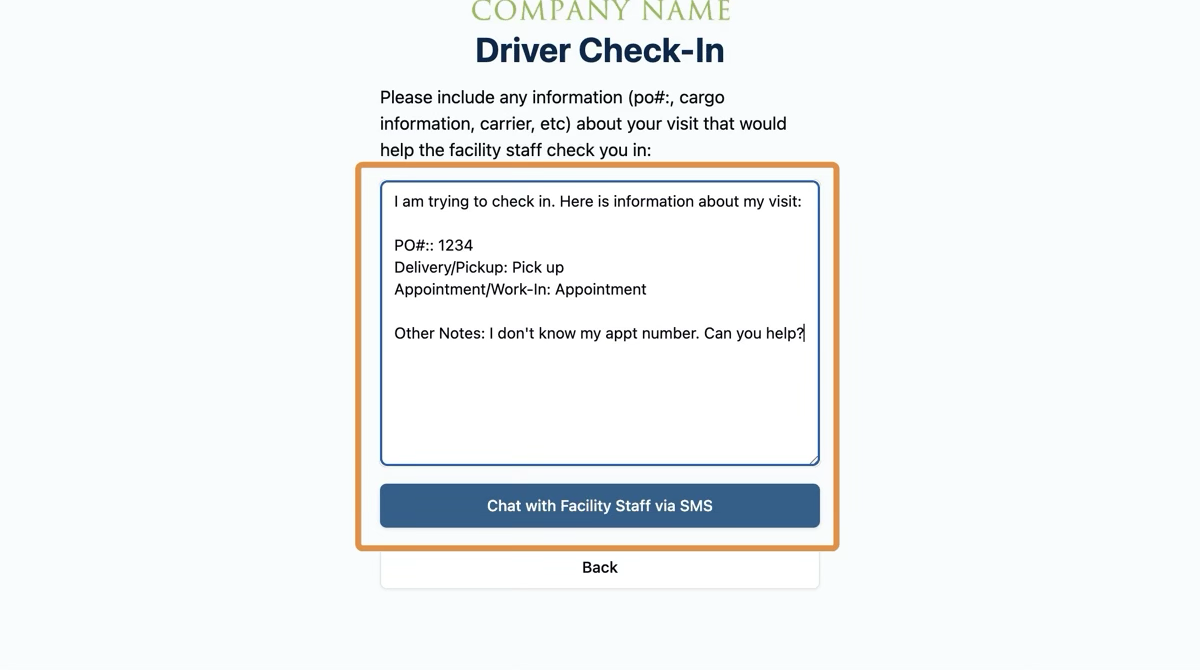
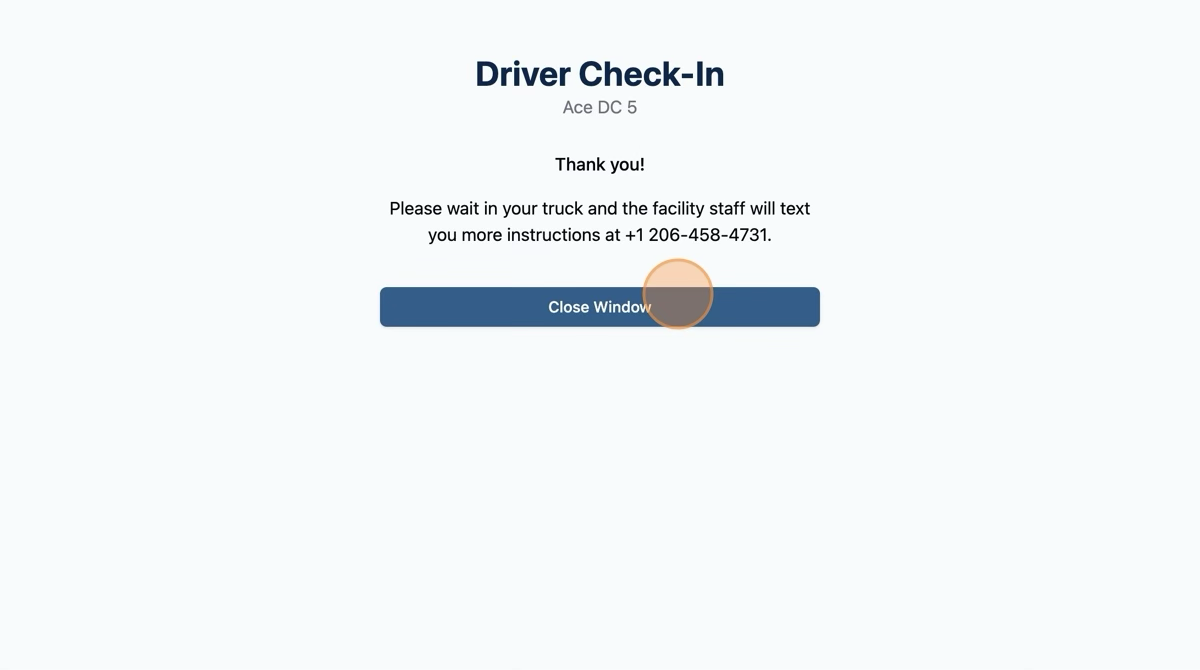
Once they submit the request, they will receive a text message and a confirmation screen will appear.
The driver and the warehouse can now text back and forth to figure out what the load is, and get the driver checked in.
For more information about how a warehouse can view help requests, please read the article on Driver Messaging.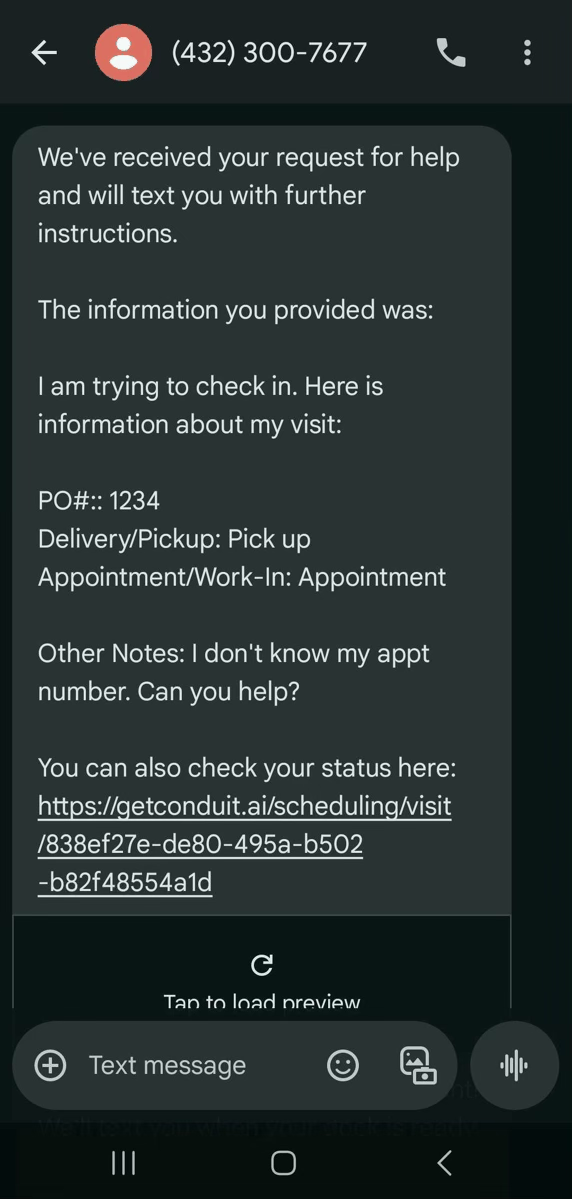
Frequently Asked Questions
What fields are configurable for check in?
Please see our article on Check In Configurations.
I don't use PO numbers. Can we use a different number for drivers to look up their appointments?
Yes, we can rename the field "Ref ID number" to be called anything you'd like. "PO number" or "Shipment ID" are common options we have used. Learn more in our article on Scheduling.
What if a driver doesn't have a cell phone that can take pictures?
In the event that a driver does not have a cell phone that can use a QR code, our check in process can be set up on a tablet or a computer. In that instance, they would need to come to the dock office to check in.
You can find the URL for tablet or computer in your facility settings page. Learn more in our article Tablet Check In.
How does a "Request Help" task appear for the warehouse?
Please read our article on Check In Help Requests for the Warehouse.
Download a Printable Copy
⚠ Please note: We update our software with new features regularly. The most up-to-date documentation can always be found on our User Guide website.
If you choose to print documentation or share via PDF, please set reminders to update it regularly.