Driver Check In (Manual)
Last updated: May 28, 2025
Instructions
From the Schedule page of Conduit, select the appointment you want to check in.

Click "Check In Now".

Enter the driver's information into the Driver field. Entering a phone number will allow the driver to receive dock assignments and other instructions via text message.

Assign a dock for the appointment, if one has not already been assigned. The driver will receive a text message with that information, and any special instructions for that dock door.
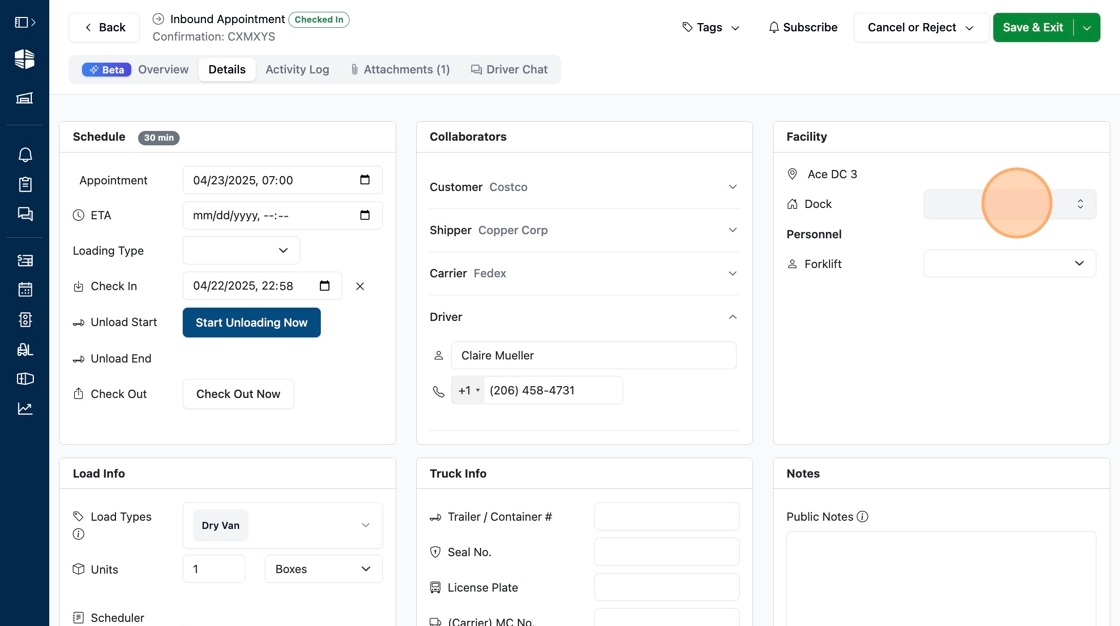
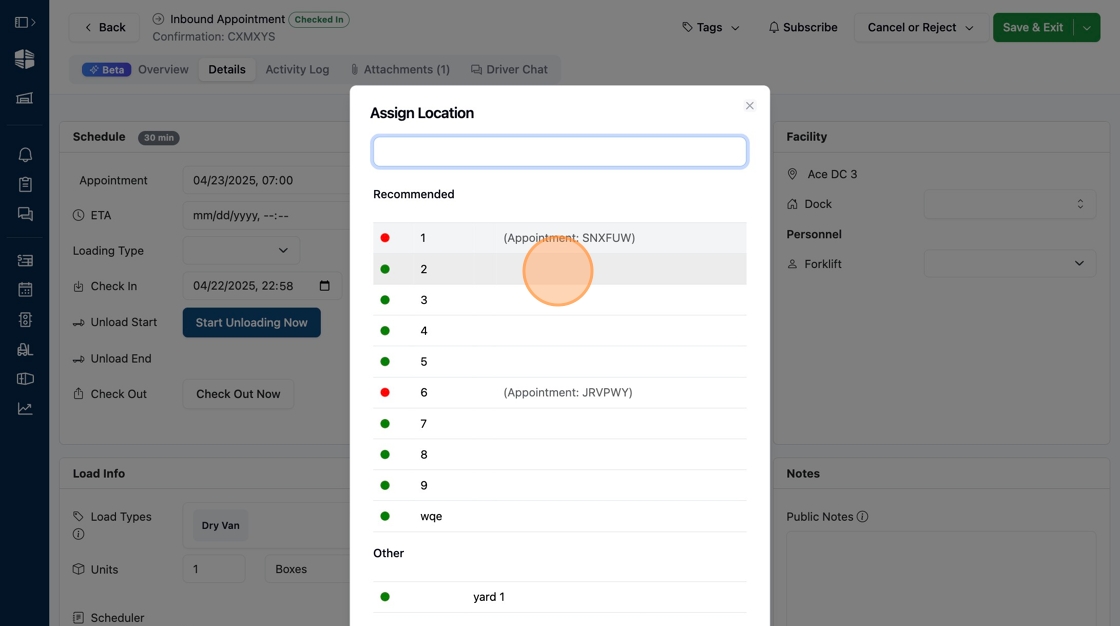
Click "Save" to complete Check In.
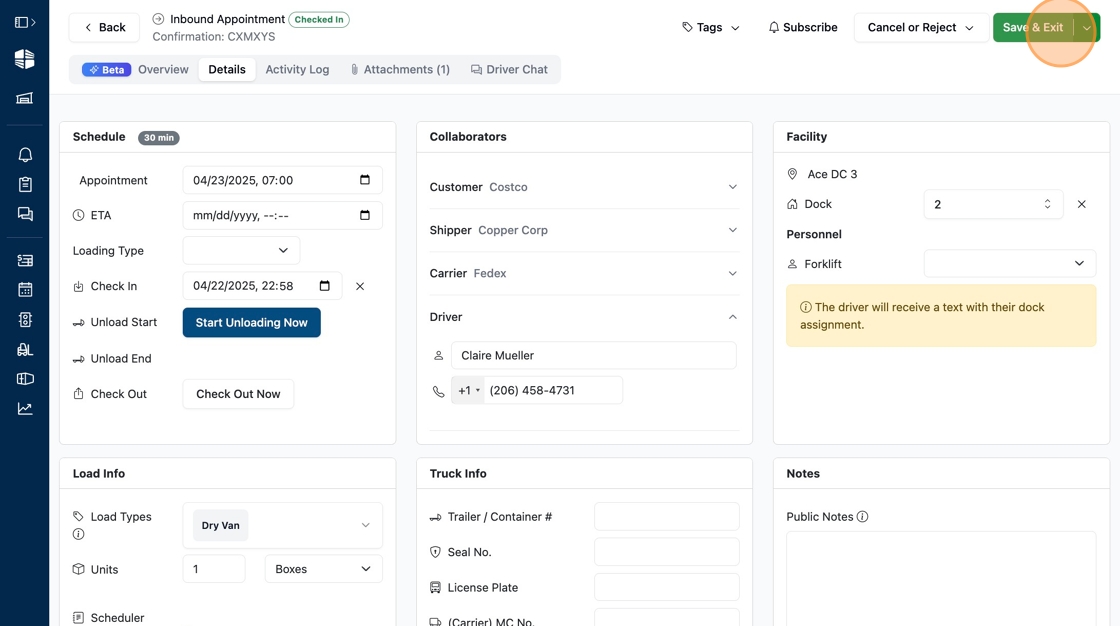
You're done! You will now see the appointment status has changed to "Checked In" on your schedule.

Frequently Asked Questions
Who can check in drivers?
Anyone with "Editor" permissions for your facility can check in drivers.
To learn more about user roles, read the User Settings article.
What text messages go to Drivers?
Drivers will receive text messages for Checking In (directing them to a specific dock door), Unload Complete (alerting them to come to the office to collect their paperwork), and Checked Out (confirming that they are cleared to leave the facility).
To learn more about driver messaging, read the Driver Chat article.
If I check a driver into the wrong appointment, can I change it?
Yes. Once a driver is checked in, an "X" will appear next the check in box. Clicking this "X" will remove their check in, allowing you to check them in to a different appointment.