Driver Chat
Last updated: March 9, 2026
With Conduit, you can chat directly with drivers that are checked in to their appointments via SMS text messages straight from the Conduit app. Configurable, automated text messages give drivers instructions and updates along the way.
Automated Driver Chat SMS Messages
Drivers receive automated instructions and updates via Driver Chat as the appointment progresses from start to finish. Specifically, drivers are notified when:
Their phone number is assigned to an upcoming appointment that hasn't checked in yet
They check in to an appointment
They are assigned a dock, or the dock is reassigned
[Un]loading finishes
They are checked out of the appointment
Conduit staff can configure the automated text messages to fit your operations. Please reach out to support@getconduit.ai if you would like an adjustment to any of the automated Driver Chat text messages.
Default Automated Messages in Driver Chat
The default text messages Conduit will send are:
When a driver checks in:
You're checked into your appointment! We'll text you when your dock is ready. You can also check your status here: [link]
Note: If a dock is assigned before the driver checks in, this message will also include the dock assignment information.
When a dock is assigned:
Your dock is ready! Please proceed to [dock name].
When "finish unloading" is clicked in the appointment:
You're all finished! Please come inside to get your paperwork.
Configuring Automated Messages in Driver Chat
There are multiple ways to edit the driver chat. You can:
add instructions to the default chat from the "Facility Settings" page. Look for the setting "Check-In SMS Additional Instructions" on the Inbound and Outbound settings pages.
add instructions for specific dock doors from the Yard page. Click into a location to edit the location details, and put additional instructions in the "Check-In Instructions".
override all other text messages (including the Conduit defaults) by contacting us at support@getconduit.ai.
How to use Driver Chat
When a driver has checked in to an appointment and provided a phone number during check-in (whether it was done via QR code/tablet or manually entered into the appointment by facility staff), they will receive automated messages from Conduit and can be contacted using Driver Chat.
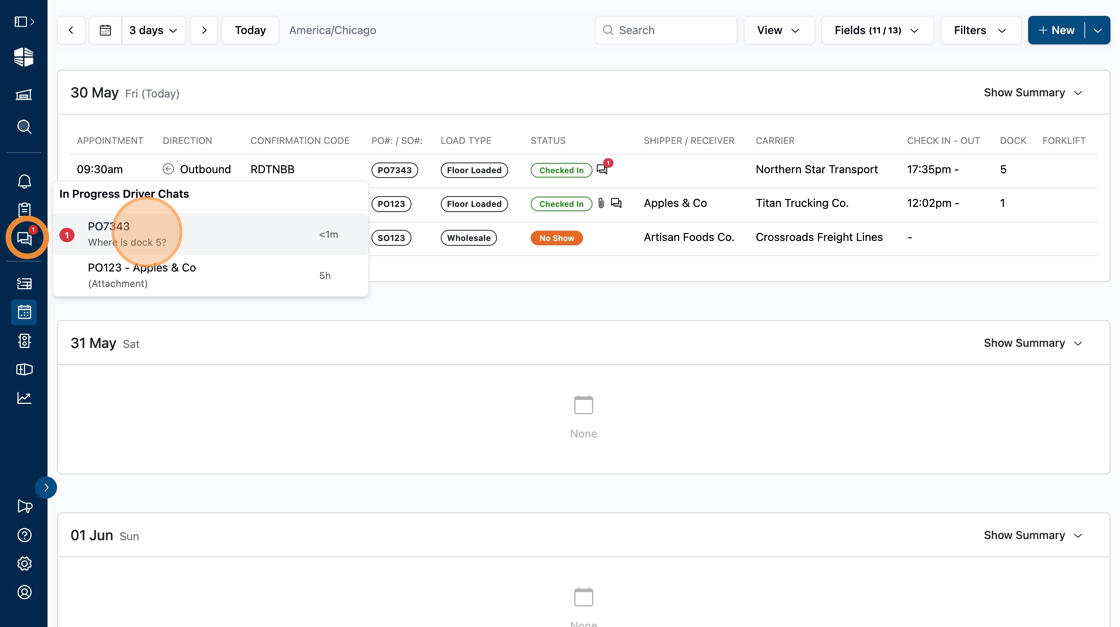
Appointments with open Driver Chats are indicated by the chat bubble icon next to the appointment status.
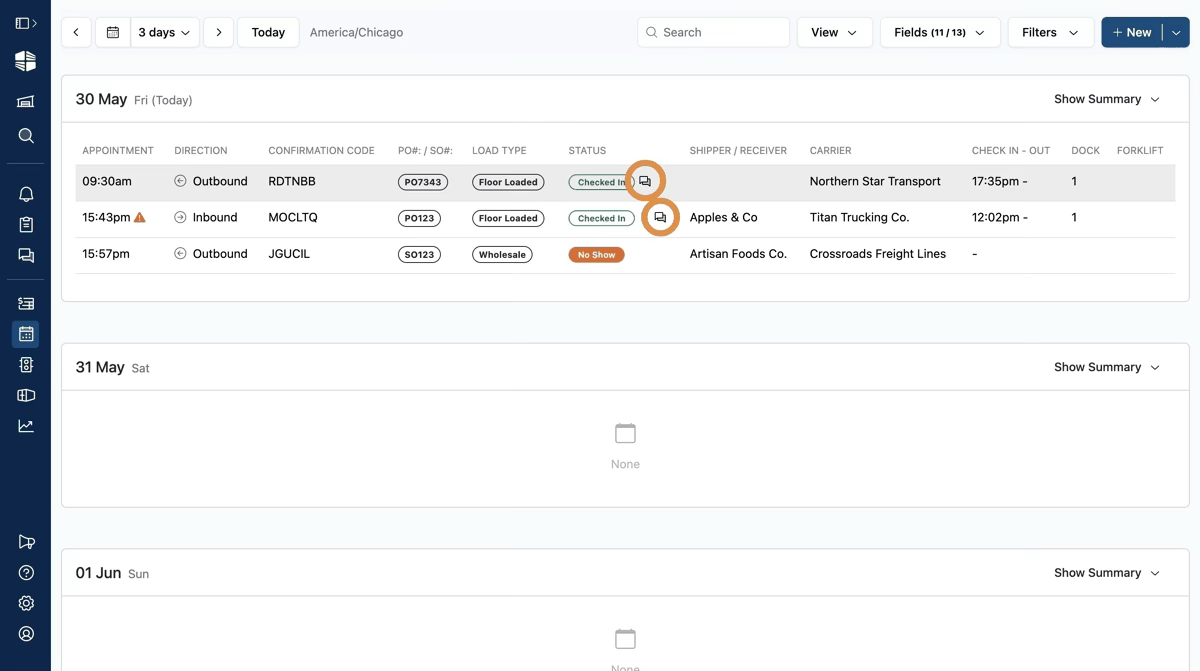
Click the chat bubble icon associated with an appointment at any time to directly access the Driver Chat for that appointment. You can also see a list of all open Driver Chats by clicking the chat icon in the navigation bar on the left side of the page.
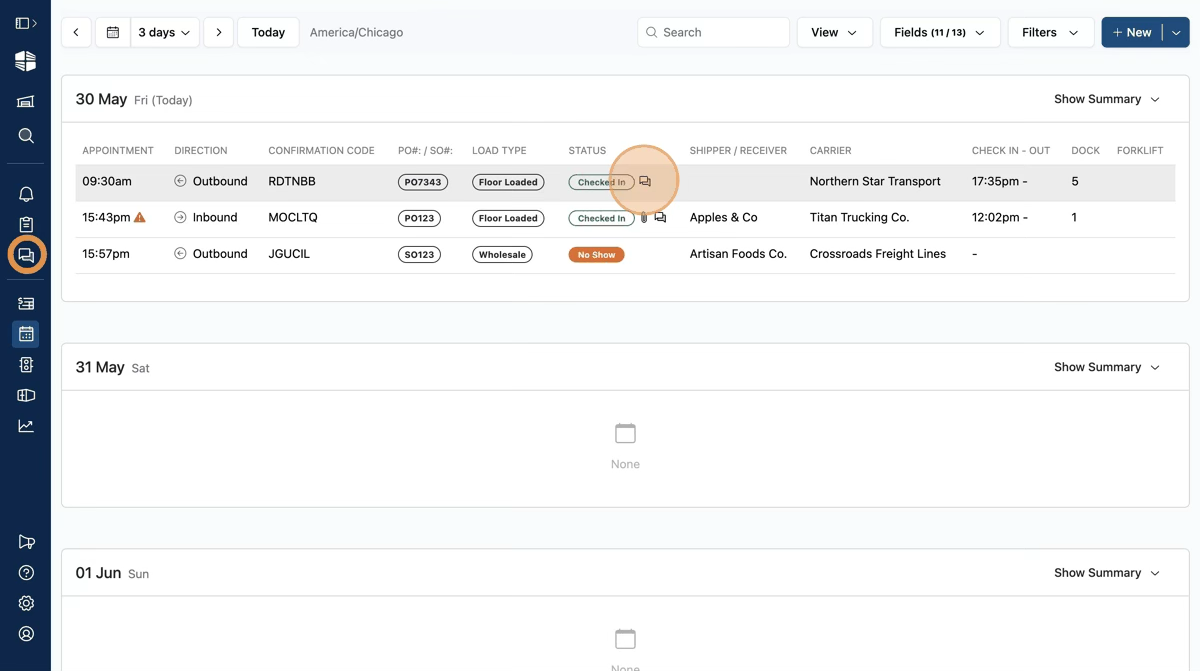
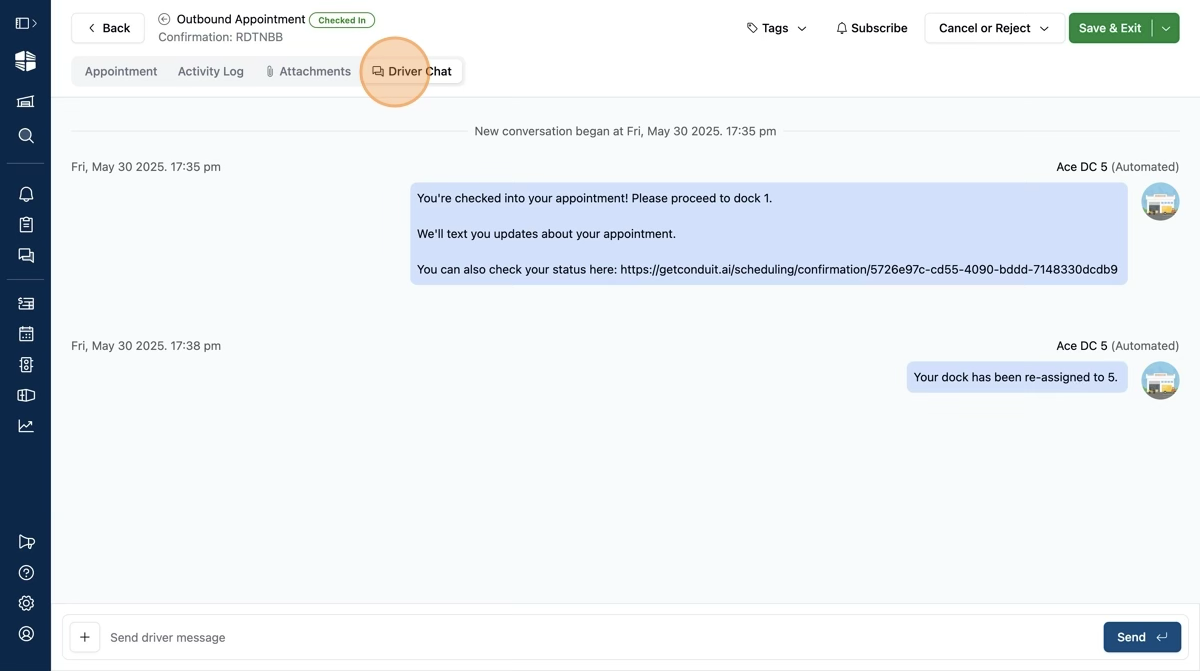
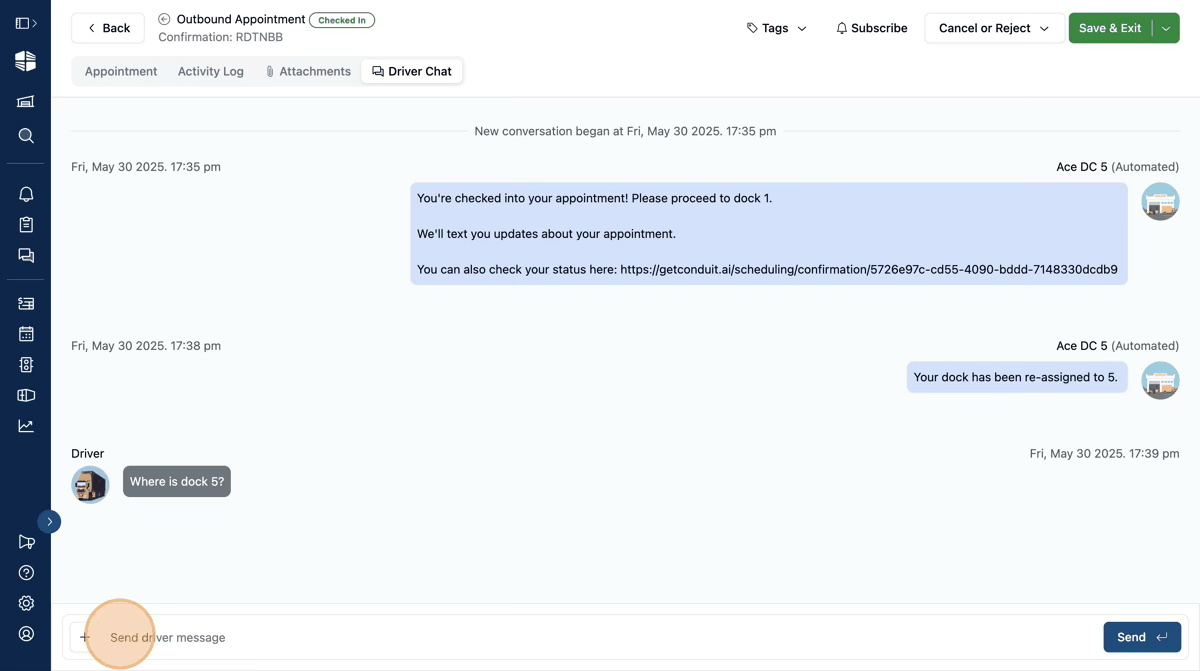
Within Driver Chat for an appointment, you can see the chat history and send messages to the driver.
You can access an appointment's Driver Chat from other tabs in the appointment page by clicking the "Driver Chat" tab towards the top of the page.
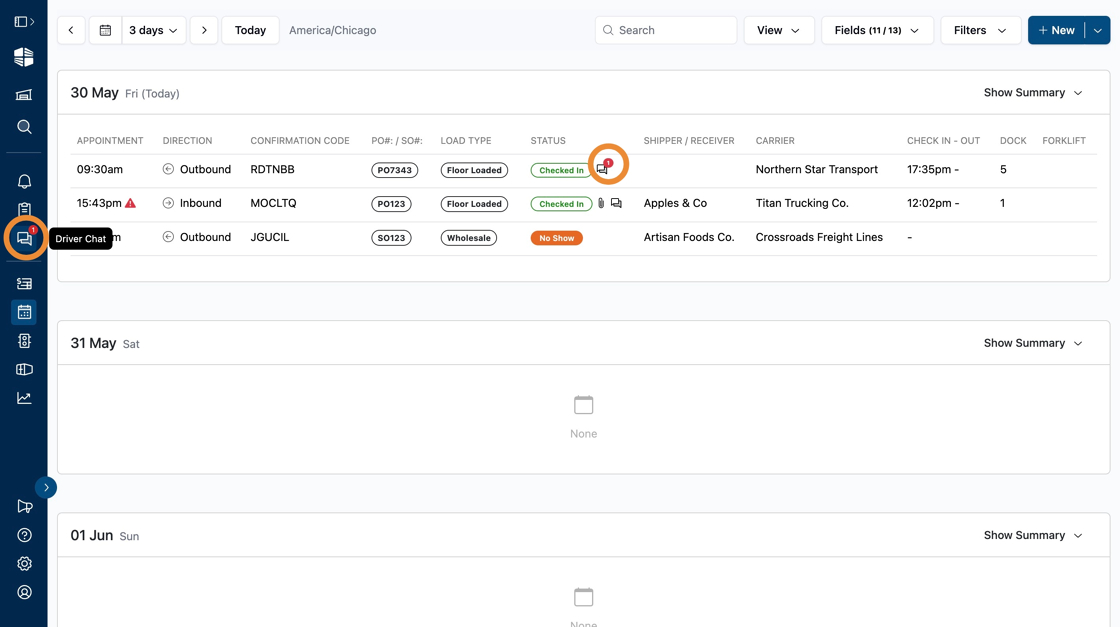
When drivers send chat messages, red bubble icons appear on the Driver Chat sidebar icon as well as the Driver Chat icon on its specific appointment in Schedule or On Site.
Clicking the Driver Chat icon in the navigation bar shows a list of all open chats with a preview of the last message received; clicking a chat preview will take you directly to the relevant appointment and its Driver Chat tab.
To send a message to a driver, click the text field at the bottom of the page, type your message, and click "Send".
You can also add attachments, like photos or other files, to your message by clicking the "+" icon on the left side of the text field. Any attachments sent to the driver will be automatically added to the "Attachments" for the appointment.
Driver Chat Expiration
Driver Chats expire after 30 days of inactivity in the chat. After that time, you will not be able to send new messages to the driver. However, you can still view the content of a driver chat indefinitely.
Live Chat Translation
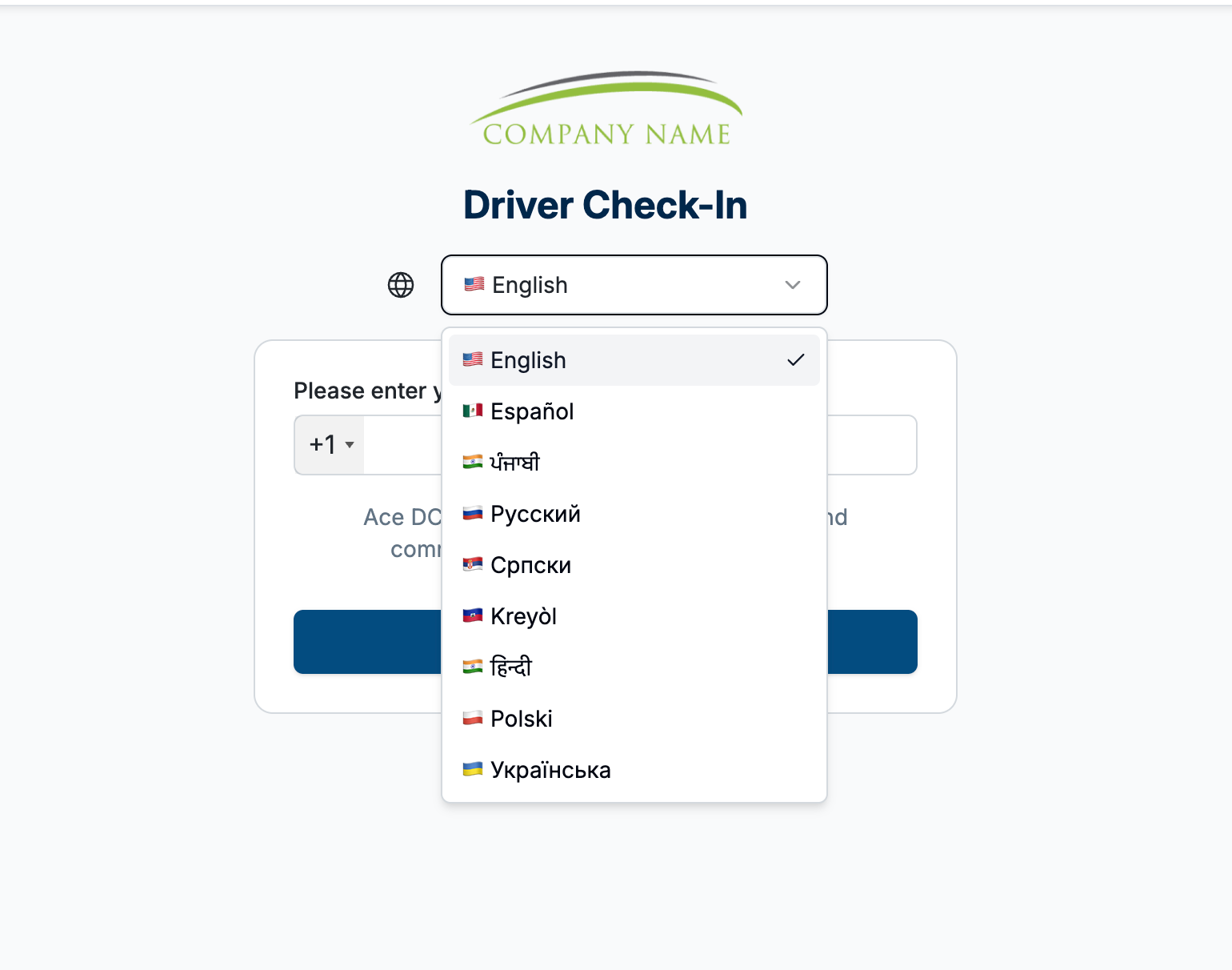
If a driver selects a non-English language during the self check-in process, the self check-in flow will be translated into their preferred language.
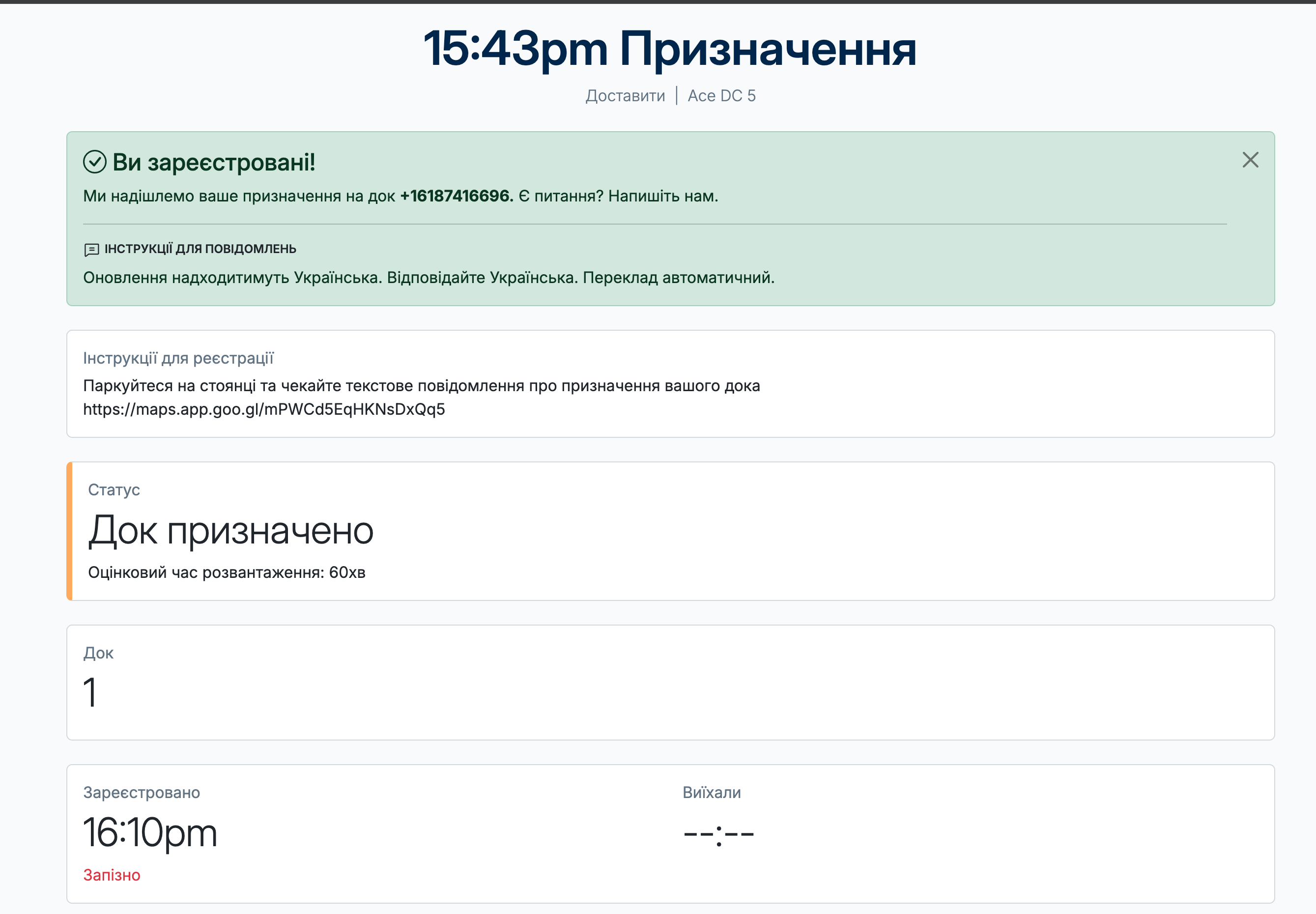
Automated text messages (including custom instructions) will be sent to the driver in their preferred language.
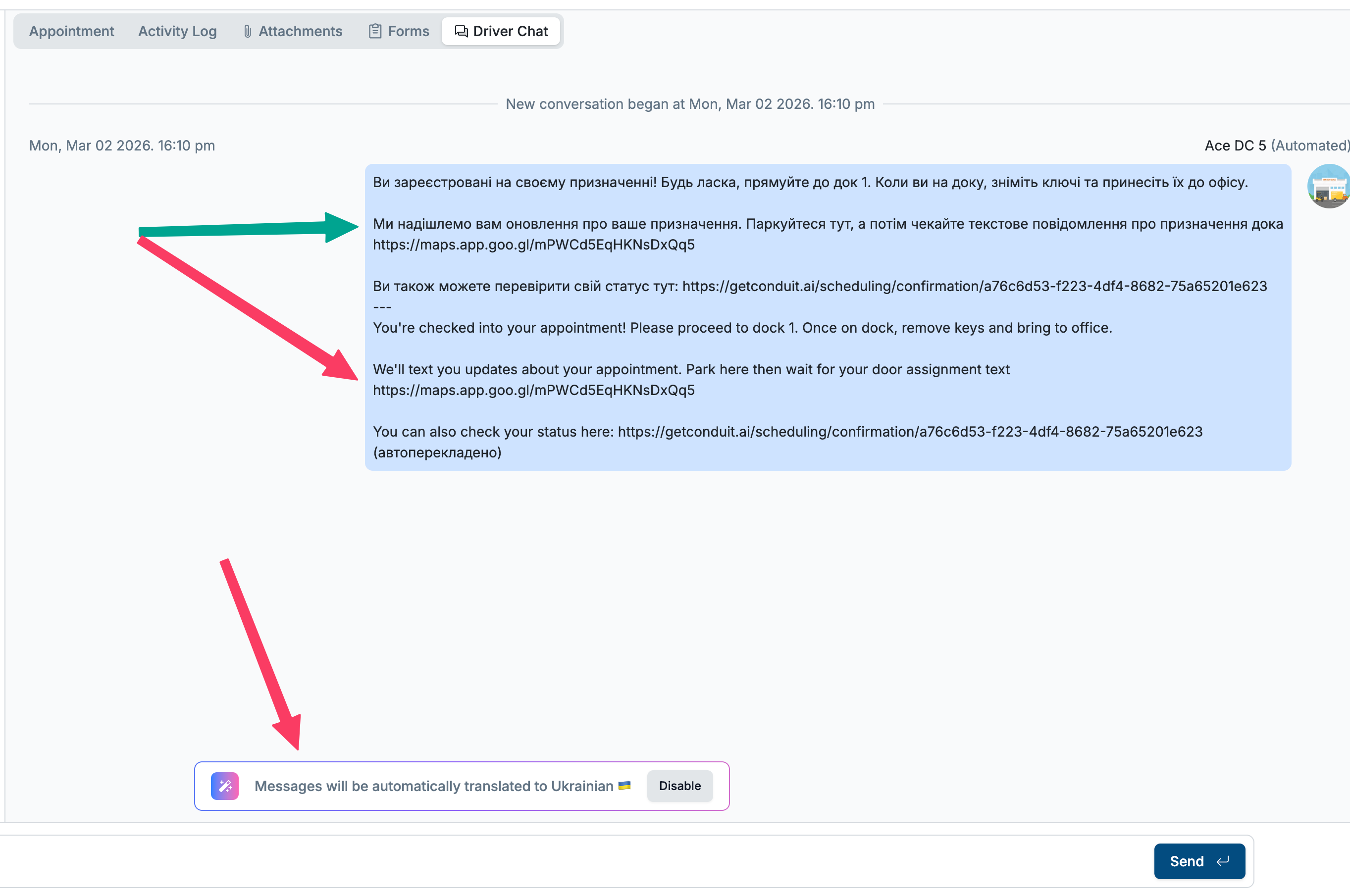
Custom text messages sent by facility staff and drivers will be automatically translated from the driver's preferred language to your facility's preferred language.
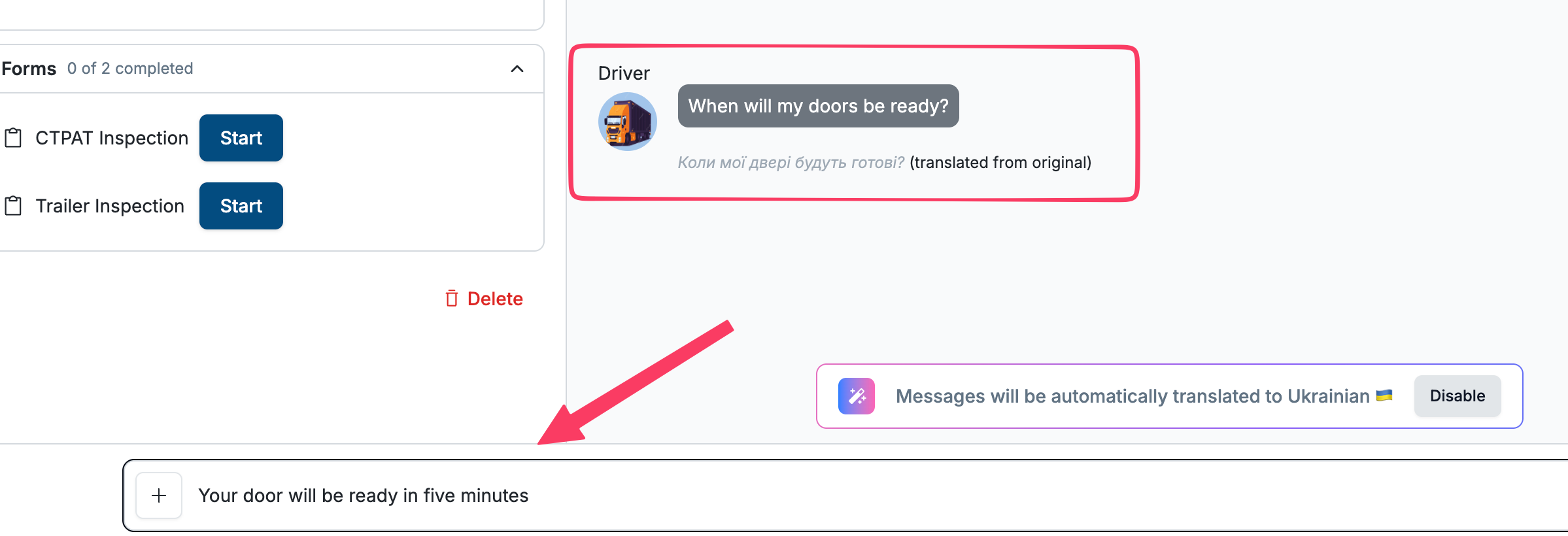
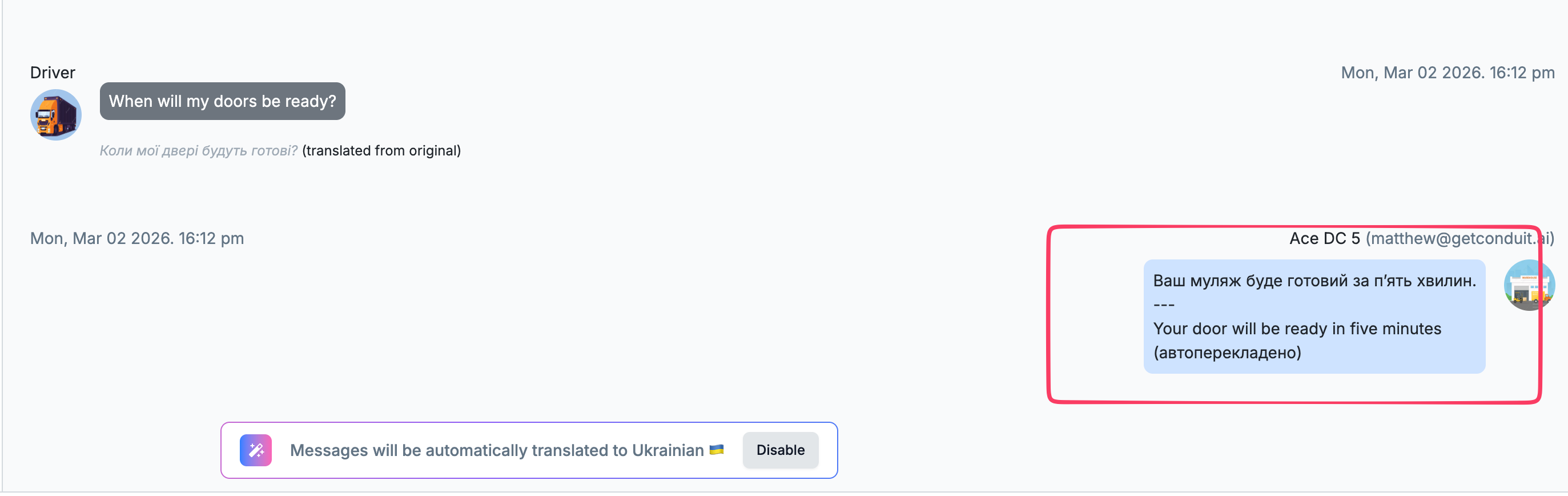
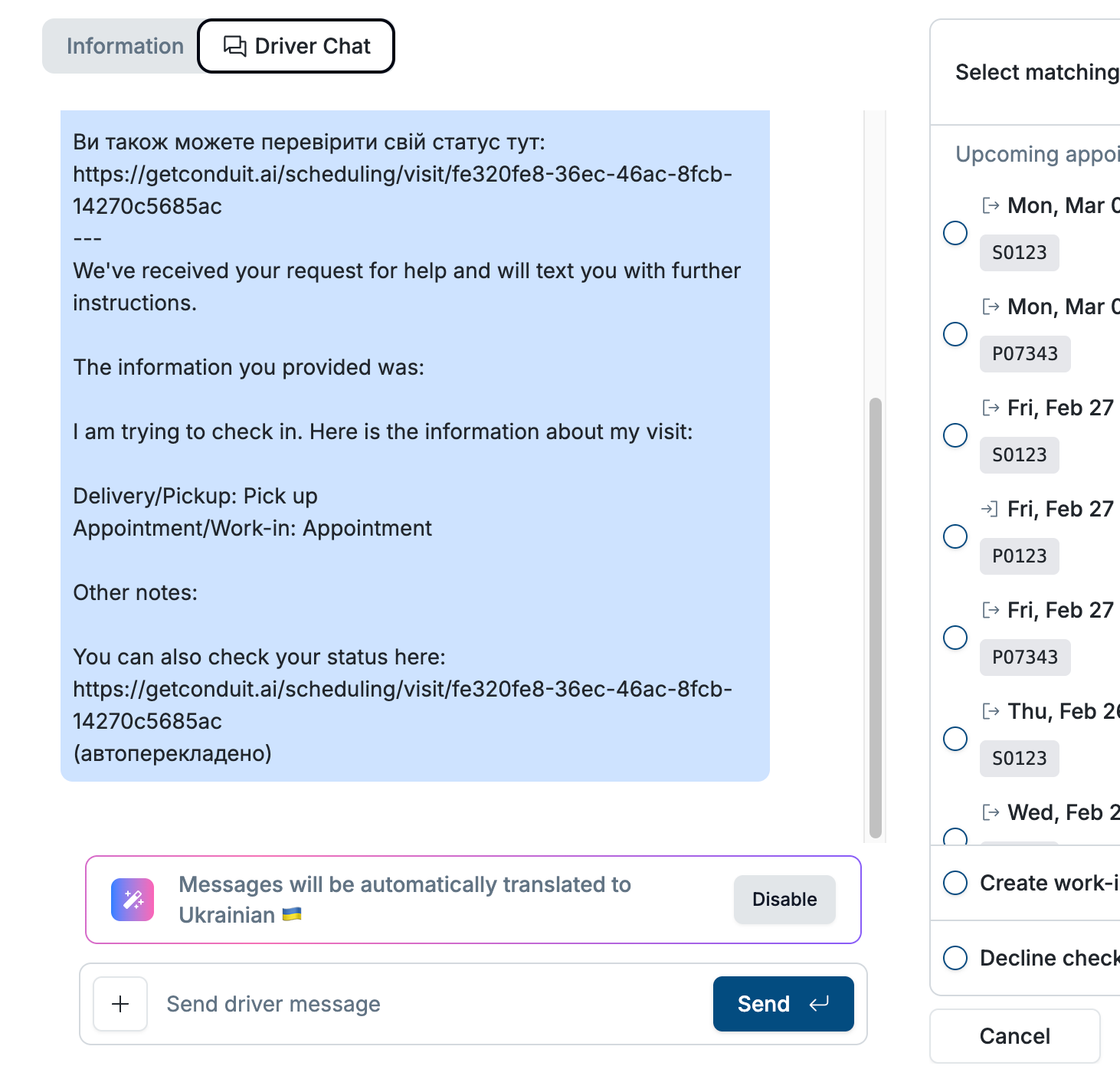
Chat during visits follow the same translation behavior as appointments.
Frequently Asked Questions
When are the red "new message" badges cleared?
New driver messages are shown as red badges on the chat icons in the navbar and on specific appointments until any user at the facility clicks to that driver chat to read the message. When the badge is cleared, it is cleared for all users at the facility.
A driver is not receiving my text messages. What's wrong?
First, check to make sure that the driver's phone number is entered correctly, and that they entered their own cell phone number and not another person's, like their broker. Drivers may also not receive messages if there is poor cell service at your location. If neither of these things appear to be an issue, please reach out to support@getconduit.ai.
Do you support other languages?
Conduit's automated text messages are available in English and Spanish. During driver self-check-in using QR code or tablet, drivers can choose their preferred language. Note that messages manually sent by the facility staff are NOT automatically translated.