Adding Users to your facility
Last updated: January 8, 2026
If the user does not receive the email then double-check their email is entered correctly on the Users settings page. If the email is correct then have them go to getconduit.ai and click "Forgot Password"
Instructions
Go straight to user settings by clicking here.
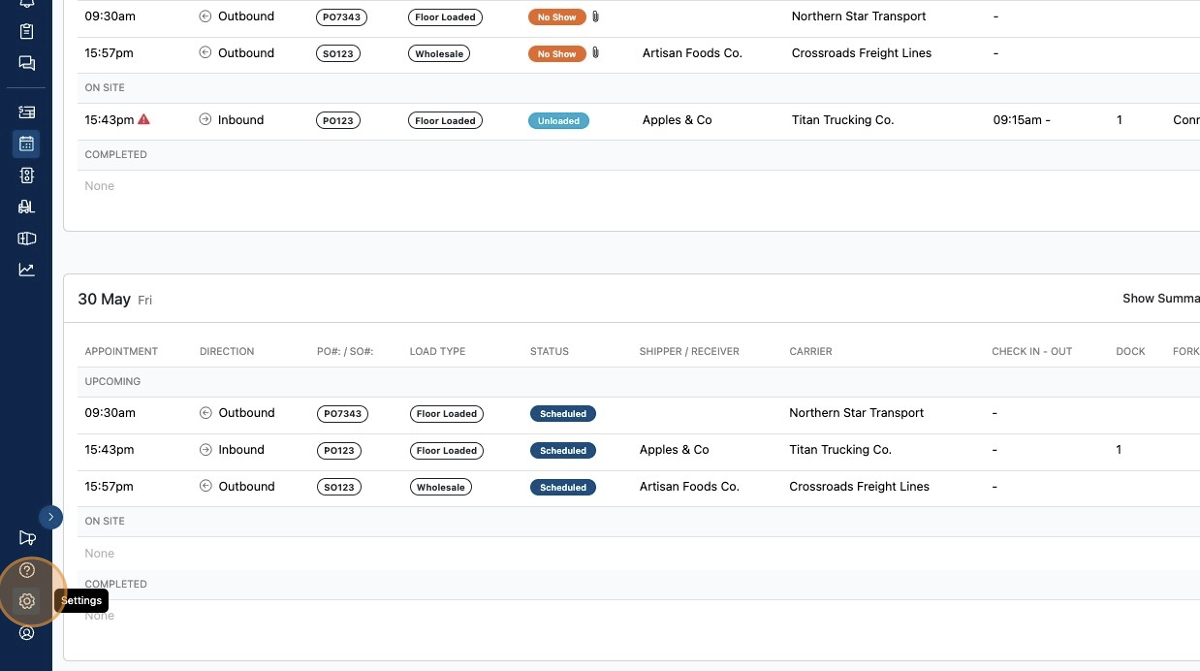
Click the
gearicon in the bottom left
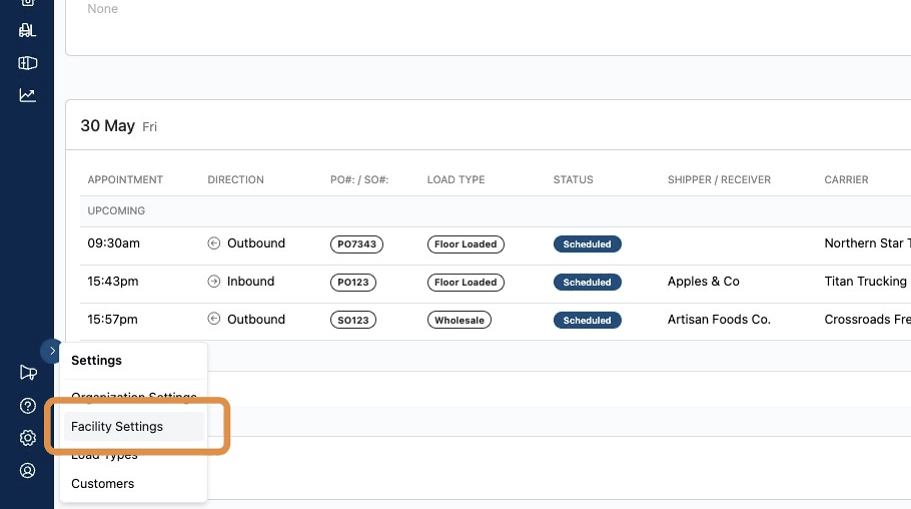
Click
Facility Settings
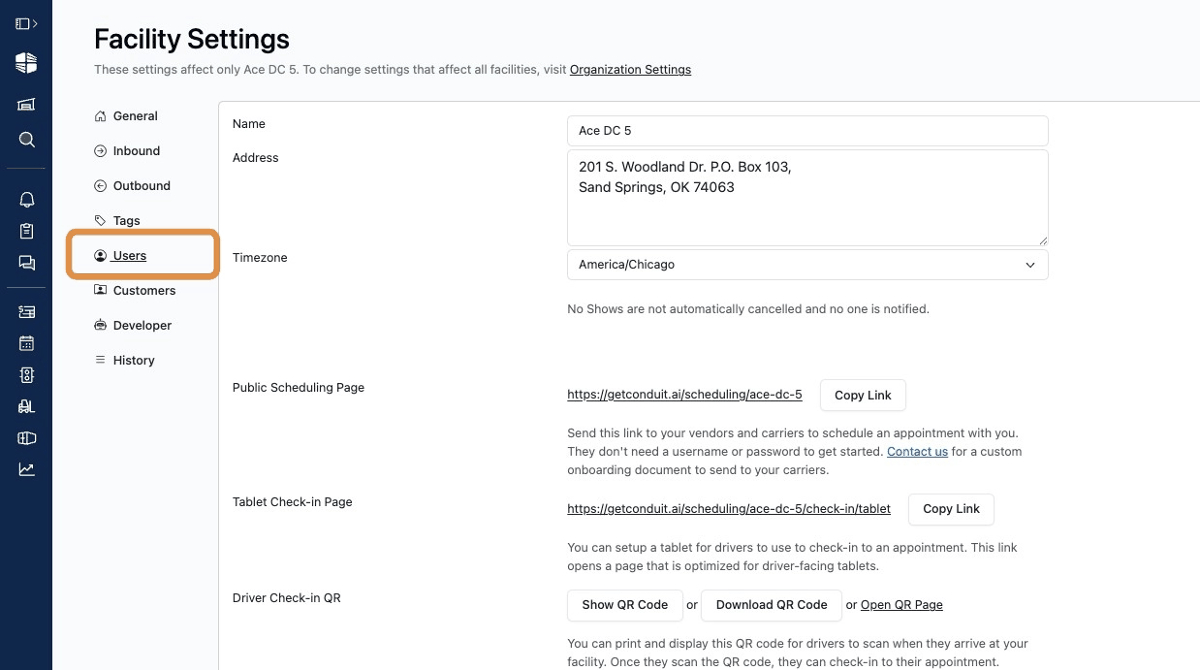
On the settings page, click
Users.
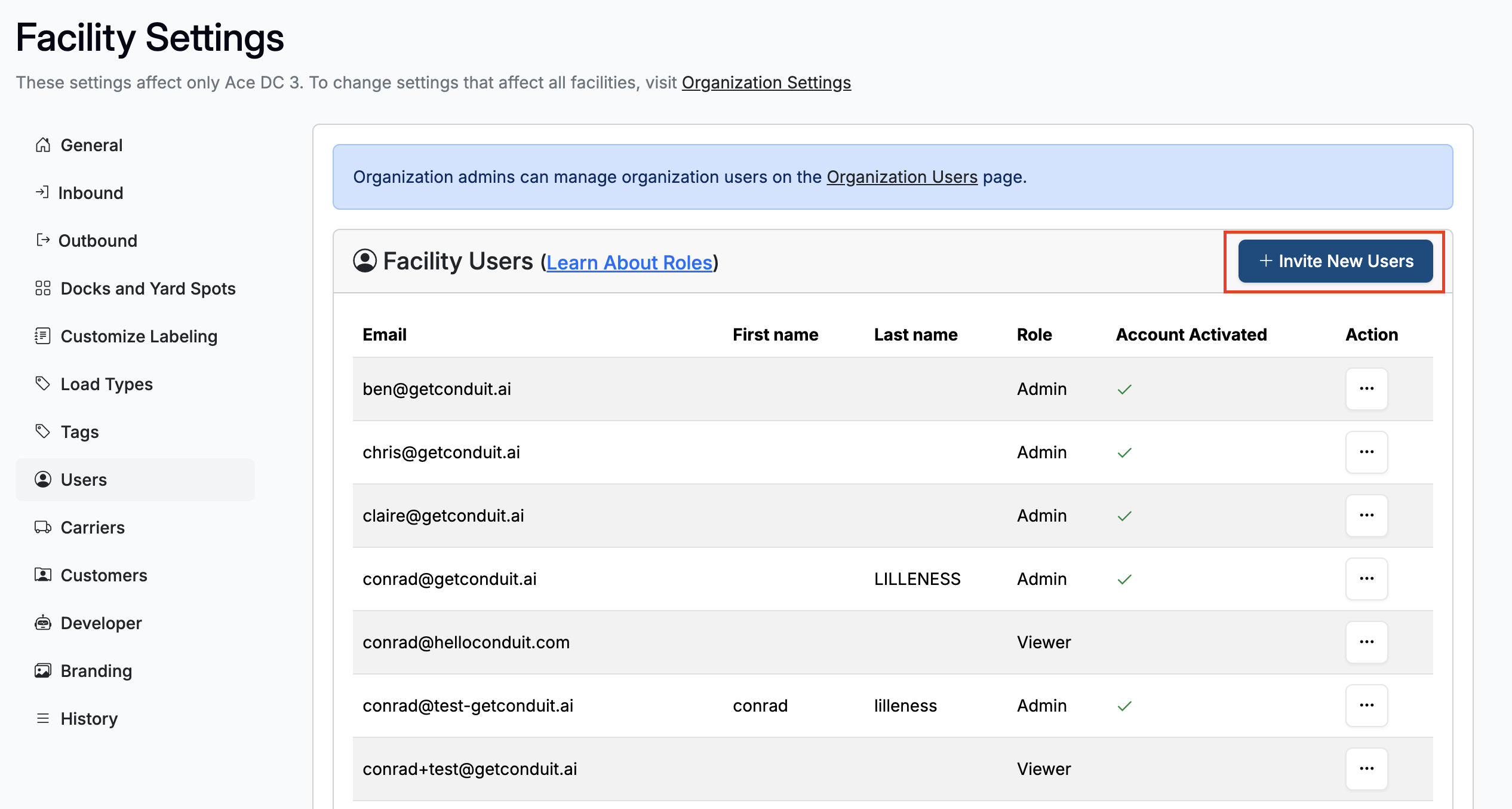
And click
Invite New Users.
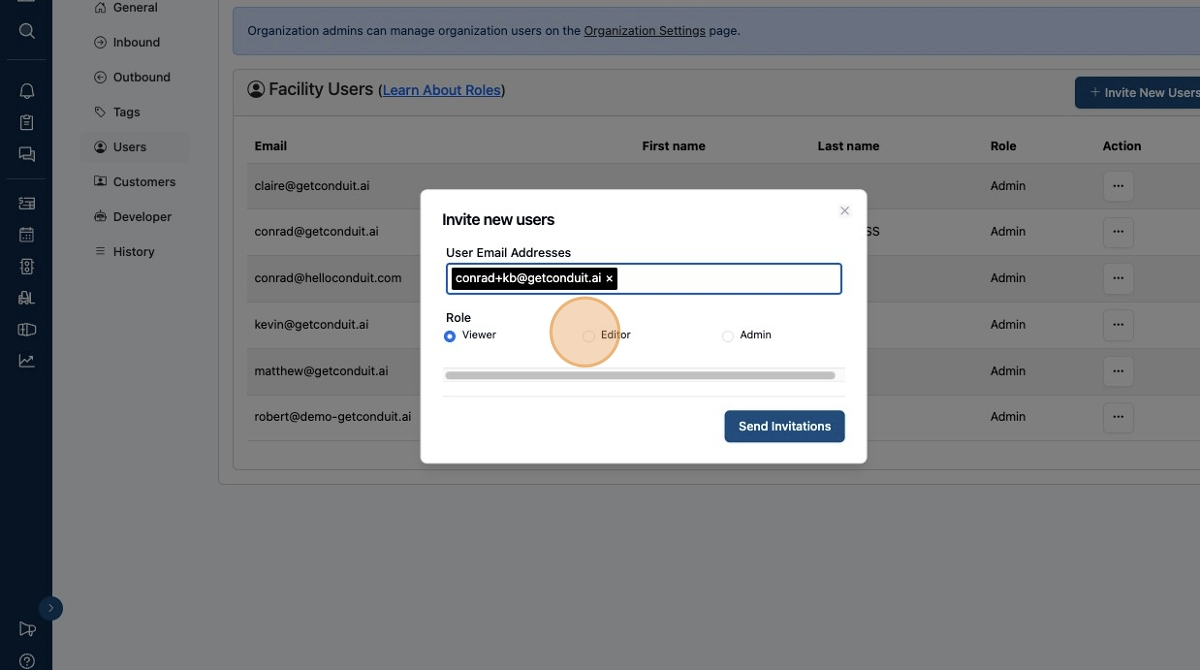
Add their email(s) and Role (Viewer, Editor, or Admin) then click
Send Invitation.
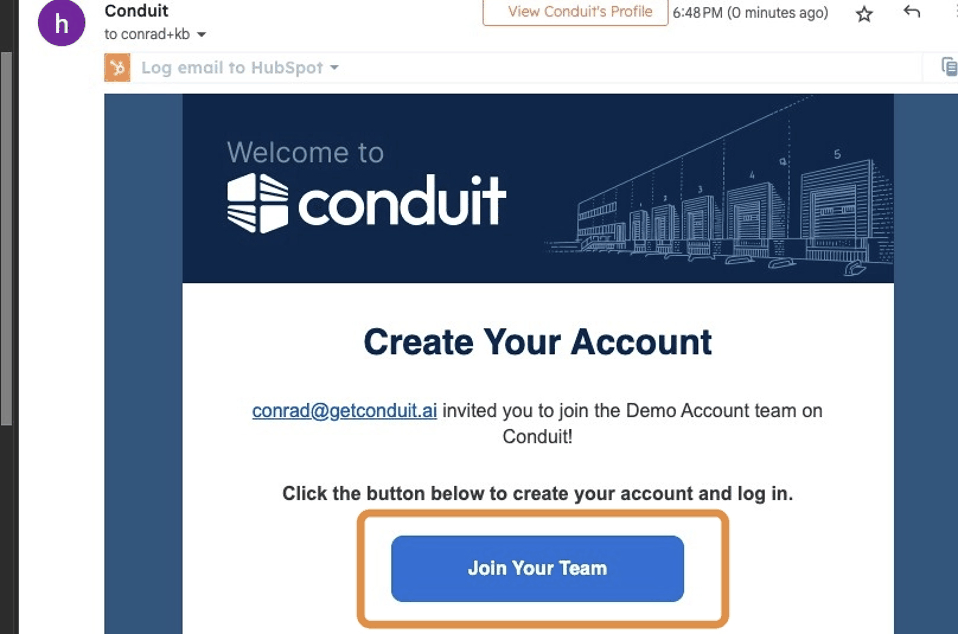
The user will receive an email from Conduit inviting them to join your team. They need to click
Join Your Team.
After clicking
Join Your Teamthey will be taken to a page to create their password and log in.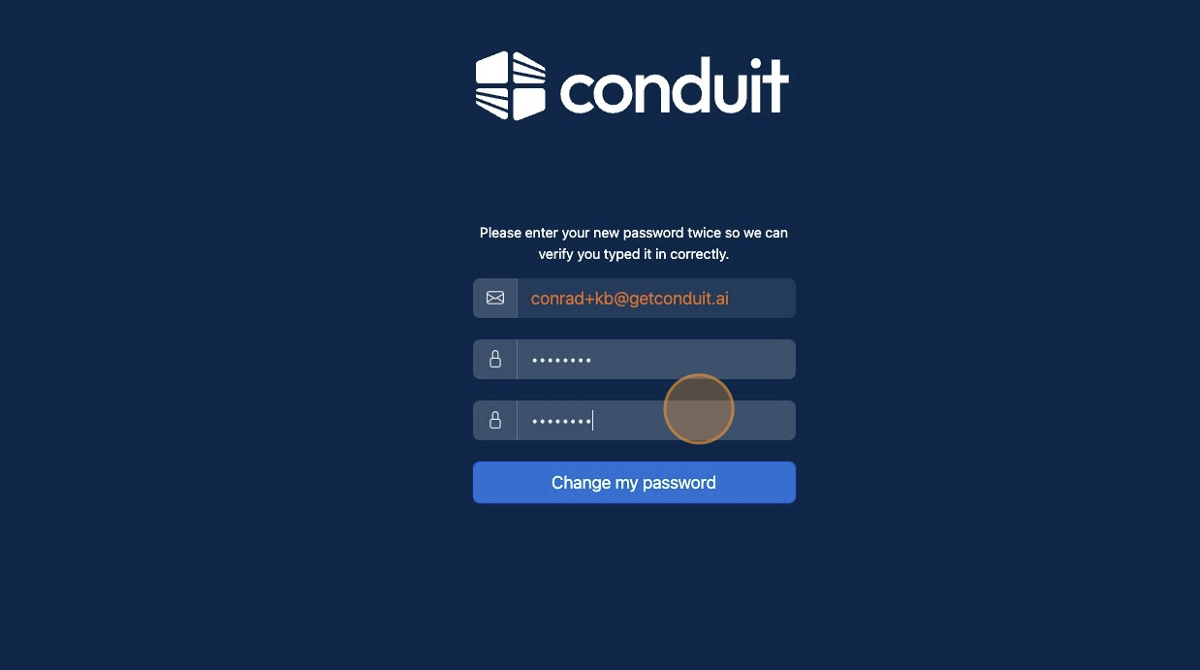
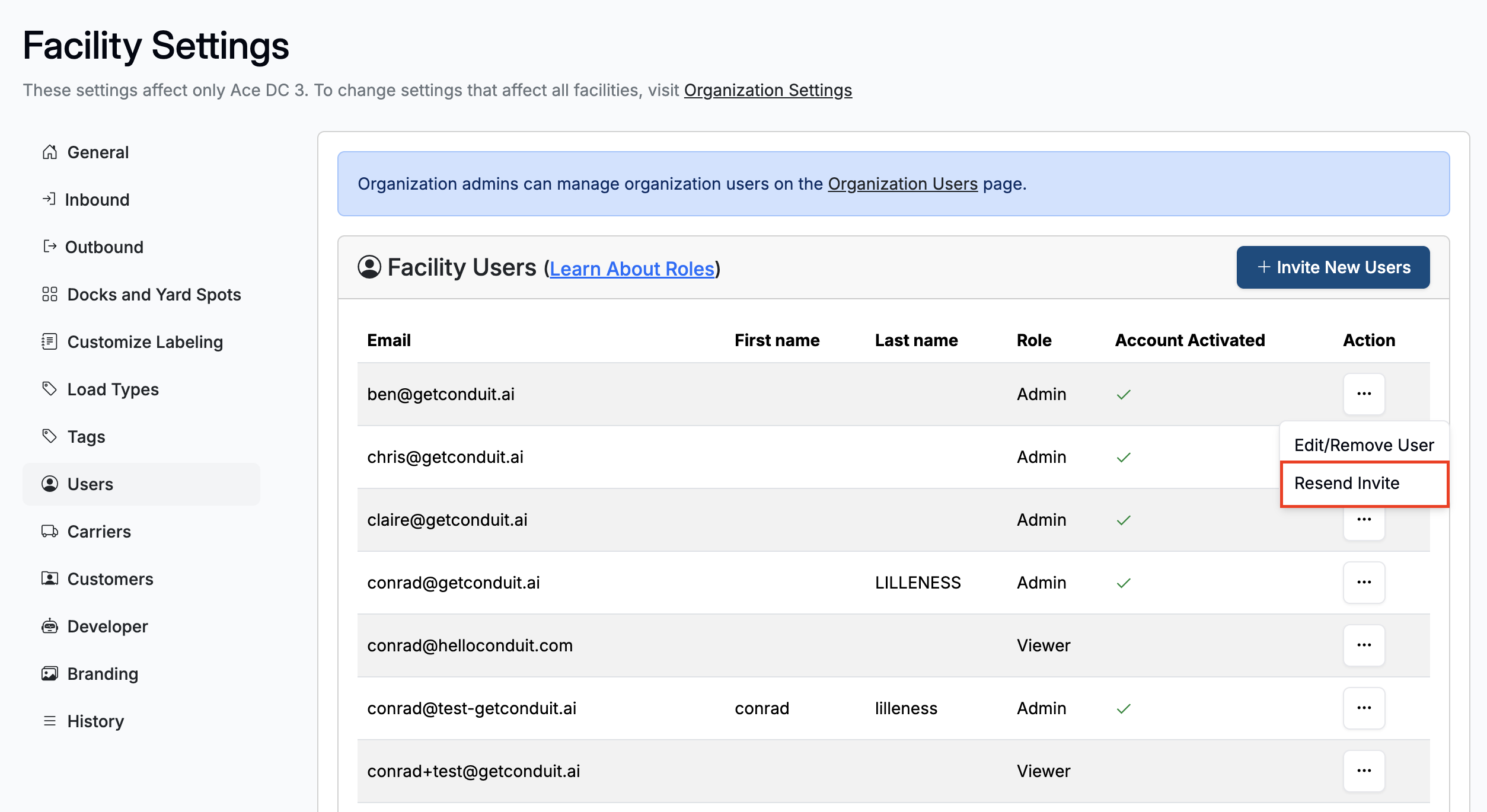
If the user has not received an invite, and has not yet activated their account, you can also resend the invite by clicking Resent Invite from the Action button. This will send another email invite.
Frequently Asked Questions
My user did not receive an email. What should I do?
Check that their email was entered correctly in Conduit.
Have them check their spam folder.
Click Resend invite on the Action button next to user's name
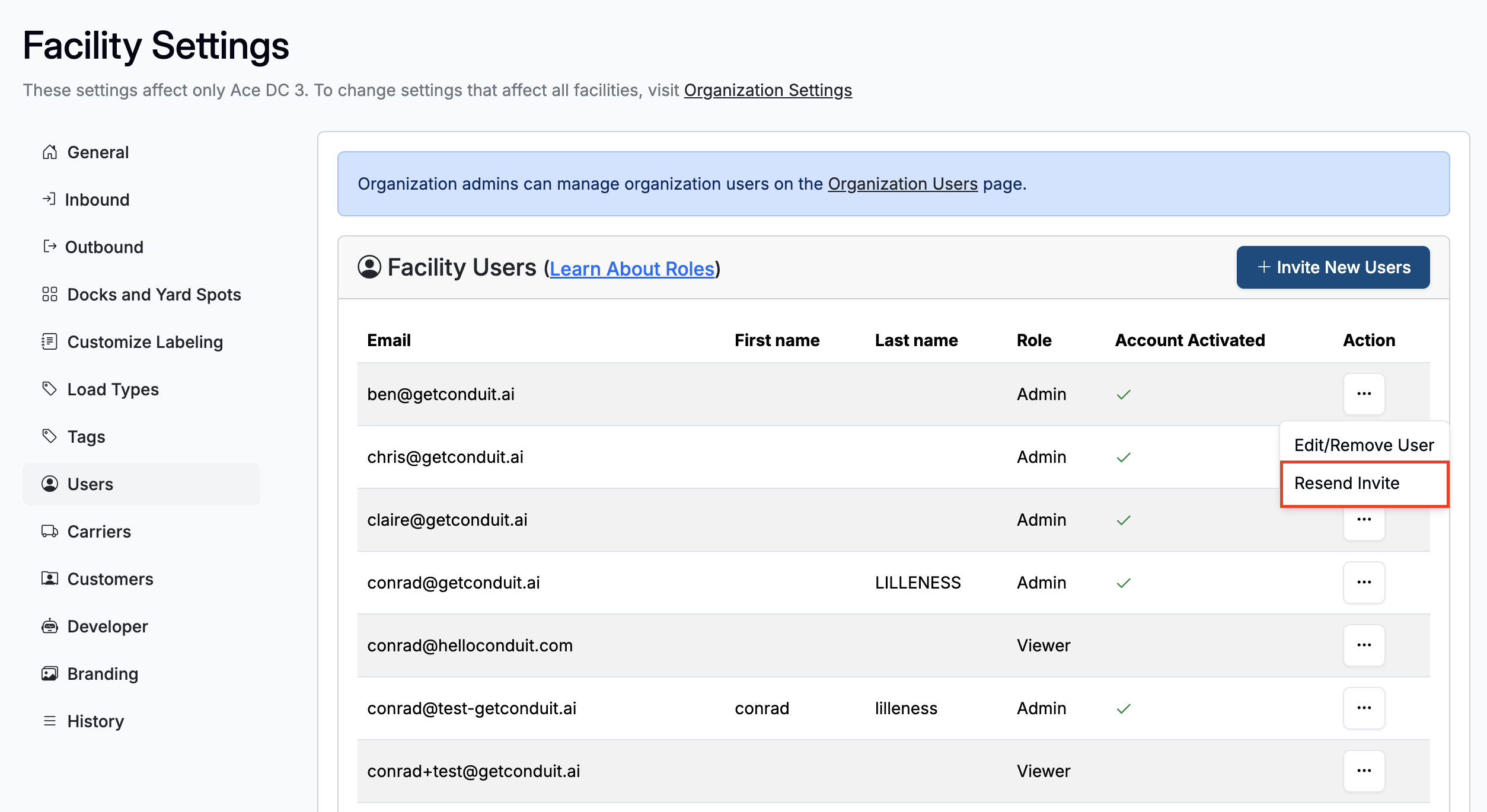
Have them go to getconduit.ai and click "Forgot Password".
Can I resend an invitation to a user who did not receive it?
You will need to delete the user and then create a new user for them to receive the email. Alternatively, if the email is correct, then the user can go to www.getconduit.ai and click "forgot password".
Can conduit automatically log users out or require certain lengths of passwords?
Yes, contact us at support@getconduit.ai to get started.
Does Conduit offer single sign on (SSO)?
Yes, contact us at support@getconduit.ai to learn more.
How can I add a user to more than one facility?
See the article titled "How to add users to your organization"