Driver License Viewer Access
Last updated: September 16, 2026
Conduit stores a driver's license image on the appointment that captured it and on the driver's profile. By default, every user at your organization can view those licenses. The driver license viewer setting lets you narrow that down, so only the people who need to see a license can open one.
Access is controlled in two places: at the organization level, where you set a user's baseline license access across facilities, and at the facility level, where you can grant or revoke access to a single site without changing their baseline.
Instructions
Understanding How License Access Works
A user's organization-level setting can be:
All facilities: They can view licenses captured at any facility you operate today, and at any facility you add later.
Specific facilities: They can view licenses only at the facilities you name.
No: License viewing is turned off for that user entirely.
NOTE that license access sits on top of normal facility access. A user still needs access to the facility that captured the license before they can view it, regardless of this setting.
Switching Your Organization to Limited Access
Go to Settings, then your organization's user or permission settings.
Find the driver license viewing setting, currently set to allow all users.
Change it to limited access.
Save.
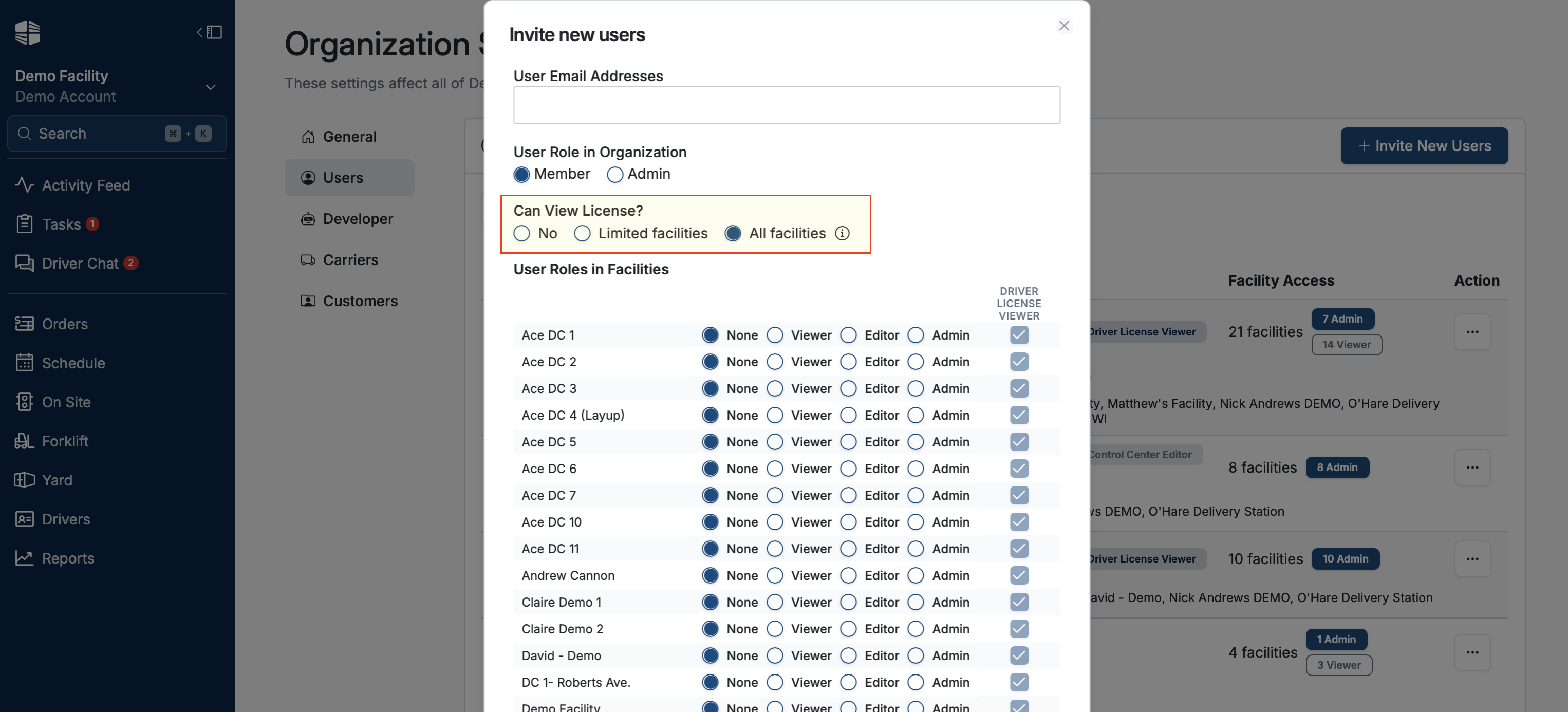
NOTE that switching to limited access removes license viewing from everyone at once. Set up the users who need it before you make the change, or expect calls from your team.
Inviting a User with License Access
Go to your organization's user list and invite the user by email address.
Set their role as you normally would.
Set their driver license access to All facilities, to specific facilities, or to No.
Send the invitation.
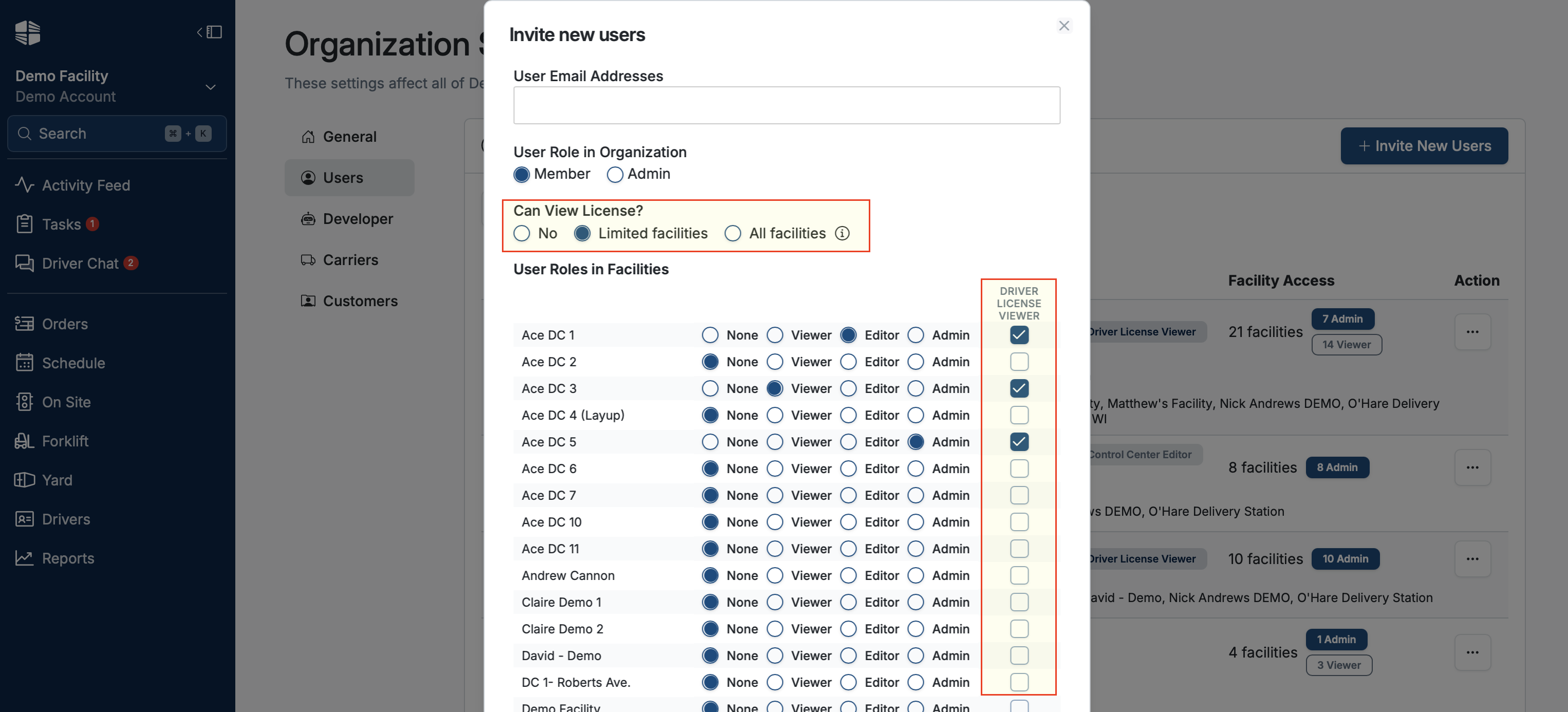
Updating an Existing User's Access
Open the user from your organization's user list.
Change their driver license access level.
Save.
The change takes effect immediately. A user who loses access keeps their facility access and everything else about their role; only license viewing goes away.
Granting or Revoking Access at a Single Facility
Where a user does not have All facilities access, you can give them license access at one facility without changing their organization-level setting.
Go to the facility's user or permission settings.
Find the user in the list.
Grant or revoke license viewing for that facility.
Save.
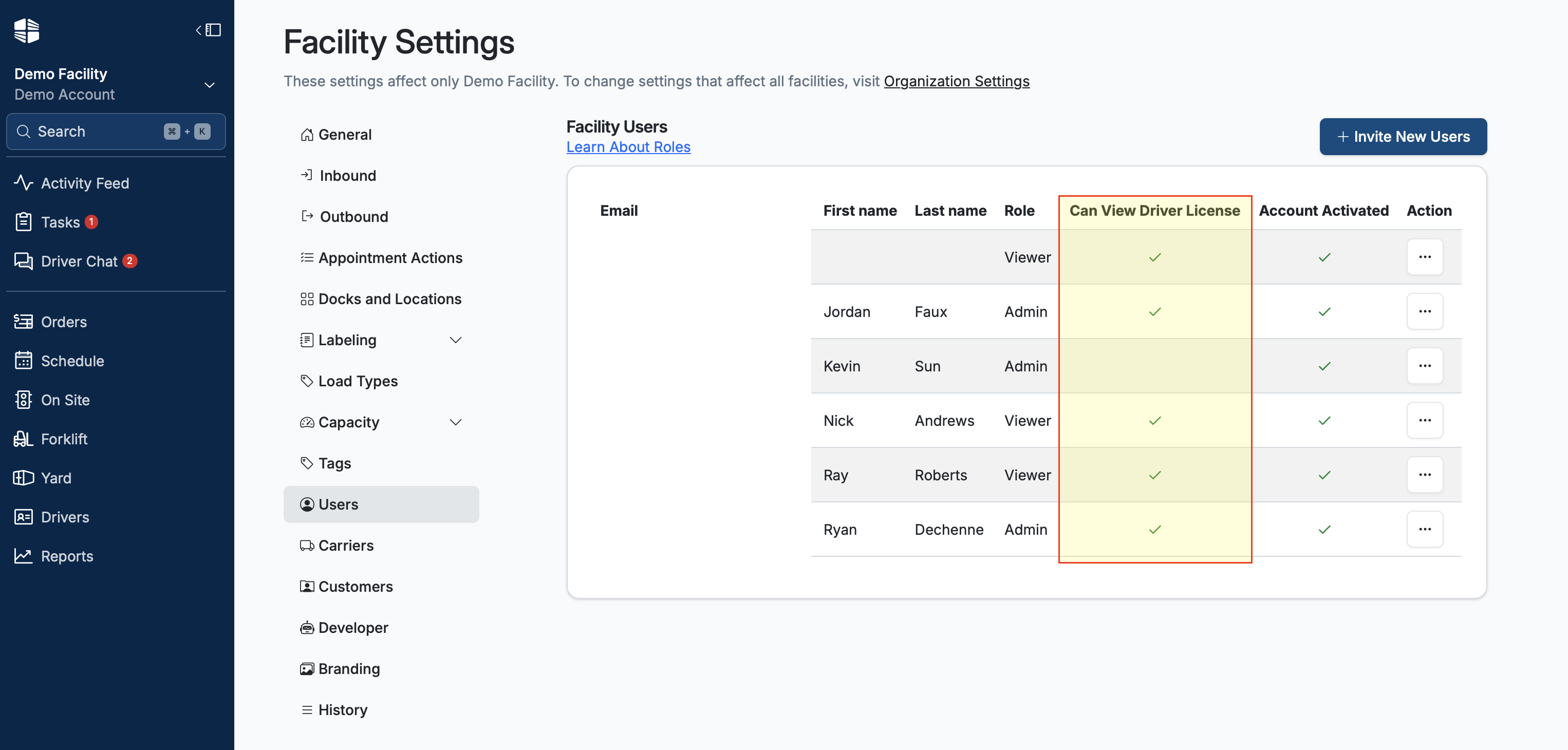
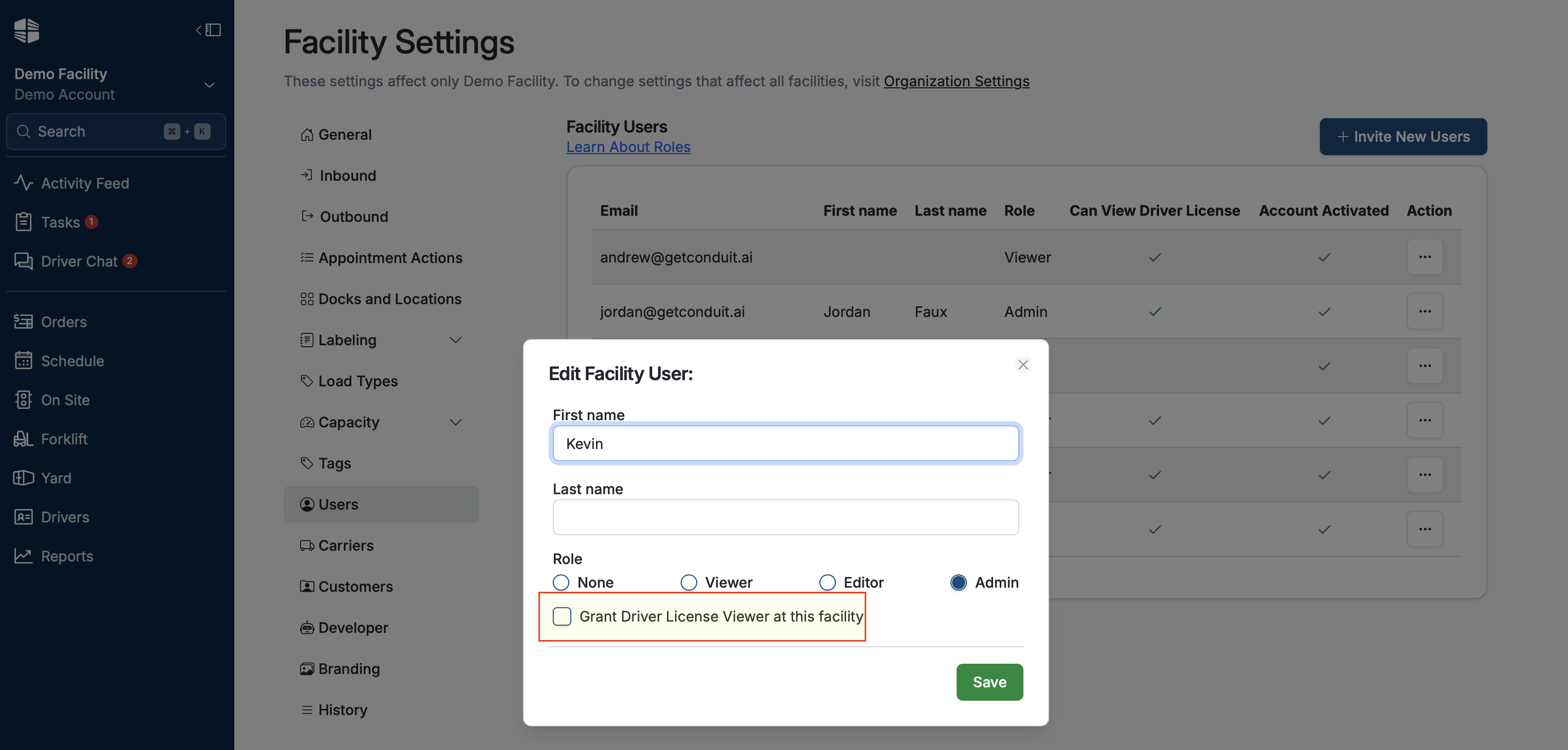
NOTE that a user set to All facilities at the org level already has access everywhere, including facilities you add in the future. Facility-level grants are for the people who should only see one or two sites.
Frequently Asked Questions
Does taking away license access remove the user from the facility?
Does taking away license access remove the user from the facility?
No. License viewing is a separate permission. The user keeps their facility access, their role, and everything else they could do before.
Does a user need facility access as well as license access?
Yes. A license can only be viewed by someone with access to the facility that captured it. License access does not override that.
Who should have this?
That is your call, and it usually comes down to who handles security incidents or driver disputes at each site. Most facilities give All facilities access to a small number of org administrators and grant everyone else access only at the sites they actually work.
What is the difference between All facilities and granting access facility by facility?
All facilities covers every site you run now and every site you add later, with no further action. Facility-by-facility access covers only the sites you name, and a new facility will not be included until someone adds it.
We just turned on limited access and my team says they cannot see licenses anymore. Is that expected?
Yes. Limited access starts from nothing — it does not carry over who could see licenses before. Everyone who needs license viewing has to be granted it, either at the org level or per facility.
Download a Printable Copy
⚠ Please note: We update our software with new features regularly. The most up-to-date documentation can always be found on our User Guide website.
If you choose to print documentation or share via PDF, please set reminders to update it regularly.