Adding users to your organization
Last updated: September 3, 2026
Instructions
Shortcut: To go straight to organization settings click here.
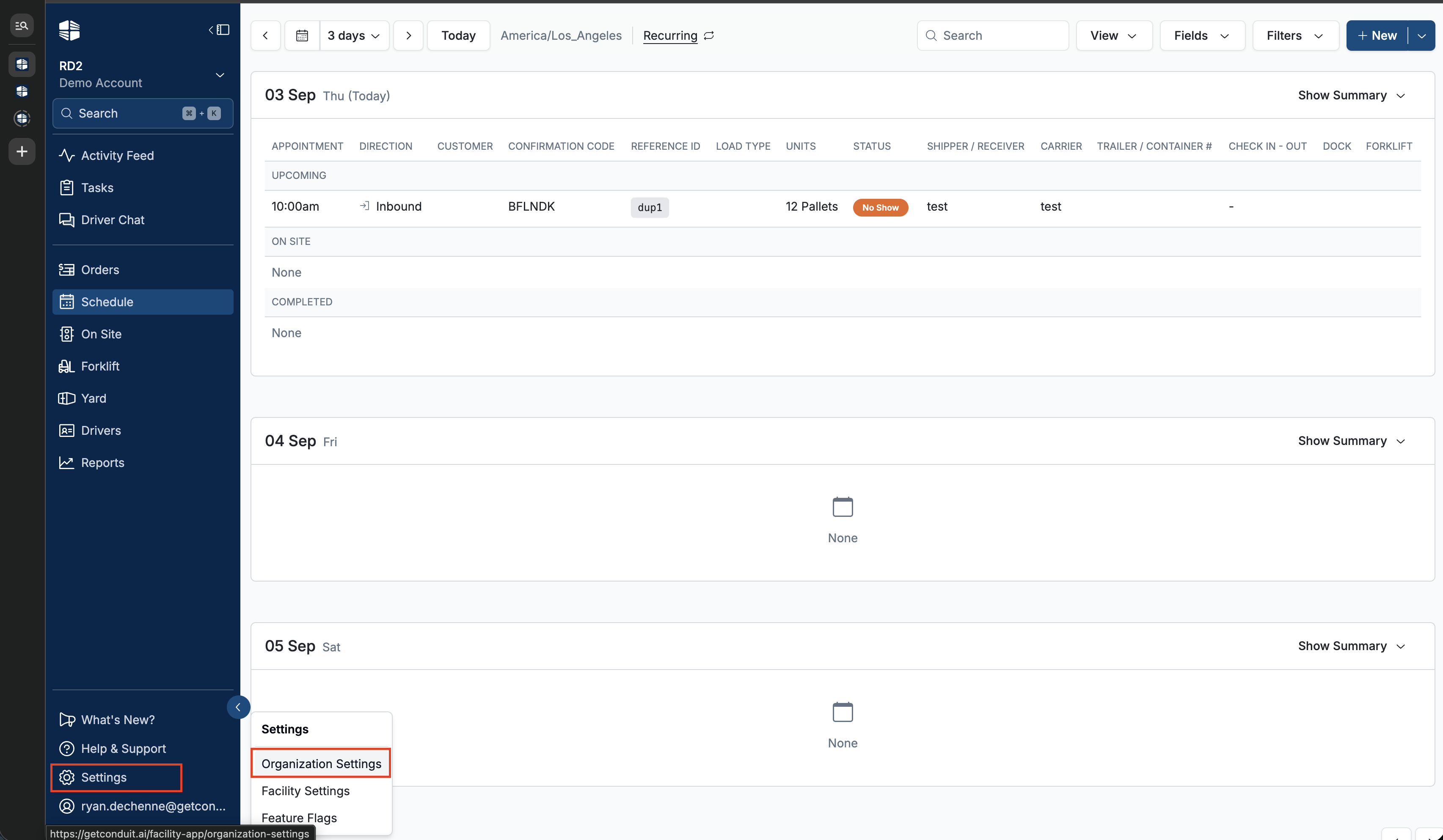
To add a user to your organization, click the
gearin the bottom left corner then clickorganization settings.
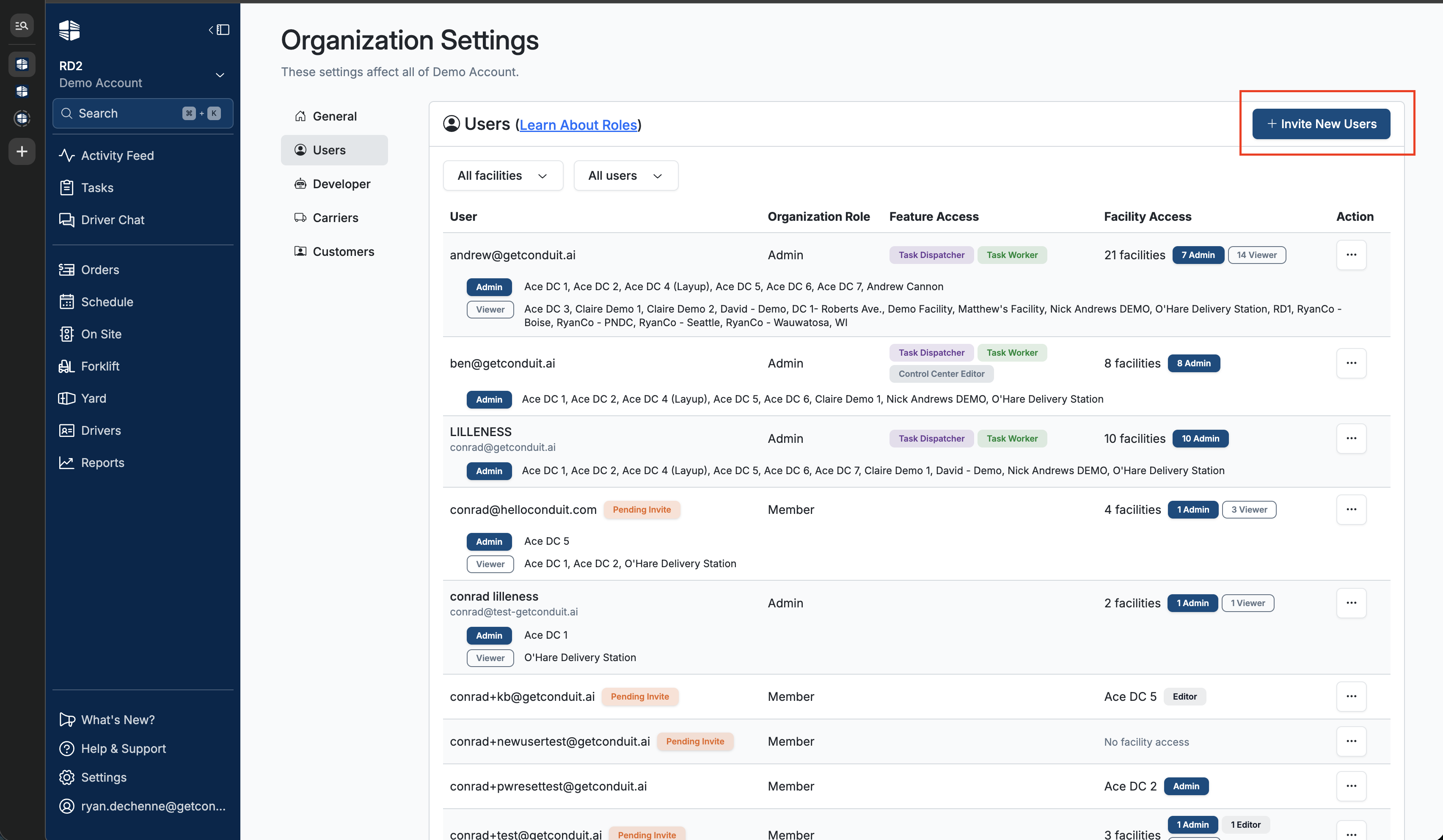
To add a new user, click
invite new users.
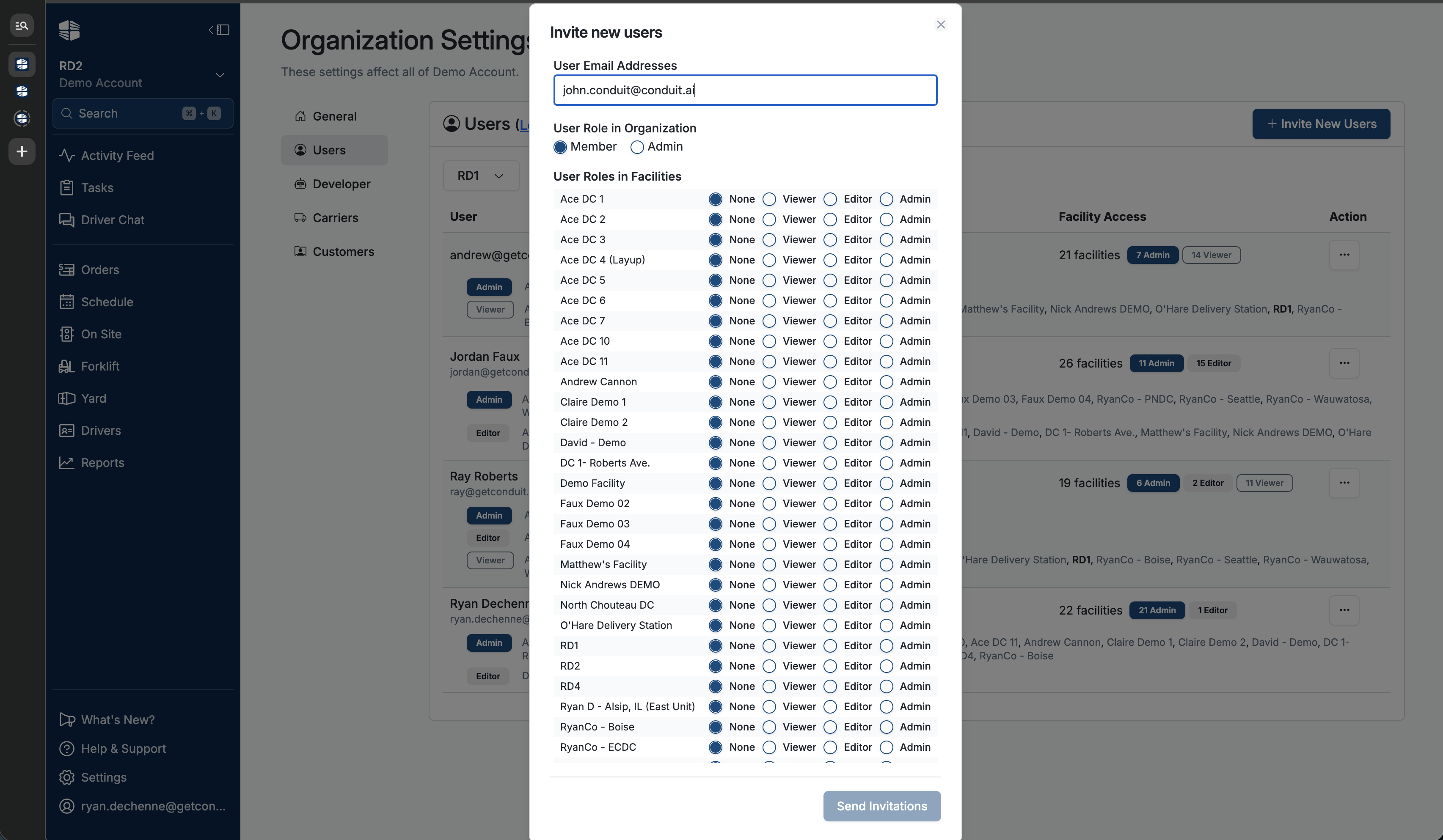
Enter their email address and role for the organization and role for each facility. Click
Send Invitations.You can add multiple users at the same time, with the same permission levels, by putting in email addresses separated by a comma.
EX: test@email.com, email@email.com, person@email.com
They will then receive an email from Conduit inviting them to join your team. If they do not receive the email, then double check that the email was entered correctly, or have the user go to www.getconduit.ai and click "forgot password".
Frequently Asked Questions
Does Conduit support single sign on (SSO)?
Yes, contact us at support@getconduit.ai to learn more.
Does conduit support password timeouts, password complexity rules, or other security measures?
Yes, Conduit is SOC2 type 2 compliant and we support those various measures. Please contact us at support@gitconduit.ai to get started.