Appointment Attachments
Last updated: May 30, 2025
Conduit facilitates the storage and sharing of file attachments to your appointments, both for immediate communication and future reference. Attachments can easily be added to existing appointments in the Facility App. Carriers and Drivers can also directly add file attachments to appointments.
When an appointment is checked out of your facility, any attachments that have been marked for sharing will be automatically provided to all email addresses associated with the appointment. Emails are typically added during Scheduling but can be modified at any time in the Appointment Details. To learn more, read our article on Appointment Contacts.
Instructions
Log in and navigate to the Schedule page.
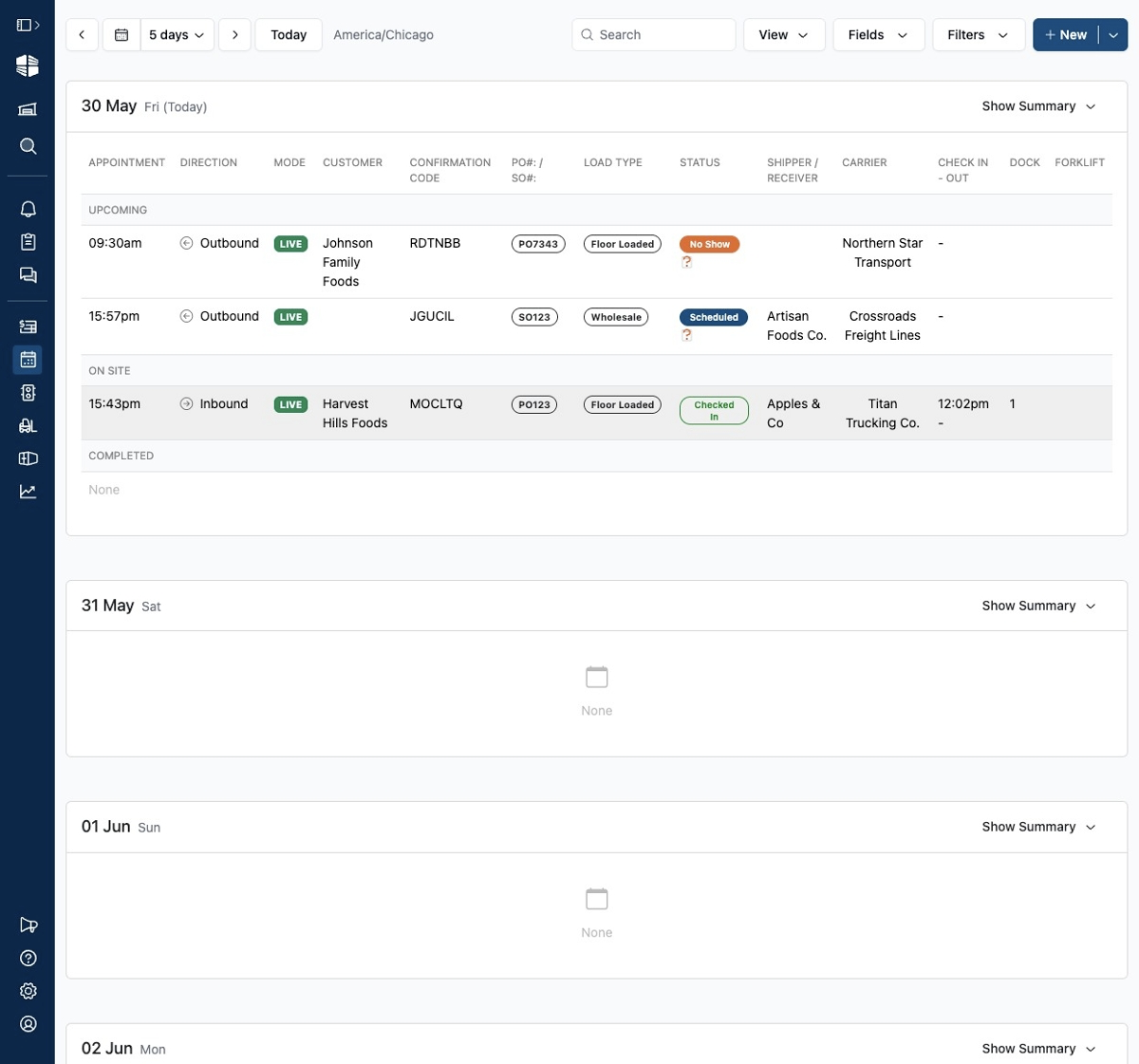
Choose the appointment for which you want to add or view attachments.
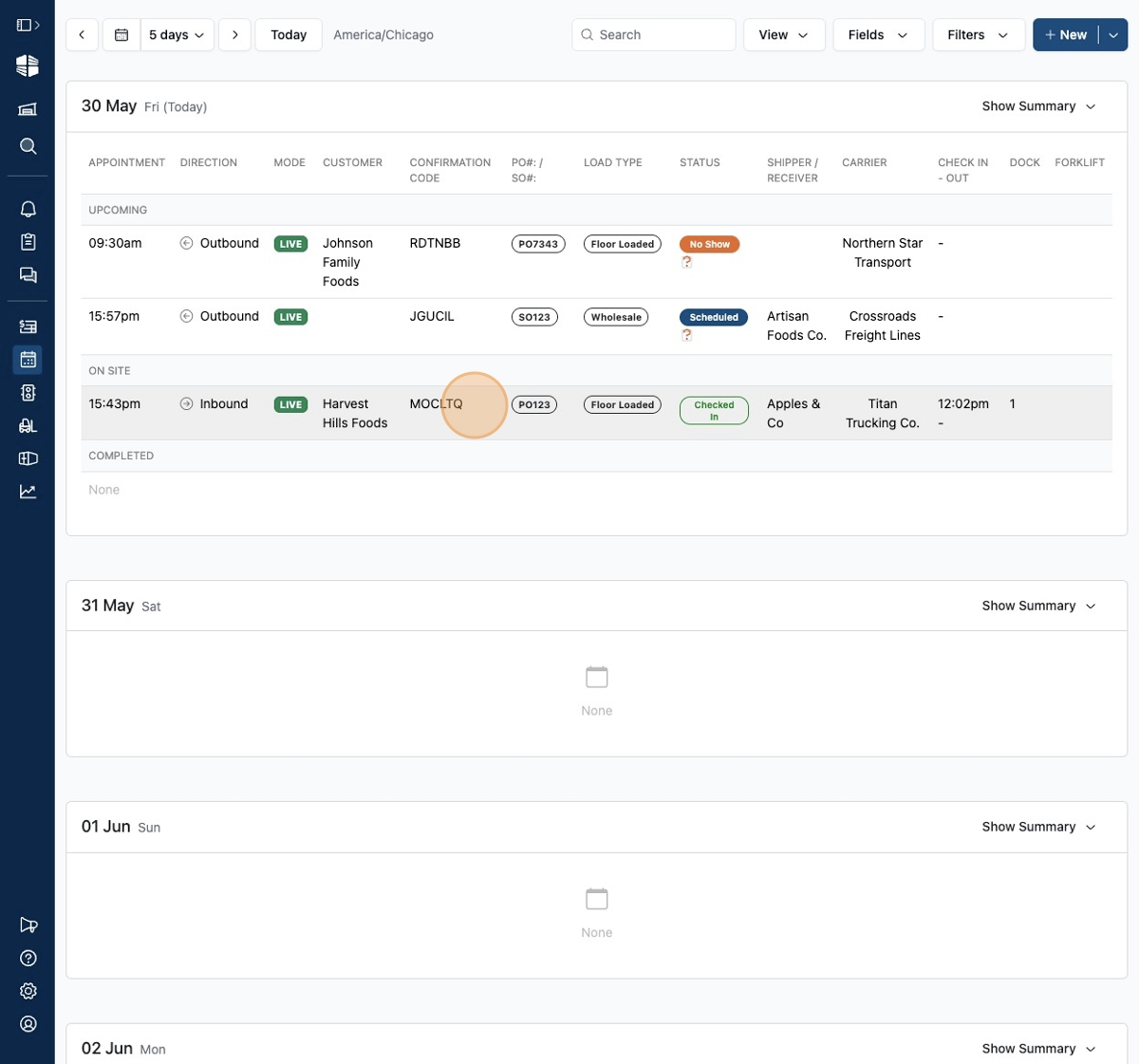
Once on the Appointment page, click on the
AttachmentsTab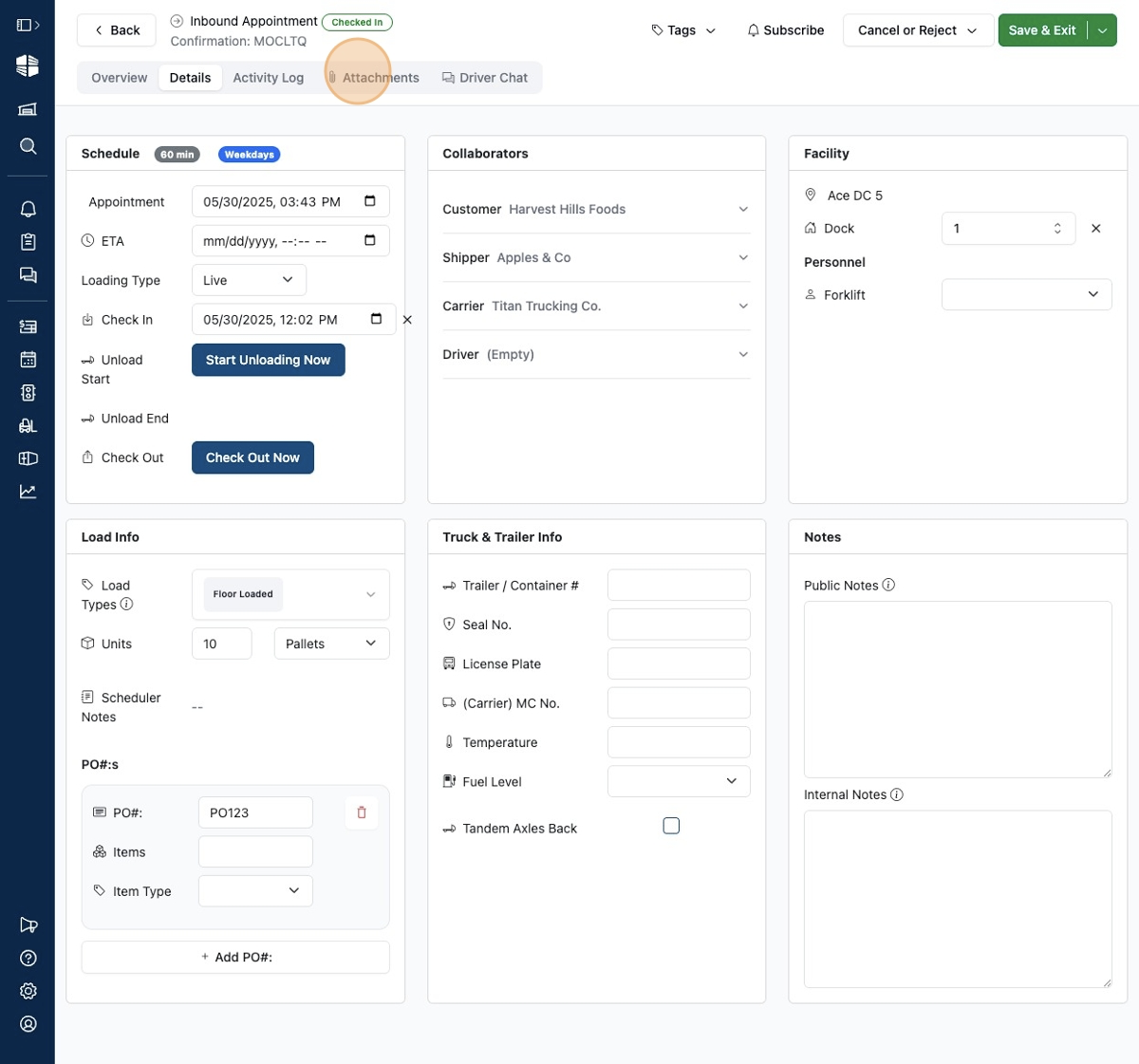
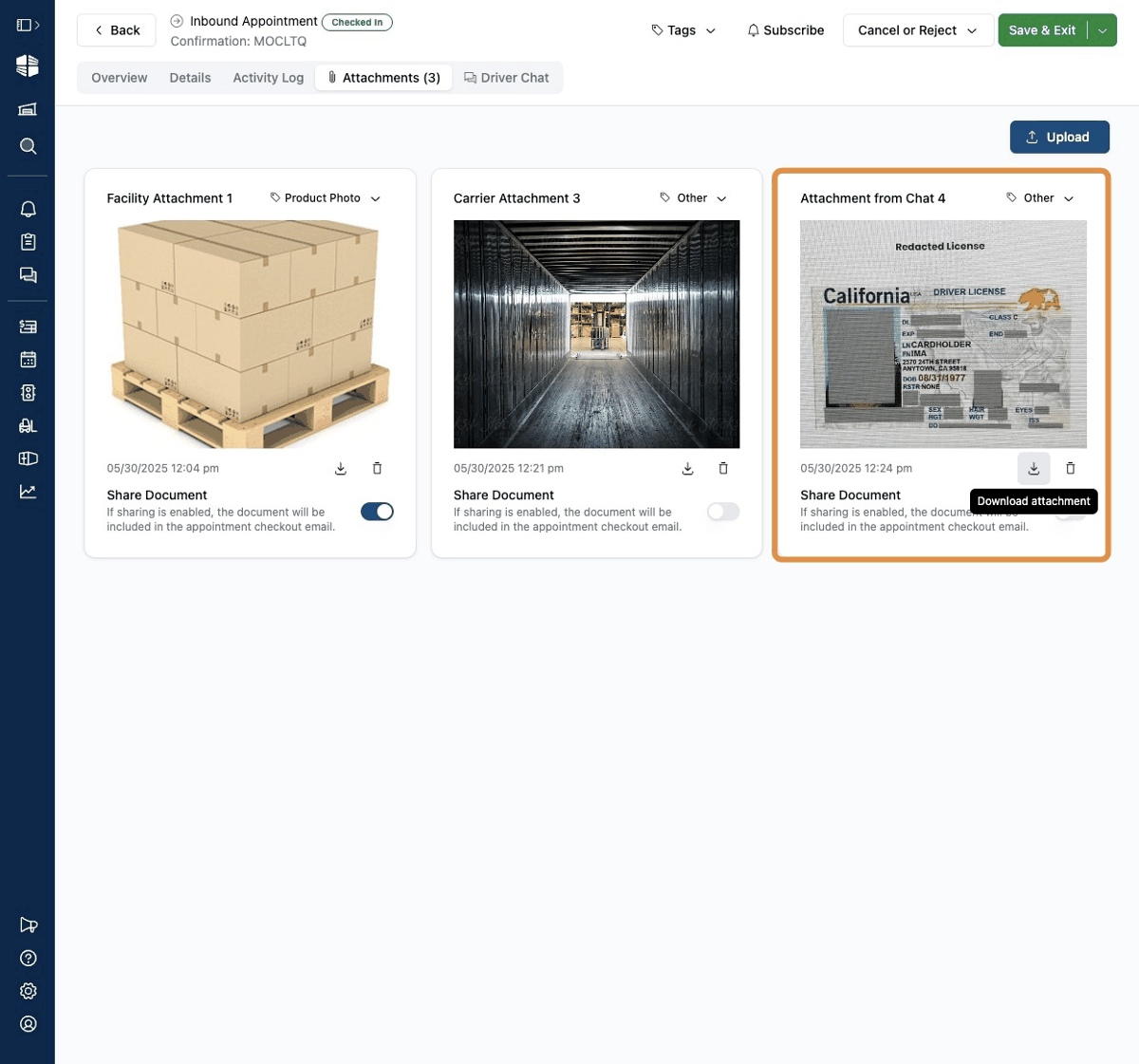
On this page, you can view all existing attachments, including those previously uploaded by the carrier or driver.
To add a new attachment, click "Upload".
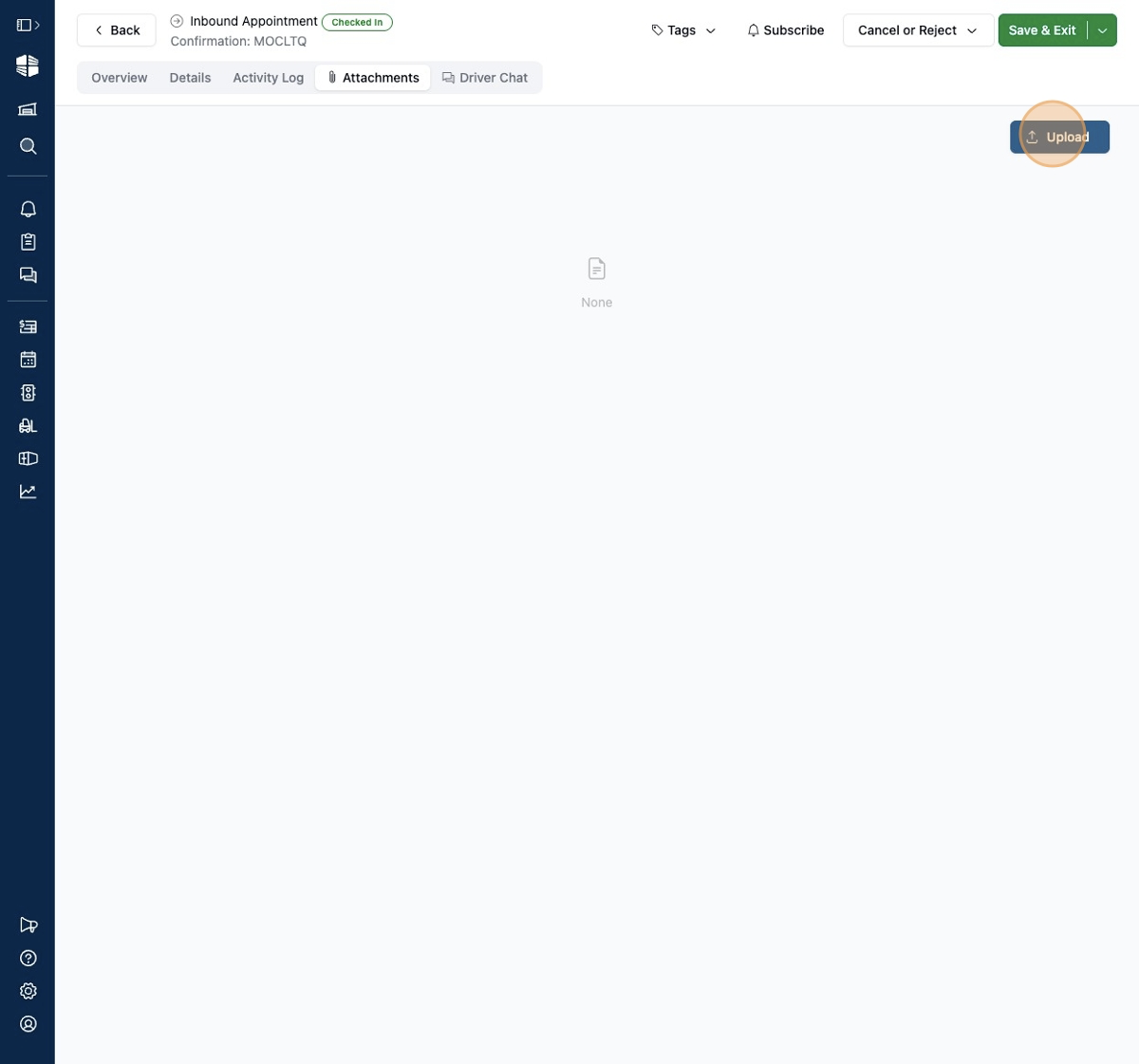
Select the category of the attachment you are intending to add.
Note: this choice can be updated later if there is a more accurate classification or if you make a mistake.
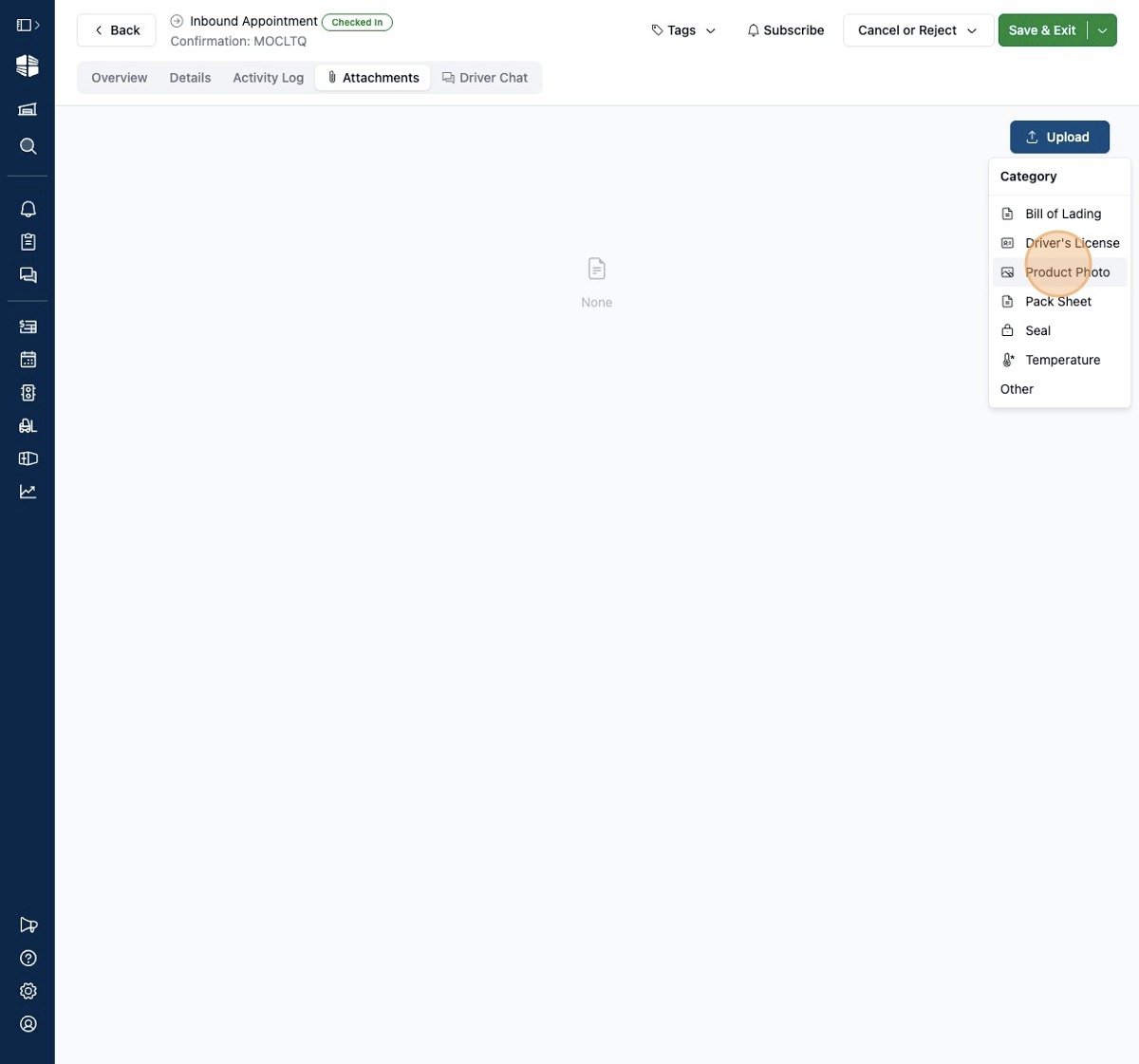
Your web browser will prompt you to select the file to attach.
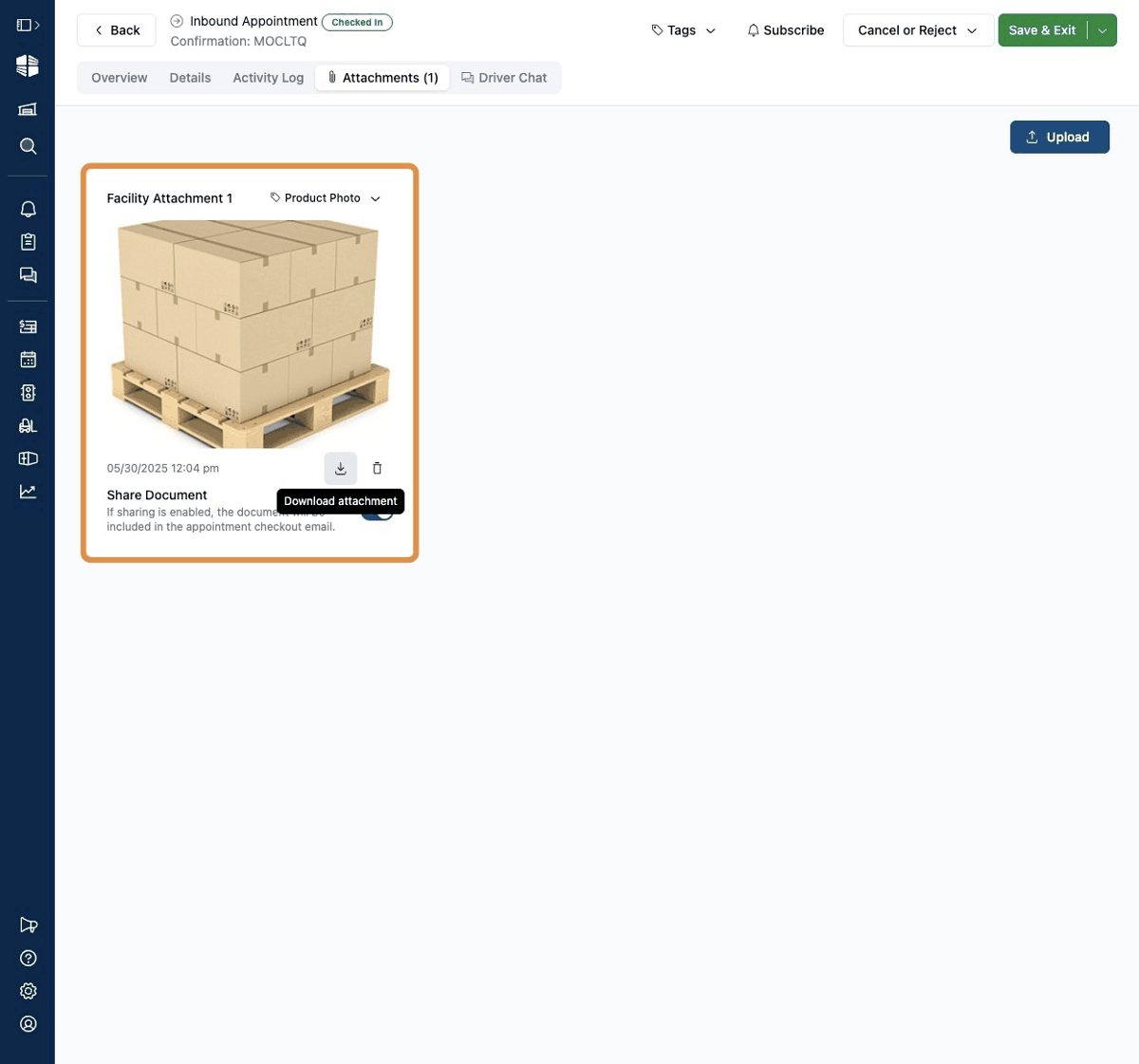
Your attachment is now uploaded and associated with the appointment! There is no need to explicitly save the change.
You can now view and modify your existing attachment as well.
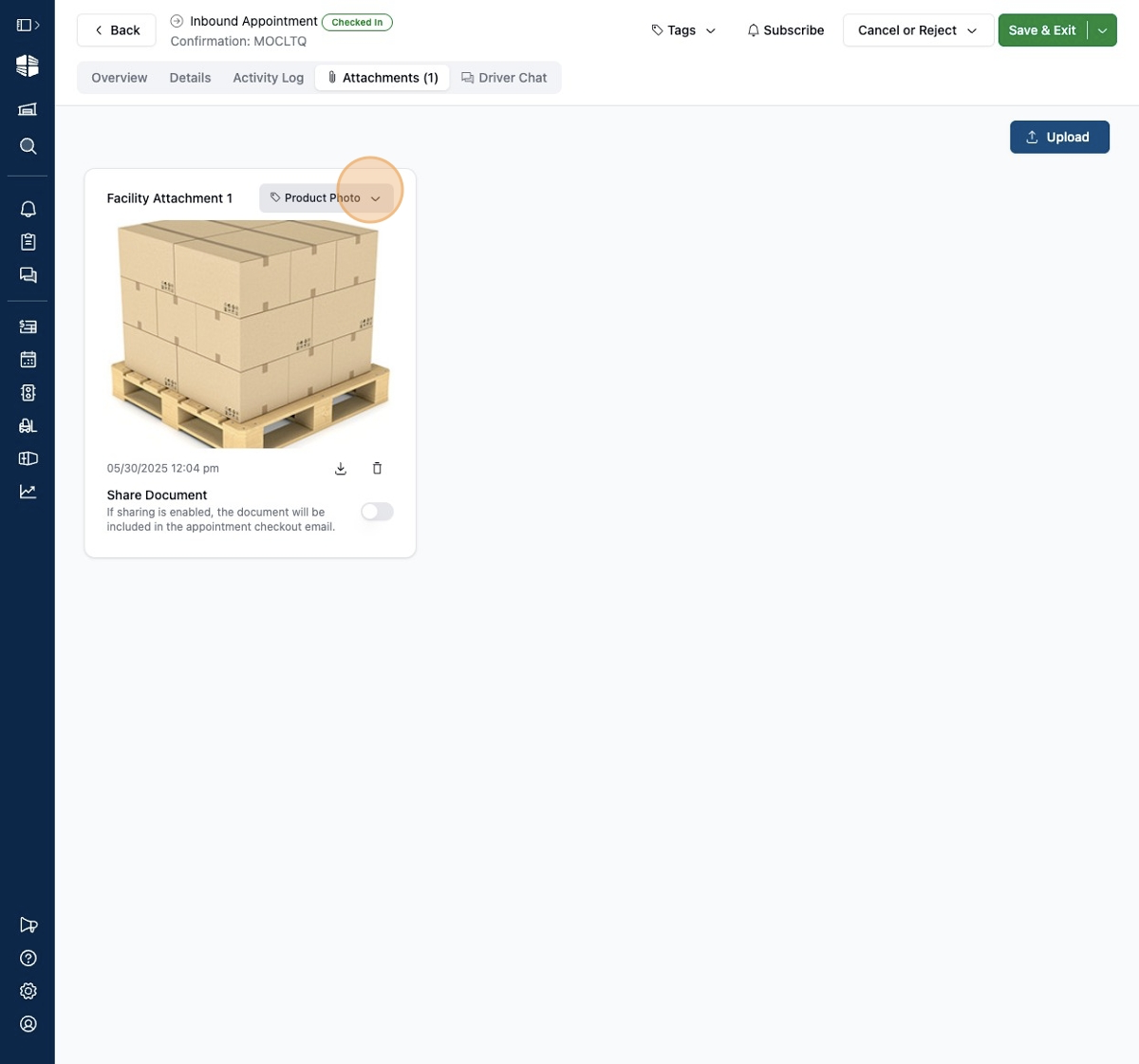
If you need to change the category, you can select a new value in the drop-down associated with the individual attachment.
You can download the attachment to your computer by clicking on the
Downloadicon.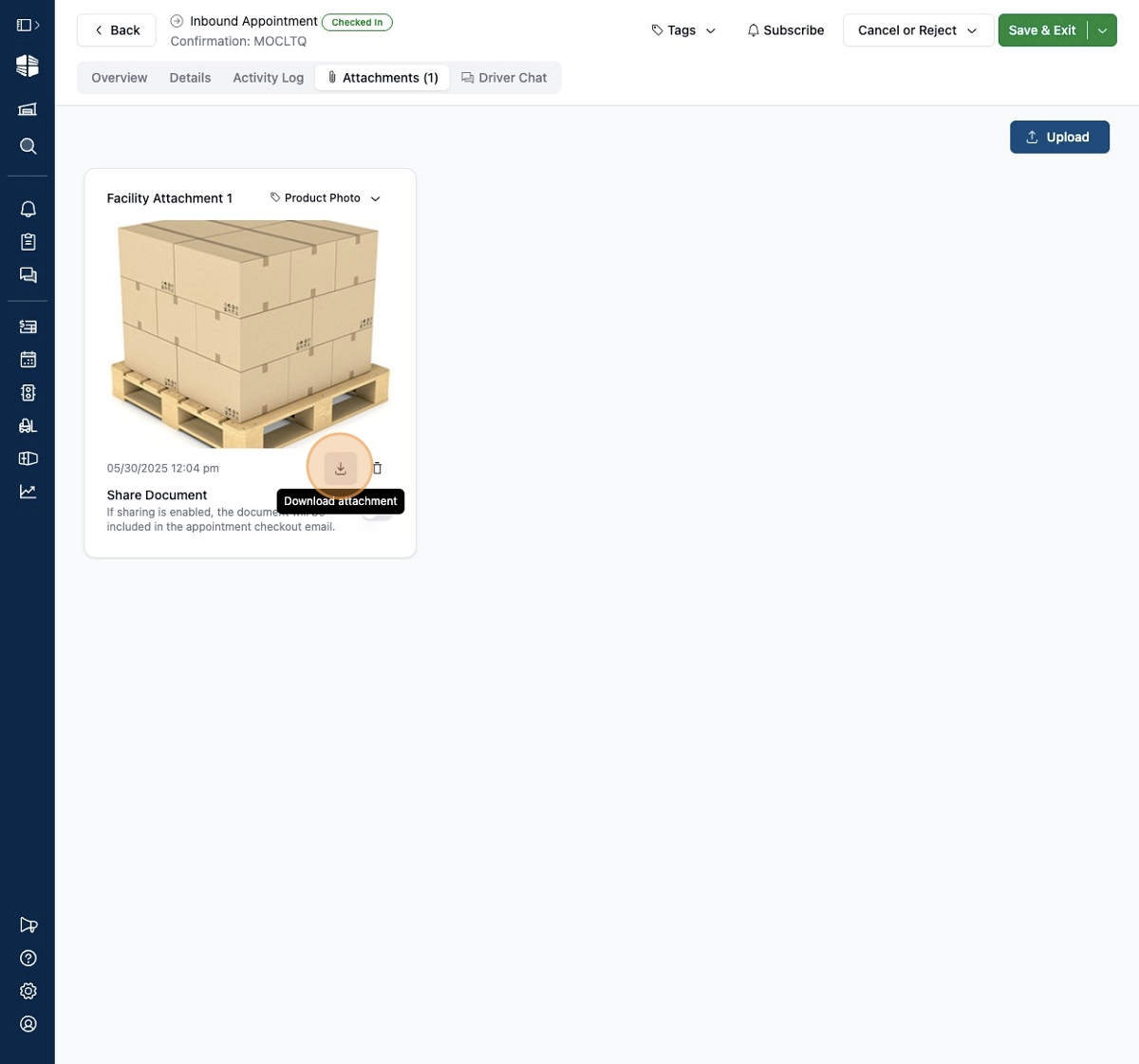
You can use the
Sharetoggle to control whether this attachment is visible to external parties. When the appointment is checked out, any attachments marked to be shared will be sent to all email addresses (carrier, shipper, receiver, and/or client) with a link to view these files.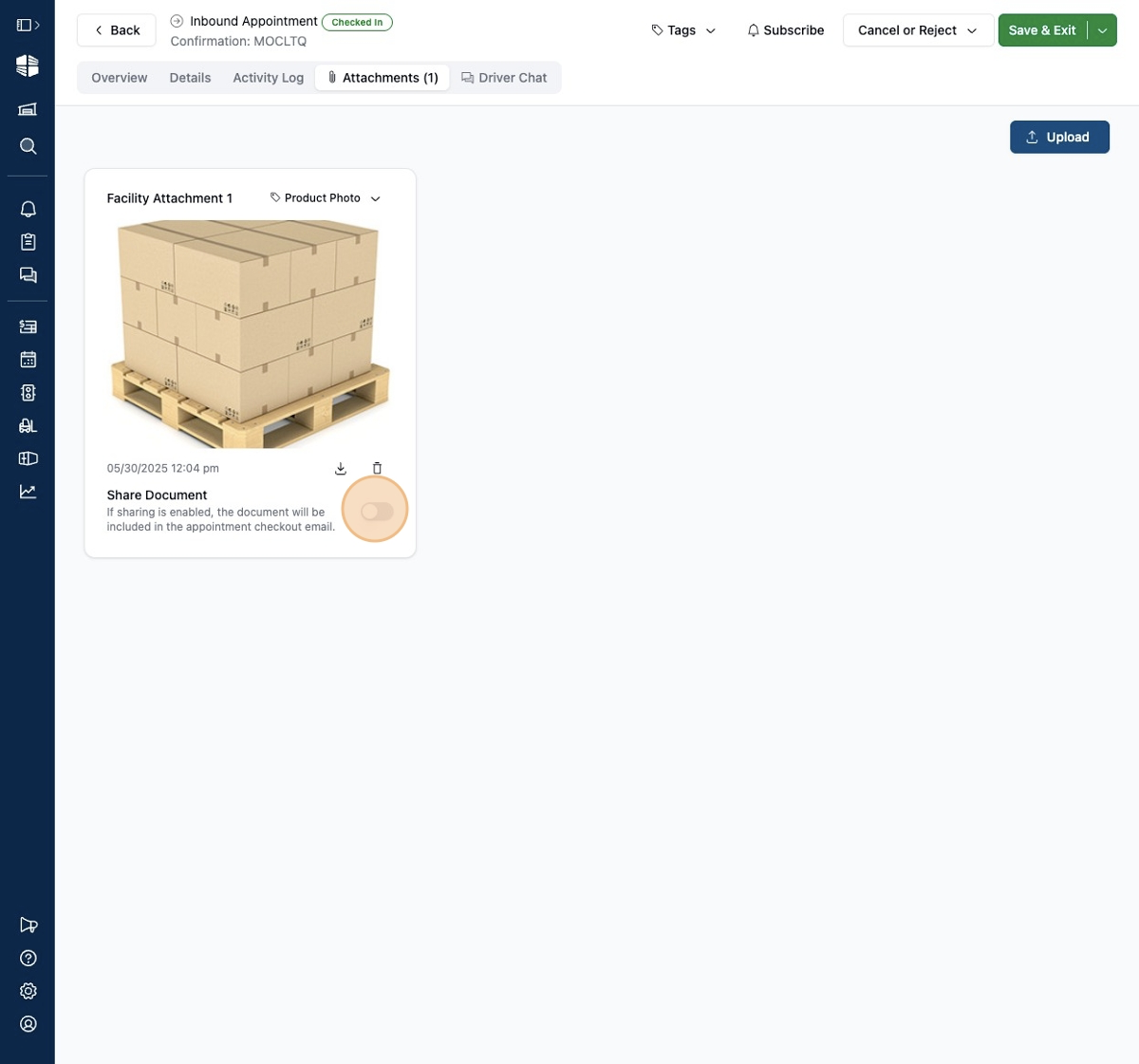
Sharing attachments with External Parties
Shared attachments will be visible on the carrier's view of the appointment. They can view and download them from that page.
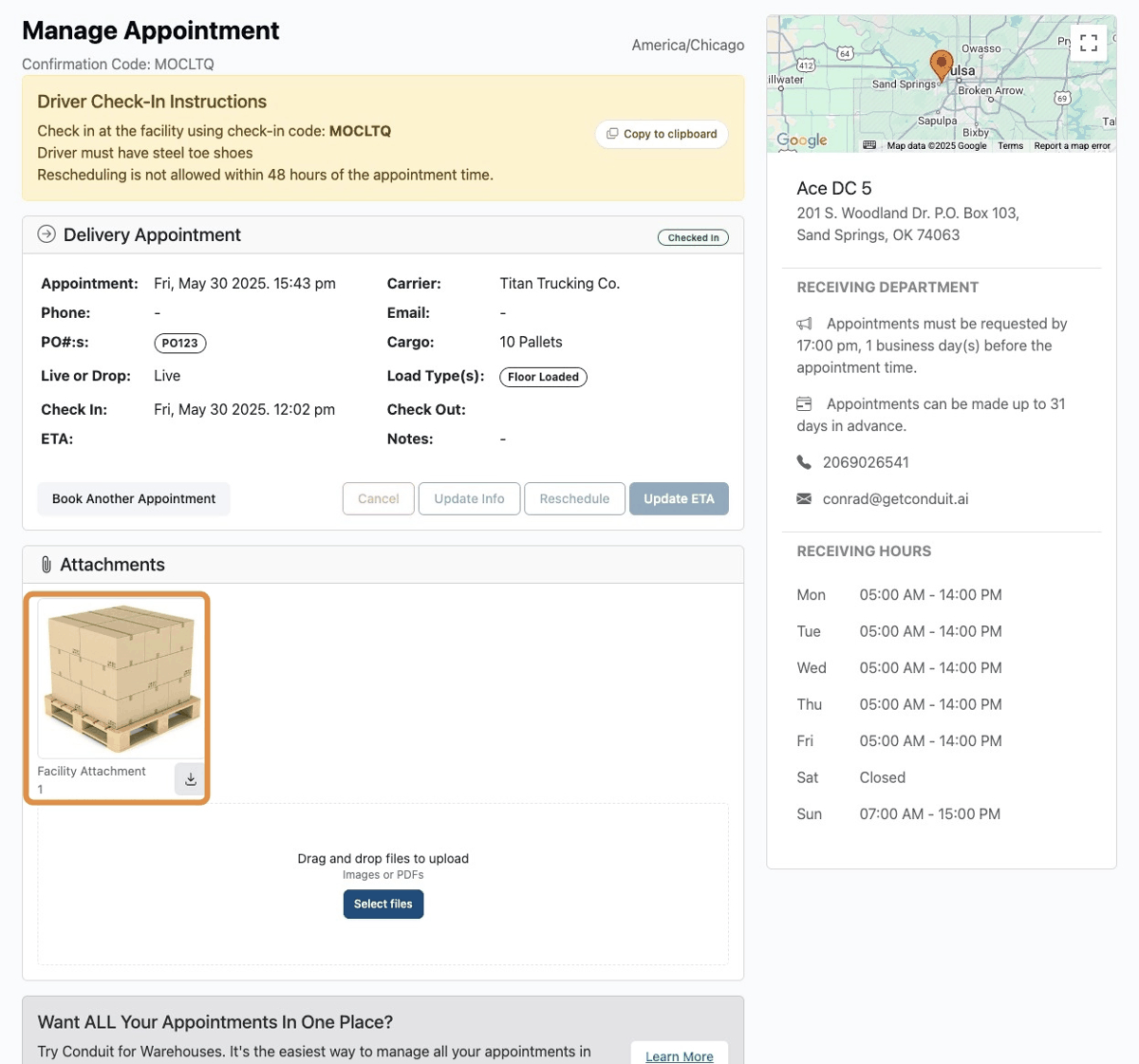
Carriers can also directly upload attachments to the appointment from this page.
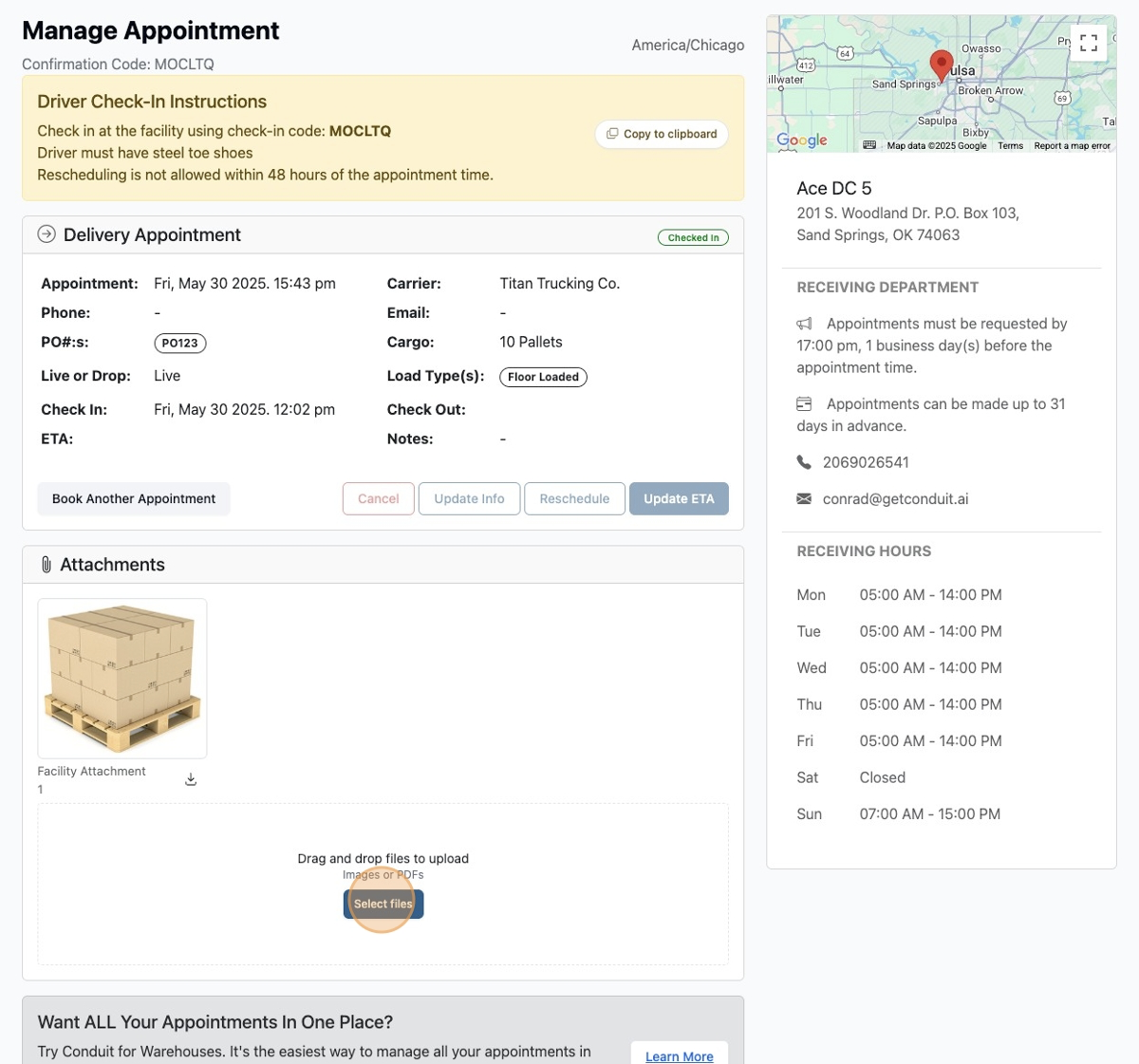
Files uploaded in this manner will be visible in the appointment
Attachmentstab.
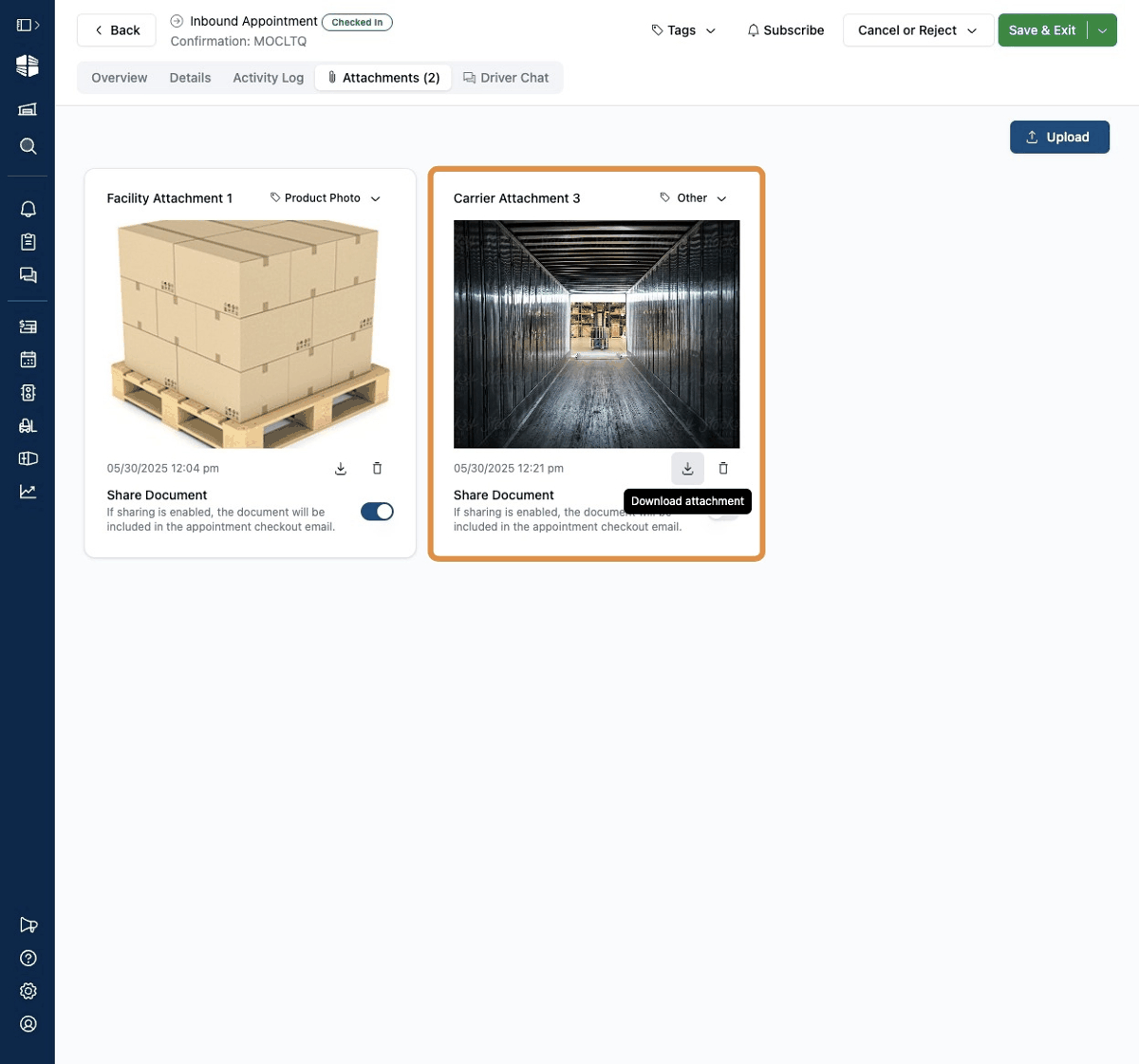
Drivers can also attach files by sending them in their text conversation with the warehouse.
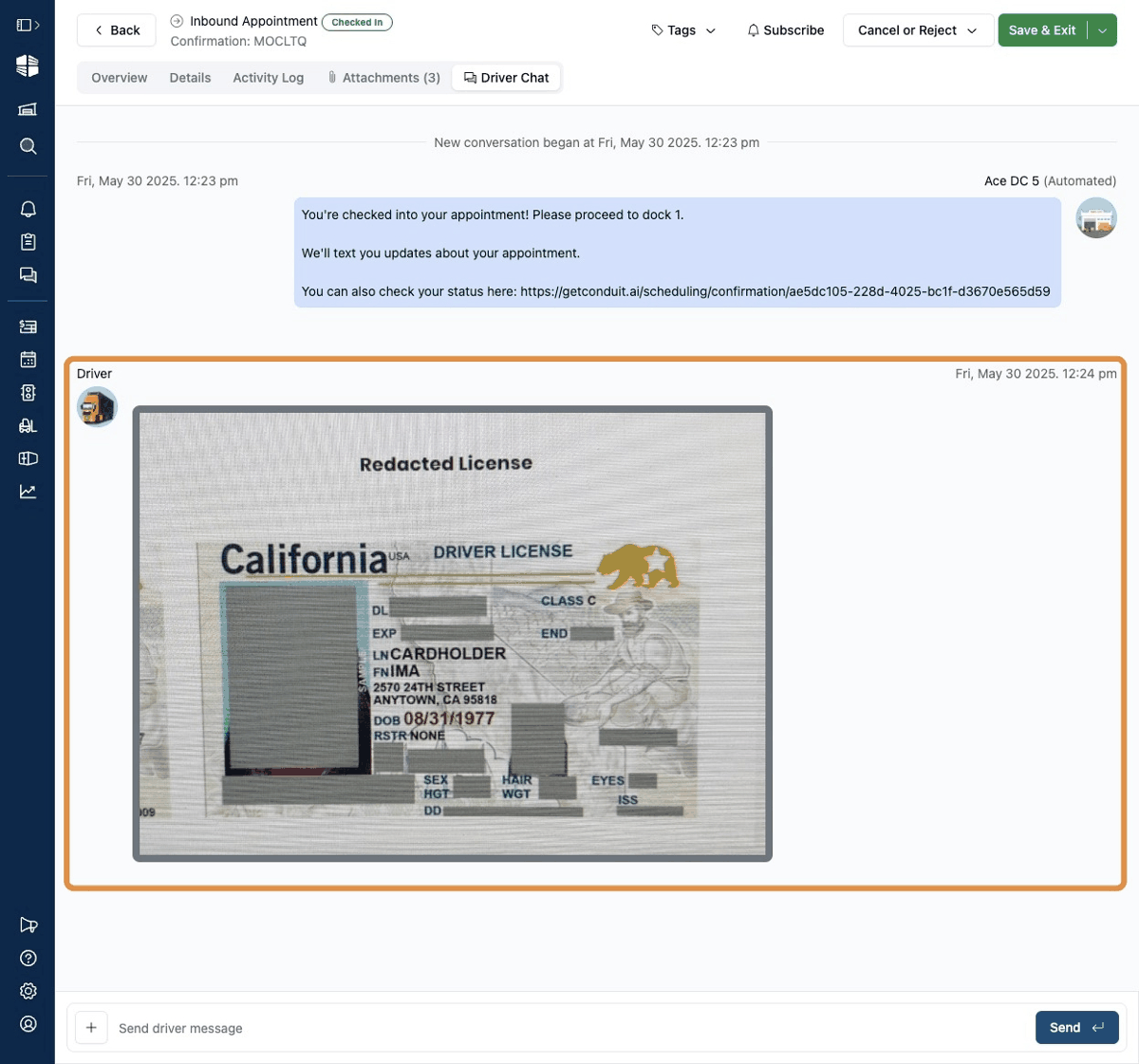
Files received in this way will be converted to attachments as well and be managed in the
Attachmentstab.
Frequently Asked Questions
Can I delete attachments?
Yes, you can delete attachments from the facility app, which will disassociate them from the appointment.
Can I make it so that attachments are automatically shared, so that I don't have to manually share every one?
Yes! Please contact support@getconduit.ai and we can turn that on for you.
What attachments are visible externally?
Attachments explicitly shared via the Share Document toggle, as well as attachments originally added by the carrier/driver, are visible to the carrier in their appointment view.
Can I bulk download all attachments for a single appointment?
We do not support a bulk download function at this time, but it is something we hope to offer in the future.
How long do you keep attachments for?
We keep all appointment data for 7 years.
Download a Printable Copy
⚠ Please note: We update our software with new features regularly. The most up-to-date documentation can always be found on our User Guide website.
If you choose to print documentation or share via PDF, please set reminders to update it regularly.