Outbound Seal Verification
Last updated: November 20, 2025
In the Conduit workflow, you have the ability to verify an outbound seal before checking out an appointment. To enable this feature, please contact us at support@getconduit.ai.
Instructions
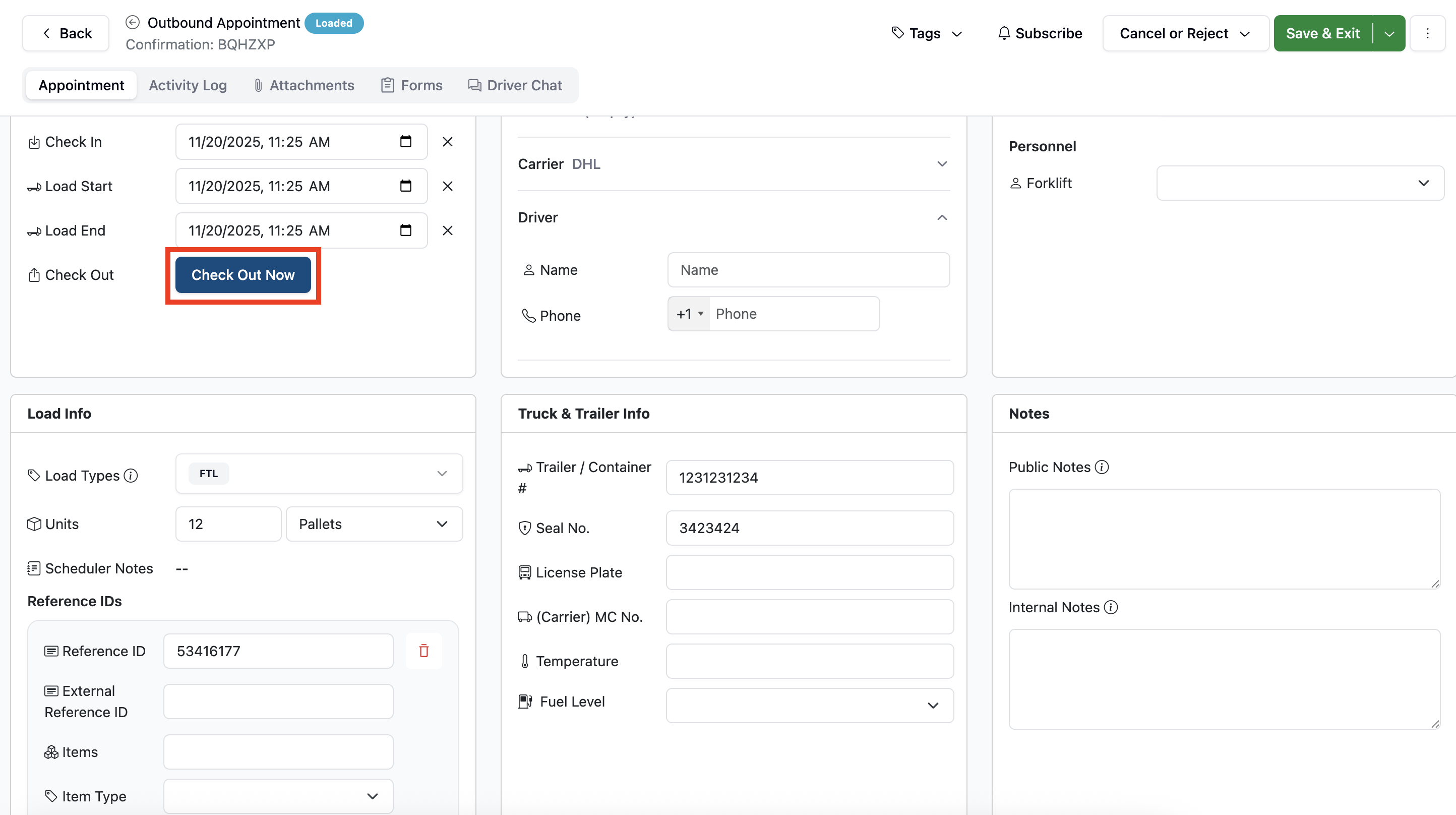
On the appointment details page, when an outbound appointment is sealed and ready to be checked out, click the Check Out Now button
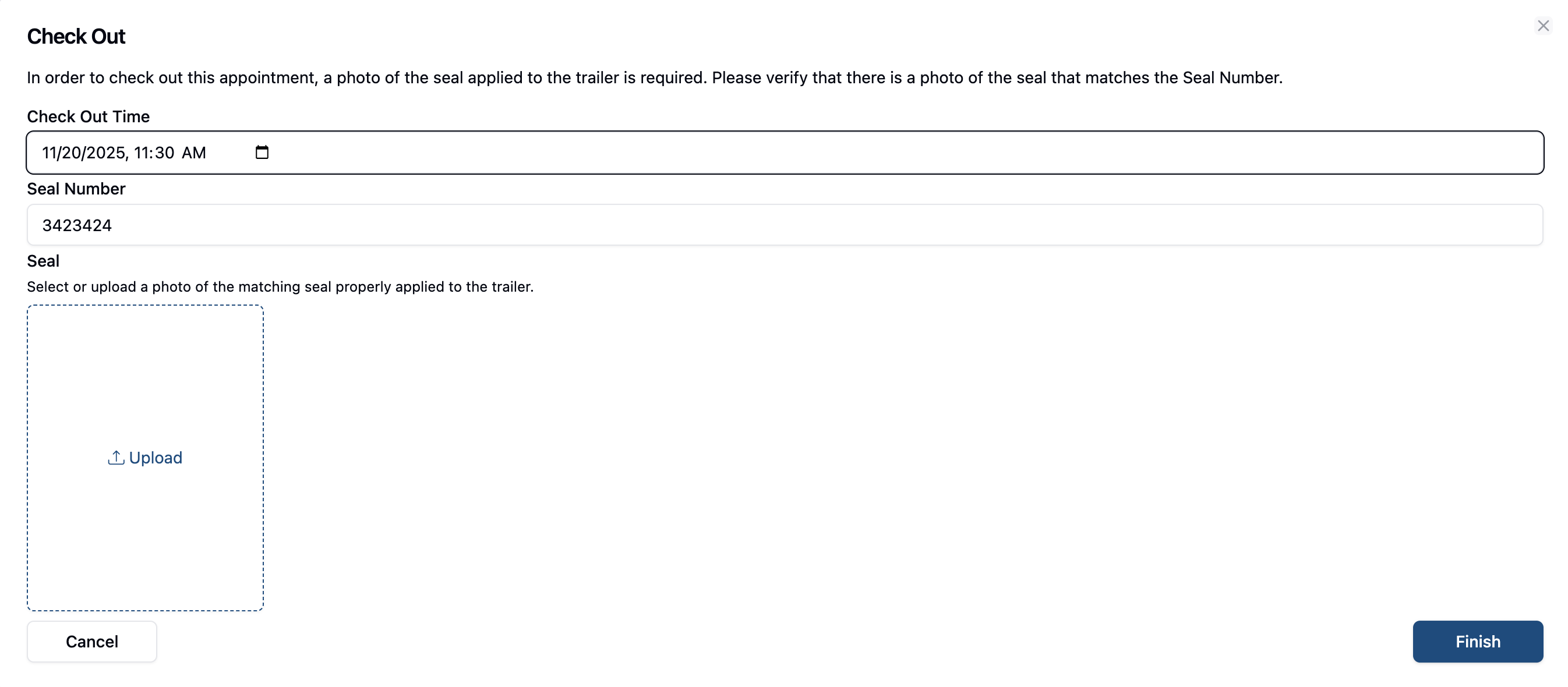
This will then prompt you to upload a photo of the seal, and manually enter in the seal number. The seal number can be auto-populated if it has been entered into the seal field of the appointment details page, otherwise it will show blank. You also have the ability to manually change the check-out time, although it will populate with the time at which you clicked check out.
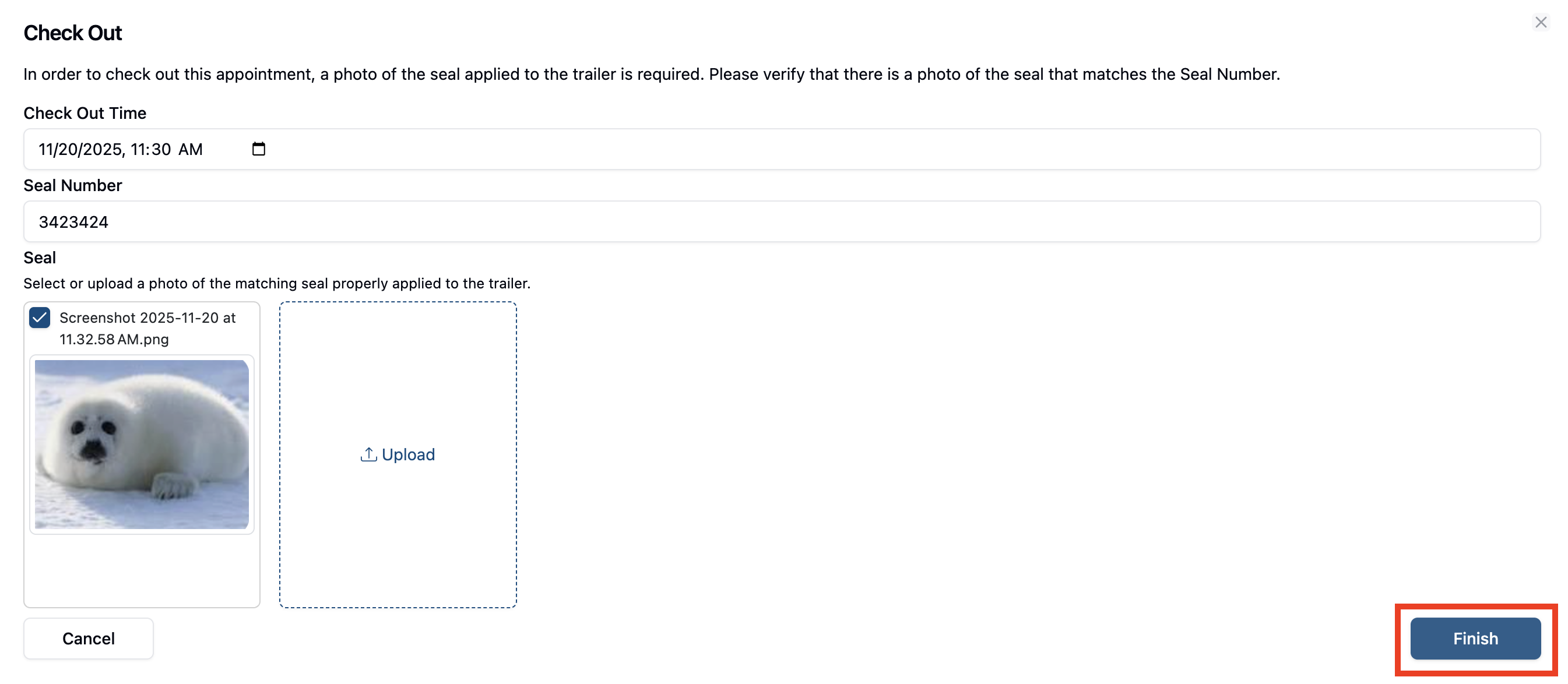
Once you have uploaded the required information, hit Finish, and your seal photo will be uploaded to the attachments tab, and your appointment will be checked out.
Frequently Asked Questions
Will my seal verification photo be shared with the carrier?
No. The seal verification photo (and any photo uploaded by the facility) will default to internal only. TO share this photo, go to the attachment page and click the Share Document toggle.
Can I check out of this appointment without verifying the seal?
No. Once seal verification has been turned on, it will be required to check out of an appointment. If you try to move on without doing so, it will show an error message.